
How to Run a Python Script from the Terminal
Learn how to execute Python scripts from the command line terminal. Covers basic commands, navigation, common issues, and passing arguments to scripts.

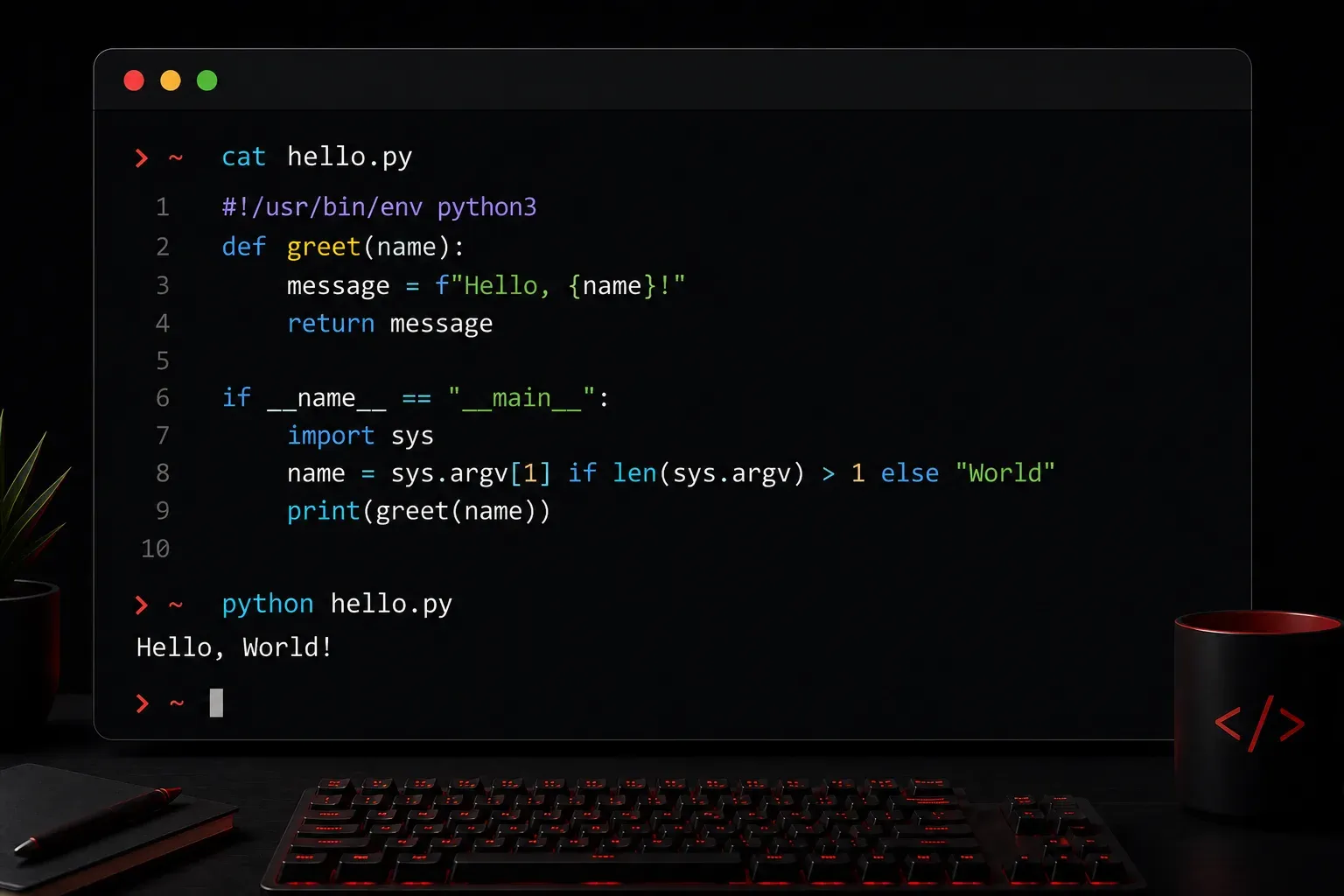
Running Python scripts from the terminal is one of the first skills you'll need as a Python programmer. Whether you're automating network configurations, analyzing data, or building applications, knowing how to execute your Python code from the command line is essential.
Prerequisites
Before we dive in, make sure you have Python installed on your system. You can check by opening your terminal and typing:
python --versionImportant note: On many macOS and Linux systems, the python command may default to Python 2.x (which is deprecated). If you see Python 2.x or get a "command not found" error, try:
python3 --versionIf you see a version number (like Python 3.9.2), you're ready to go. If not, download Python from python.org and install it.
Creating Your First Python Script
Let's start with a simple example. Create a new file called hello.py using any text editor. Here's the content:
print("Hello, World!")
print("This is my first Python script!")

name = input("What's your name? ")
print(f"Nice to meet you, {name}!")
Save this file in a directory you can easily navigate to, like your Desktop or Documents folder.
Navigating to Your Script Location
Open your terminal and navigate to the directory where you saved your Python file. Use the cd command to change directories:
cd DesktopYou can verify you're in the right location by listing the files in the current directory:
lsOn Windows, use dir instead of ls. You should see your hello.py file listed.
Running Your Python Script
Now for the main event. To run your Python script, use the appropriate Python command followed by the filename. The command you use depends on your operating system and Python installation:
python hello.pyOr, if you need Python 3 specifically:
python3 hello.pyYou should see output like this:
Hello, World!
This is my first Python script!
What's your name?
Type your name and press Enter. The script will complete with a personalized greeting.
Platform-Specific Commands
Depending on your system configuration, you might need to use different commands:
python3 hello.py- recommended on macOS and Linux to ensure Python 3.xpython hello.py- typically works on Windows and newer Linux distributionspy hello.py- Windows-only, uses the Python Launcher (not available on macOS/Linux)
Understanding What Happens
When you run python hello.py, several things occur behind the scenes:
- The Python interpreter locates and reads your
hello.pyfile - It compiles the code into bytecode
- The bytecode is executed line by line
- Any output is displayed in your terminal
Common Issues and Solutions
If you encounter errors, here are the most common issues:
Command not found: If you get "python: command not found", Python might not be installed or not in your system's PATH. On macOS/Linux, try python3 instead, as python may refer to the deprecated Python 2.x.
File not found: Make sure you're in the correct directory and the filename is spelled correctly. Remember, filenames are case-sensitive on most systems.
Syntax errors: If Python reports syntax errors, double-check your code for typos or missing punctuation.
Running Scripts with Arguments
You can also pass arguments to your Python scripts. Create a file called greet.py:
import sys

if len(sys.argv) > 1:
    name = sys.argv[1]
    print(f"Hello, {name}!")
else:
    print("Hello, stranger!")
Run it with an argument:
python greet.py AliceThis will output: Hello, Alice!
What's Next
Now that you can run Python scripts from the terminal, you're ready to explore more advanced topics. In our next post, we'll cover how to work with Python packages and the pip package manager, which will expand what your scripts can accomplish.