
Port Security: Limiting What Connects to a Switch Port
Port security is a Cisco IOS feature that restricts which MAC addresses can communicate through a switch port. This post covers how to configure port security, use sticky MAC learning, choose the right violation mode, and verify your settings with real CLI output. It maps to CCNA exam objective 5.7

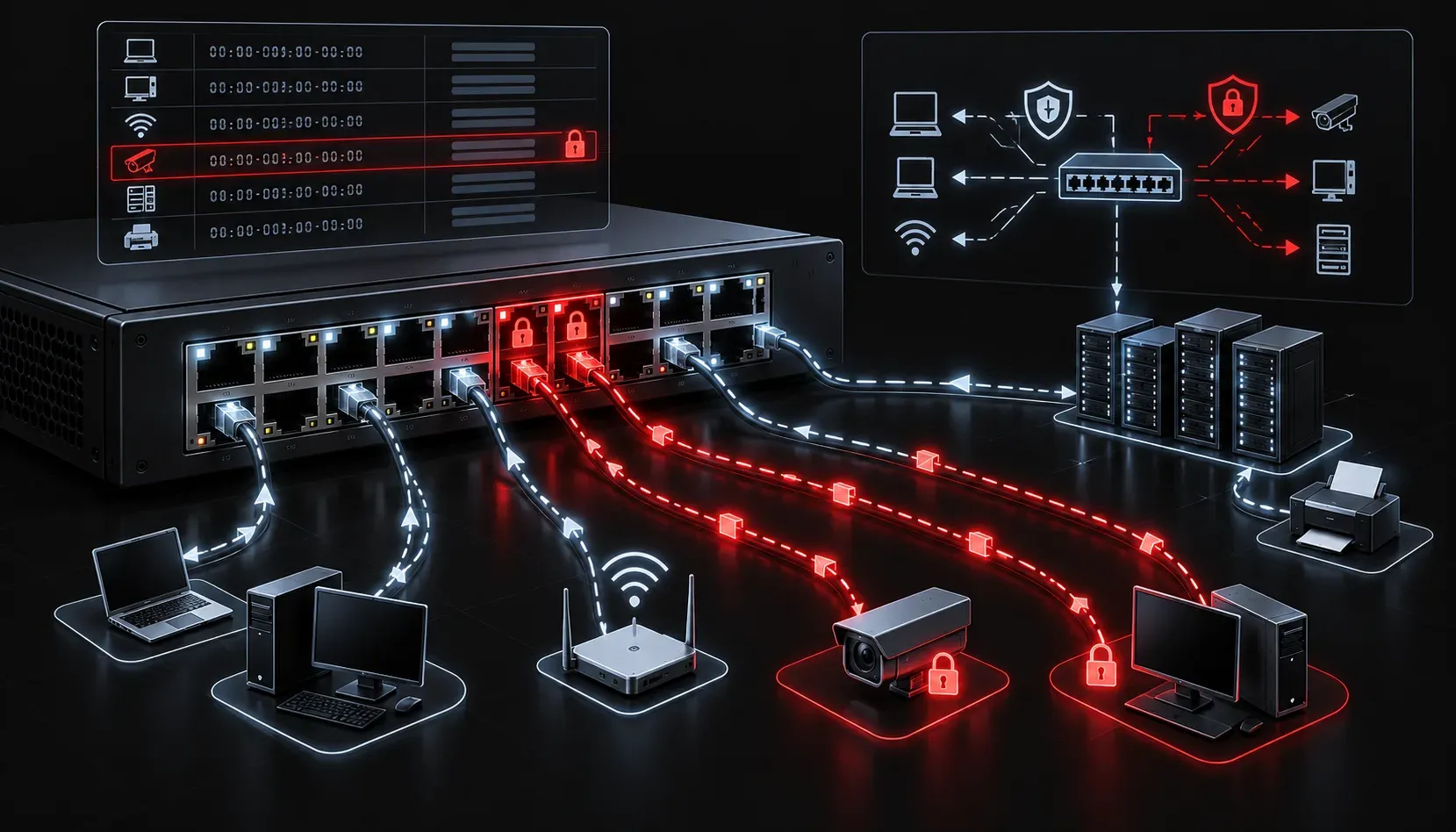
One of the most common security risks on a switched network is unauthorized devices plugging into open switch ports. Someone walks up to a wall jack, connects their laptop, and they're on your network. Port security is the Cisco IOS feature that stops exactly that from happening.
This post covers how to configure port security on a Cisco switch, what the violation modes do, and how to verify your configuration. It maps to CCNA exam objective 5.7: Layer 2 Security Features.
What Is Port Security?
Port security is a switch feature that restricts which MAC addresses are allowed to communicate through a given port. You can set a maximum number of MAC addresses, define specific allowed addresses, or let the switch learn them automatically. If a frame arrives from an unauthorized device, the switch takes action based on the violation mode you've configured.
Port security only works on access ports. You cannot apply it to a trunk port without first converting it to an access port.
Enabling Port Security
Before enabling port security, make sure the port is configured as a static access port. Then apply the switchport port-security command.
Switch(config)# interface FastEthernet0/1
Switch(config-if)# switchport mode access
Switch(config-if)# switchport port-security
That's the minimum configuration. By default, this allows one MAC address and uses the shutdown violation mode. The switch learns the first MAC address it sees dynamically and locks the port if anything else tries to connect.
Setting the Maximum Number of Addresses
You can allow more than one device on a port using the maximum keyword. This is useful for IP phones, where the phone and an attached PC share the same port.
Switch(config-if)# switchport port-security maximum 2The range is 1 to 8192, though realistically you'll rarely need more than a handful per port.
Sticky MAC Addresses
Instead of manually specifying MAC addresses, you can use sticky learning. The switch dynamically learns MAC addresses and adds them to the running configuration automatically.
Switch(config-if)# switchport port-security mac-address stickyOnce learned, the sticky entries look like this in your running config:
switchport port-security mac-address sticky 0050.7966.6800To make them survive a reboot, save your configuration with copy running-config startup-config. If you don't save, sticky entries are lost when the switch restarts.
Violation Modes
When an unauthorized MAC address is detected, the switch responds according to the configured violation mode. There are three options:
- Shutdown (default): The port is placed in an error-disabled state immediately. Traffic stops completely and the port must be manually re-enabled.
- Restrict: The port stays up, but frames from unauthorized MAC addresses are dropped. A syslog message is generated and the violation counter increments.
- Protect: Same as restrict, but no syslog message is generated. Silent drop only. This is the least visible option.
To set a violation mode:
Switch(config-if)# switchport port-security violation restrictFor most production environments, restrict gives you visibility without hard-locking the port. Shutdown is more secure but creates more administrative overhead when recovering ports.
Recovering an Error-Disabled Port
If a port enters error-disabled state due to a violation, you need to manually bring it back up:
Switch(config)# interface FastEthernet0/1
Switch(config-if)# shutdown
Switch(config-if)# no shutdown
You can also configure automatic recovery using errdisable recovery cause psecure-violation, though this is not enabled by default.
Verifying Port Security
Use these commands to check your configuration and port status:
Switch# show port-security interface FastEthernet0/1Port Security : Enabled
Port Status : Secure-up
Violation Mode : Shutdown
Aging Time : 0 mins
Maximum MAC Addresses : 1
Total MAC Addresses : 1
Configured MAC Addresses : 0
Sticky MAC Addresses : 1
Last Source Address:Vlan : 0050.7966.6800:1
Security Violation Count : 0For a summary across all ports, use show port-security without specifying an interface. To see which MAC addresses have been learned, run show port-security address.
What's Next?
Port security is one piece of the Layer 2 security puzzle. The next topic in this cluster is DHCP Snooping, which prevents rogue DHCP servers from assigning addresses to your hosts. Understanding how DHCP Snooping works alongside port security gives you a much stronger foundation for defending switched networks, and it's another key exam topic under CCNA objective 5.7.
Tools and resources for this topic
- CCNA Official Cert Guide (Wendell Odom) — The definitive CCNA study resource. Both volumes cover the 200-301 exam blueprint in full.
- Wendell Odom CCNA Vol 1 — Covers networking fundamentals, switching, and routing basics.
- Wendell Odom CCNA Vol 2 — Covers advanced routing, WAN, infrastructure services, and security.