
Working with Processes in Linux
This post introduces Linux processes for beginners, covering what a process is, how to view running processes with ps and top, how to search for and stop processes using kill and pkill, and how to run commands in the background. Practical terminal commands and real output examples are included thro

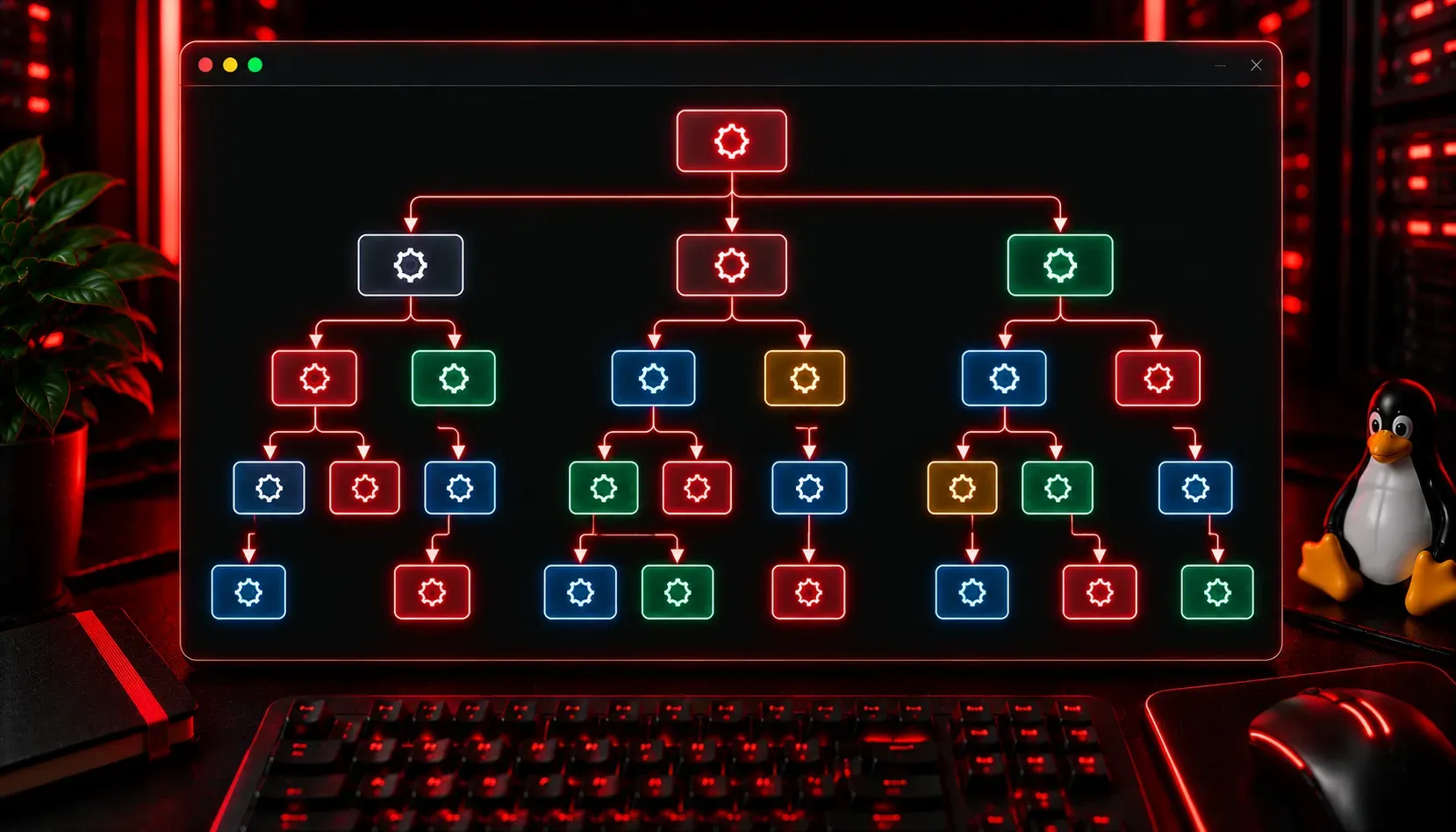
Every time you open a terminal, run a script, or start a service, Linux creates a process. Understanding how to view, manage, and control these processes is one of the most practical skills you can develop as a Linux user. Whether you are troubleshooting a slow system or stopping a misbehaving application, working with processes is something you will do regularly.
If you are new to Linux, a terminal is a text-based interface where you type commands directly. It is the primary tool used throughout this article, so open one up and follow along.
What Is a Process?
A process is simply a running instance of a program. When you type ls in the terminal, Linux creates a process to execute it and then destroys it when the command finishes. Longer-running programs, like a web server or a text editor, keep their process alive until you close them or they are explicitly stopped.
Every process in Linux is assigned a unique Process ID, or PID. The very first process that starts when your system boots is assigned PID 1. On most modern systems this is systemd, though older or alternative systems may use a different init system such as Upstart, OpenRC, or SysVinit. Every other process on the system is a descendant of that original process.
Viewing Running Processes
The ps Command
The ps command gives you a snapshot of currently running processes. By itself it only shows processes attached to your current terminal session. The more useful version is:
ps auxThis shows all processes from all users, along with the user who owns them, CPU and memory usage, and the command that started each process. Here is an example of what the output looks like:
USER       PID %CPU %MEM    VSZ   RSS TTY      STAT START   TIME COMMAND
root         1  0.0  0.1 168940 13312 ?        Ss   09:01   0:02 /sbin/init
student   1024  0.1  0.5 421332 44200 ?        Ssl  09:03   0:10 /usr/bin/python3
student   1452  0.0  0.0  10072  3840 pts/0    Ss   09:15   0:00 bash
The top Command
While ps gives you a static snapshot, top gives you a live, updating view of your processes. Just type:
topYou will see a real-time list sorted by CPU usage. Press q to quit. A popular alternative is htop, which offers a more readable, colour-coded interface. If it is not already installed, you can add it with:
sudo apt install htopFinding a Specific Process
When you know the name of a process, you can search for its PID using pgrep:
pgrep firefoxOr you can combine ps with grep to get more detail:
ps aux | grep firefoxStopping a Process
The kill command sends a signal to a process. The most common usage is:
kill 1452This sends a SIGTERM signal, which politely asks the process to stop. If a process refuses to stop, you can force it with SIGKILL:
kill -9 1452If you know the name but not the PID, use pkill instead:
pkill firefoxUse the -9 flag carefully. It terminates a process immediately without giving it a chance to clean up, which can sometimes cause data loss.
Running Processes in the Background
By default, commands run in the foreground, meaning your terminal waits for them to finish. You can run a command in the background by adding an ampersand at the end:
ping google.com > ping_log.txt &To see your background jobs, type jobs. To bring a background job back to the foreground, use fg %1, where 1 is the job number shown by jobs.
What's Next
Now that you understand how to view and control processes, the next logical step is learning about Linux services and systemd. Services are long-running processes managed by the system, and systemctl is the tool you will use to start, stop, and monitor them. That is exactly what we will cover in the next post.