
Advanced WLAN Settings for Enhanced Connectivity
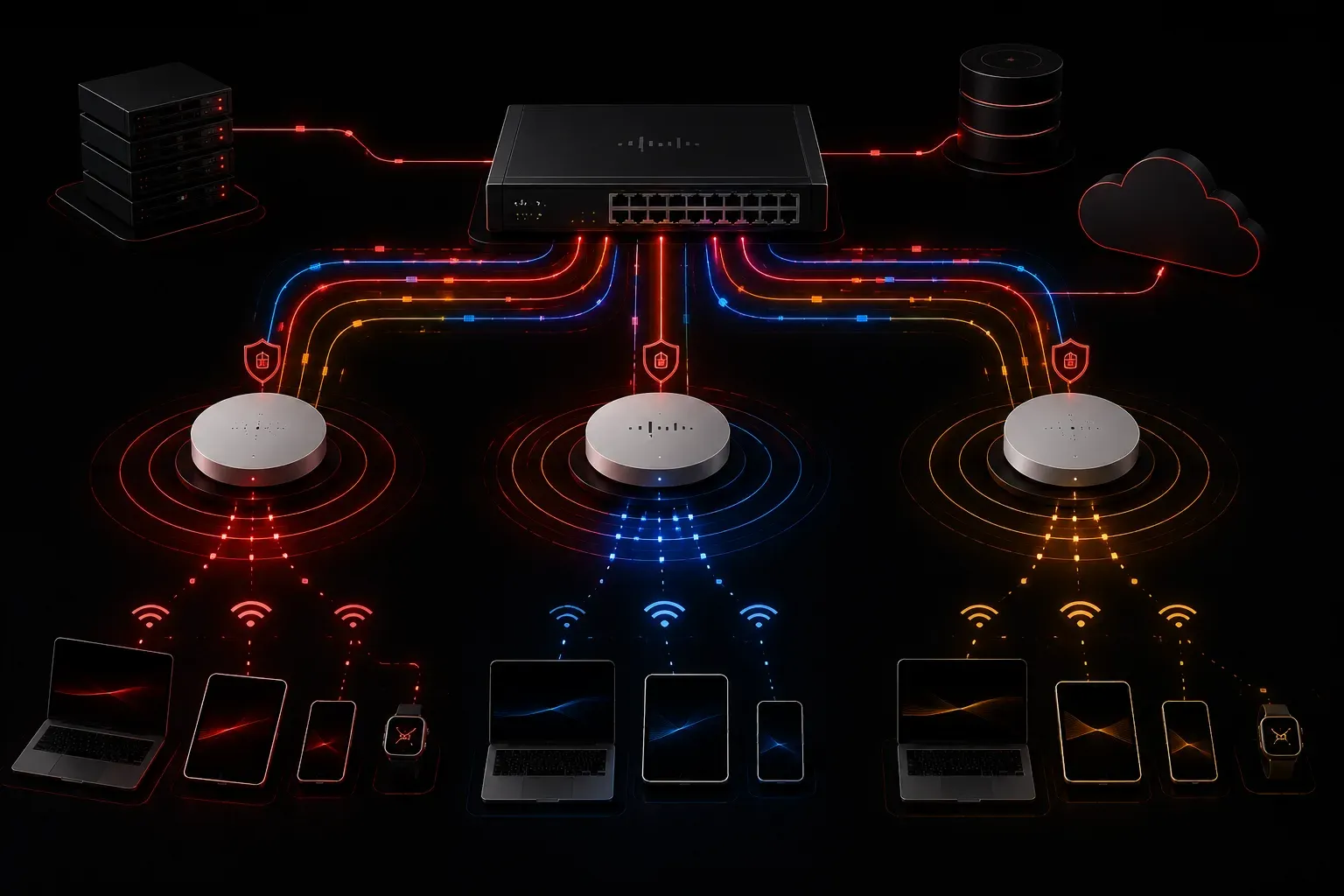
This post covers the key advanced WLAN settings available on Cisco wireless infrastructure, including band selection, WMM QoS, band steering, and client load balancing. It explains how each setting impacts wireless performance and enhanced connectivity in real-world environments. Practical examples

Why Advanced WLAN Settings Matter
Getting a wireless network up and running is one thing. Getting it to perform reliably under real-world conditions is another. Once you understand the basics of SSIDs, channels, and security modes, the next step is to explore the advanced WLAN settings that directly impact wireless performance and the client experience.
For the CCNA exam and in practice, understanding these settings helps you troubleshoot connectivity issues and design networks that actually work well. Let's walk through the most important options you'll encounter.
Band Selection and Channel Width
Modern wireless access points support both 2.4 GHz and 5 GHz bands. Each has trade-offs:
- 2.4 GHz offers longer range but is congested and supports lower maximum data rates
- 5 GHz offers faster speeds and less interference, but shorter range
Channel width is a related setting. A 20 MHz channel width is more stable and less prone to interference. A 40 MHz or 80 MHz channel width increases throughput but also increases the risk of interference with neighboring networks. In dense environments such as offices or apartments, narrower channels are often the better choice for WLAN optimization.
Transmit Power Control
Cranking the transmit power to maximum seems like the obvious move, but it can actually hurt performance. If your AP shouts loudly but the client device can only whisper back, you create an asymmetric link. Many enterprise APs support automatic power control, sometimes called TPC (Transmit Power Control), which adjusts output based on the RF environment.
In a Cisco WLC (Wireless LAN Controller) environment, this is configured under the RF profile settings and is part of what makes Cisco's Radio Resource Management (RRM) useful for enhanced connectivity across multiple APs.
QoS and WMM (Wi-Fi Multimedia)
WMM (Wi-Fi Multimedia) is a wireless QoS standard that prioritizes traffic into four access categories:
- Voice (highest priority)
- Video
- Best Effort
- Background (lowest priority)
On a Cisco WLC, WMM is enabled per WLAN profile. Without WMM enabled, voice and video traffic compete equally with file downloads, resulting in choppy calls and poor video quality. For any WLAN that will carry voice or video, WMM should always be enabled.
Client Band Steering
Band steering is a feature that nudges capable clients toward the 5 GHz band instead of defaulting to 2.4 GHz. Since most modern devices support both bands, this frees up the congested 2.4 GHz band for older or IoT devices that need it.
On a Cisco WLC, this is often called Band Select and works by slightly delaying probe responses on the 2.4 GHz band, encouraging dual-band clients to associate on 5 GHz instead. It is a simple toggle in the WLAN advanced settings tab.
Session Timeouts and Client Load Balancing
Two other settings worth knowing for the CCNA exam are session timeouts and load balancing:
- Session Timeout forces clients to re-authenticate after a defined period, which is useful for guest networks to limit session length
- Client Load Balancing distributes clients across multiple APs to prevent any single AP from becoming overloaded in high-density environments
Both of these are configured in the WLAN advanced settings on a Cisco WLC and contribute directly to wireless performance and overall network stability.
A Quick Look at the WLC Interface
In a Cisco WLC, most of these advanced WLAN settings live under WLANs > Edit > Advanced. Here is what a typical CLI view of a WLAN summary looks like:
(Cisco Controller) > show wlan summary

Number of WLANs.................................. 2

WLAN ID  WLAN Profile Name / SSID               Status    Interface Name
-------  -------------------------------------  --------  --------------------
1        CorpNetwork / CorpNetwork              Enabled   management
2        GuestNetwork / GuestWifi               Enabled   guest-vlan
From here, diving into show wlan 1 gives you a full breakdown of every parameter configured on that WLAN, including QoS, band select status, and session timeouts.
What's Next
Now that you have a handle on advanced WLAN settings for enhanced connectivity, the next logical step is understanding how wireless clients actually roam between access points. In the next post, we'll look at how roaming works, what triggers a client to switch APs, and how features like fast BSS transition (802.11r) keep that process smooth.
If you want to go deeper on wireless fundamentals before then, the Cisco Press CCNA 200-301 Official Cert Guide by Wendell Odom covers WLAN architecture and configuration in solid detail.
Tools and resources for this topic
- Wendell Odom CCNA Vol 1 — Covers networking fundamentals, switching, and routing basics.
- Wendell Odom CCNA Vol 2 — Covers advanced routing, WAN, infrastructure services, and security.