
Committing Changes in Git Explained Simply
This post explains what Git commits are, how the three-stage workflow operates, and how to properly stage and commit changes in a network automation project. It covers practical CLI examples, commit message best practices, and how to view commit history using git log.

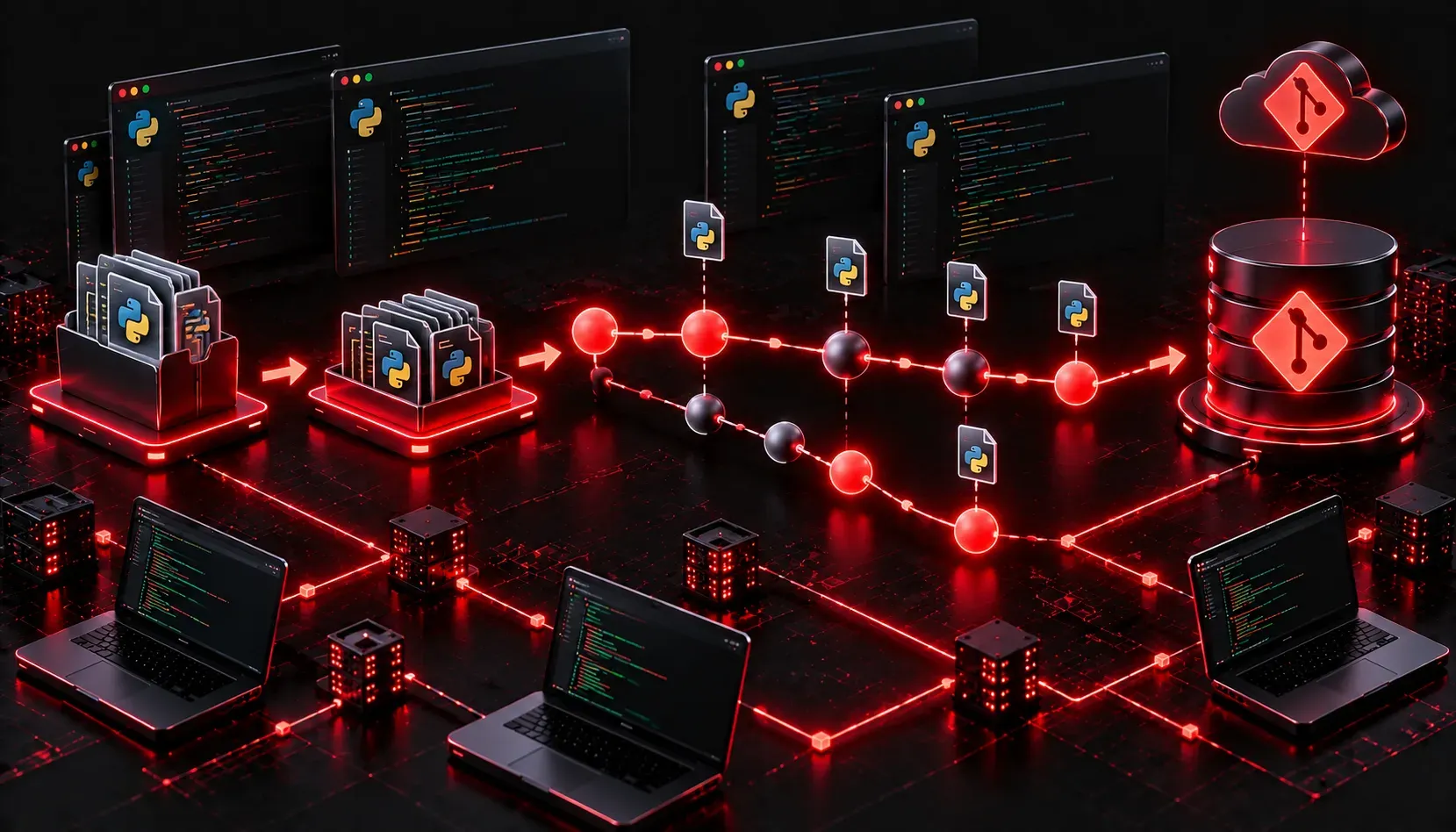
If you've ever lost work because you forgot to save a file, you already understand why version control matters. Git takes that idea further by not just saving your work, but tracking every meaningful change you make over time. The mechanism that makes this possible is the commit.
Understanding how committing changes in Git works is one of the most fundamental skills you need as a network automation engineer. Let's break it down clearly.
What Is a Git Commit?
A Git commit is a snapshot of your project at a specific point in time. Think of it like a photograph of your entire codebase. Every time you commit, Git records exactly what your files look like at that moment, who made the change, when it happened, and a message describing why.
Unlike simply saving a file, Git commits are stored permanently in your project's history. You can always go back to any previous commit, compare differences between commits, or share your commits with teammates. This is what makes saving work in Git so powerful compared to a regular file save.
The Three-Stage Workflow
Before you can commit, you need to understand that Git has three areas your files move through:
- Working Directory: where you edit your files normally
- Staging Area (Index): where you prepare and review changes before committing
- Repository (.git folder): where committed snapshots are permanently stored
You don't commit everything in your working directory automatically. You first stage the changes you want to include, then commit just those staged changes. This gives you precise control over what goes into each commit.
Making Your First Commit
Here is a typical workflow relevant to network automation. Suppose you created a Python script called ping_check.py that tests reachability to a list of network devices.
First, check the current status of your repository:
git statusGit will show you something like this:
On branch main
Untracked files:
  (use "git add <file>..." to include in what will be committed)
        ping_check.py

nothing added to commit but untracked files present
Next, stage the file using git add:
git add ping_check.pyRun git status again to confirm it is staged:
On branch main
Changes to be committed:
  (use "git restore --staged <file>..." to unstage)
        new file:   ping_check.py
Now commit the staged change with a descriptive message:
git commit -m "Add initial ping check script for device reachability"Git will respond with confirmation:
[main (root-commit) 4f3a1c2] Add initial ping check script for device reachability
 1 file changed, 0 insertions(+), 0 deletions(-)
Your commit is now saved permanently in your local repository history.
Why Git Matters for Network Automation
Network automation workflows often involve Python scripts, Ansible playbooks, and configuration templates that evolve rapidly as you test against lab devices. Git gives you a reliable way to track those changes, roll back a broken script, and collaborate with teammates without overwriting each other's work. For CCNA-level automation tasks, such as automating device configurations with Netmiko or generating interface reports with NAPALM, committing your work in logical, well-described snapshots keeps your project manageable and auditable.
Writing Good Commit Messages
The message you attach to a Git commit matters more than beginners often realize. A vague message like "fixed stuff" is nearly useless when you're debugging a project three months later. A clear message like "Fix SNMP community string in device inventory script" tells you exactly what changed and why.
A few quick guidelines for good commit messages:
- Use the imperative mood: "Add feature" not "Added feature"
- Keep the subject line under 72 characters
- Be specific about what changed and why
- Commit related changes together, not random unrelated edits in one shot
Viewing Your Commit History
After making several Git commits, you can review your project's history with:
git log --onelineThis produces a clean, readable list:
4f3a1c2 Add initial ping check script for device reachability
b91e34a Add requirements.txt with netmiko dependency
a27d01f Initialize project structure
Each line shows a short commit hash and your message. This history becomes your safety net as your automation project grows.
What's Next
Now that you understand how committing changes in Git works, the next logical step is learning how to work with branches. Branches let you develop new features or test changes in isolation without touching your stable, working code. That's coming up in the next post in this series.
If you want to go deeper on Git and all things network automation, the Cisco Press CCNA DevNet Associate DEVASC 200-901 Official Cert Guide is the definitive resource to have alongside your studies.