
Linux File Permissions Explained Simply
Linux file permissions control who can read, write, or execute files using a simple three-group system. This beginner-friendly guide explains how to read permission strings and use chmod to modify access rights.

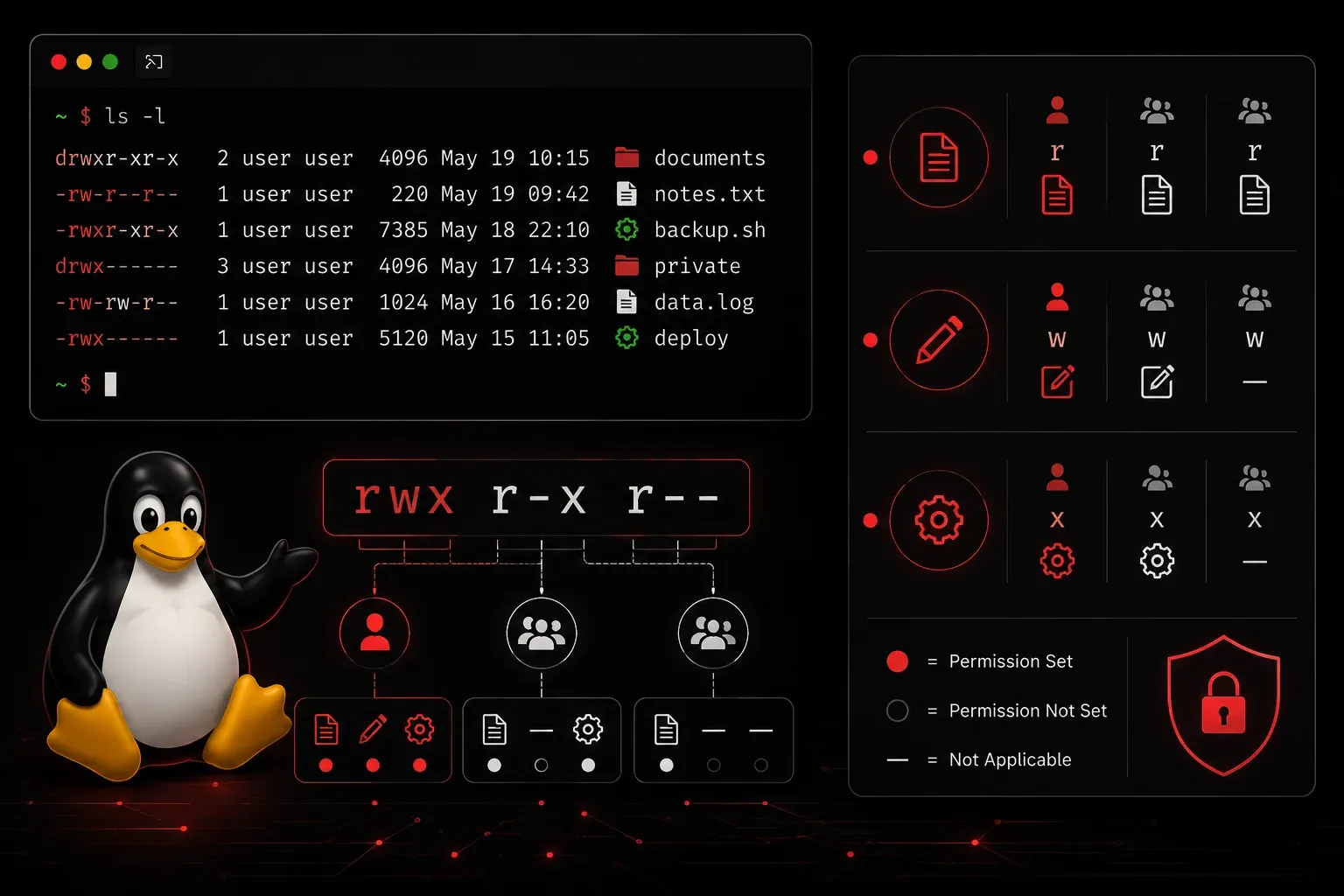
Linux file permissions might seem mysterious at first, but they're actually one of the most elegant security features in operating systems. Every file and directory in Linux has a set of permissions that control who can read, write, or execute it. Understanding this system is crucial for anyone working with Linux systems.
The Three Types of Permissions
Linux uses three basic permission types:
- Read (r): Permission to view the contents of a file or list the contents of a directory
- Write (w): Permission to modify a file or create/delete files within a directory
- Execute (x): Permission to run a file as a program or enter a directory
The Three Permission Groups
Each file has permissions for three different groups of users:
- Owner (u): The user who owns the file
- Group (g): Users who belong to the file's group
- Others (o): Everyone else on the system
Reading Permission Strings
When you run ls -l, you'll see permissions displayed as a 10-character string. Let's break down an example:
-rwxr-xr-- 1 john developers 1024 Nov 15 10:30 script.shThe first character indicates the file type (- for regular file, d for directory). The next nine characters show permissions in groups of three:
- Characters 2-4: Owner permissions (
rwx- read, write, execute) - Characters 5-7: Group permissions (
r-x- read and execute, no write) - Characters 8-10: Others permissions (
r--- read only)
Using chmod to Change Permissions
The chmod command changes file permissions. You can use it in two ways:
Symbolic Method
This method uses letters and symbols:
# Give execute permission to owner
chmod u+x script.sh

# Remove write permission from group
chmod g-w document.txt

# Set read and write for owner, read-only for others
chmod u=rw,go=r file.txt
Numeric Method
This method uses three-digit numbers where each digit represents permissions for owner, group, and others:
- 4 = read
- 2 = write
- 1 = execute
Add these numbers together for combined permissions:
# 755 means: owner (7=4+2+1=rwx), group (5=4+1=r-x), others (5=4+1=r-x)
chmod 755 script.sh

# 644 means: owner (6=4+2=rw-), group (4=r--), others (4=r--)
chmod 644 document.txt
Common Permission Patterns
Here are some frequently used permission combinations:
755: Executable files (scripts, programs)644: Regular files (documents, config files)600: Private files (only owner can read/write)777: World-writable (generally avoid this for security)
Directory Permissions Work Differently
For directories, permissions have special meanings:
- Read: List directory contents
- Write: Create or delete files in the directory
- Execute: Enter the directory (use
cdcommand)
A common directory permission is 755, allowing the owner full access while letting others read and enter the directory.
Quick Permission Check
To quickly check permissions on any file or directory:
ls -l filename
# or for directories
ls -ld directoryname
What's Next
Now that you understand basic file permissions, you're ready to explore file ownership concepts. In our next post, we'll cover the chown and chgrp commands, which let you change who owns files and what groups they belong to—essential skills for managing multi-user Linux systems.