
Simple Ways to Implement Secure Access at Home
This post walks beginners through practical steps to implement secure access on a home network, covering router hardening, strong passwords, Wi-Fi encryption protocols, network segmentation, and multi-factor authentication. Each concept is explained clearly with actionable steps any home user can f

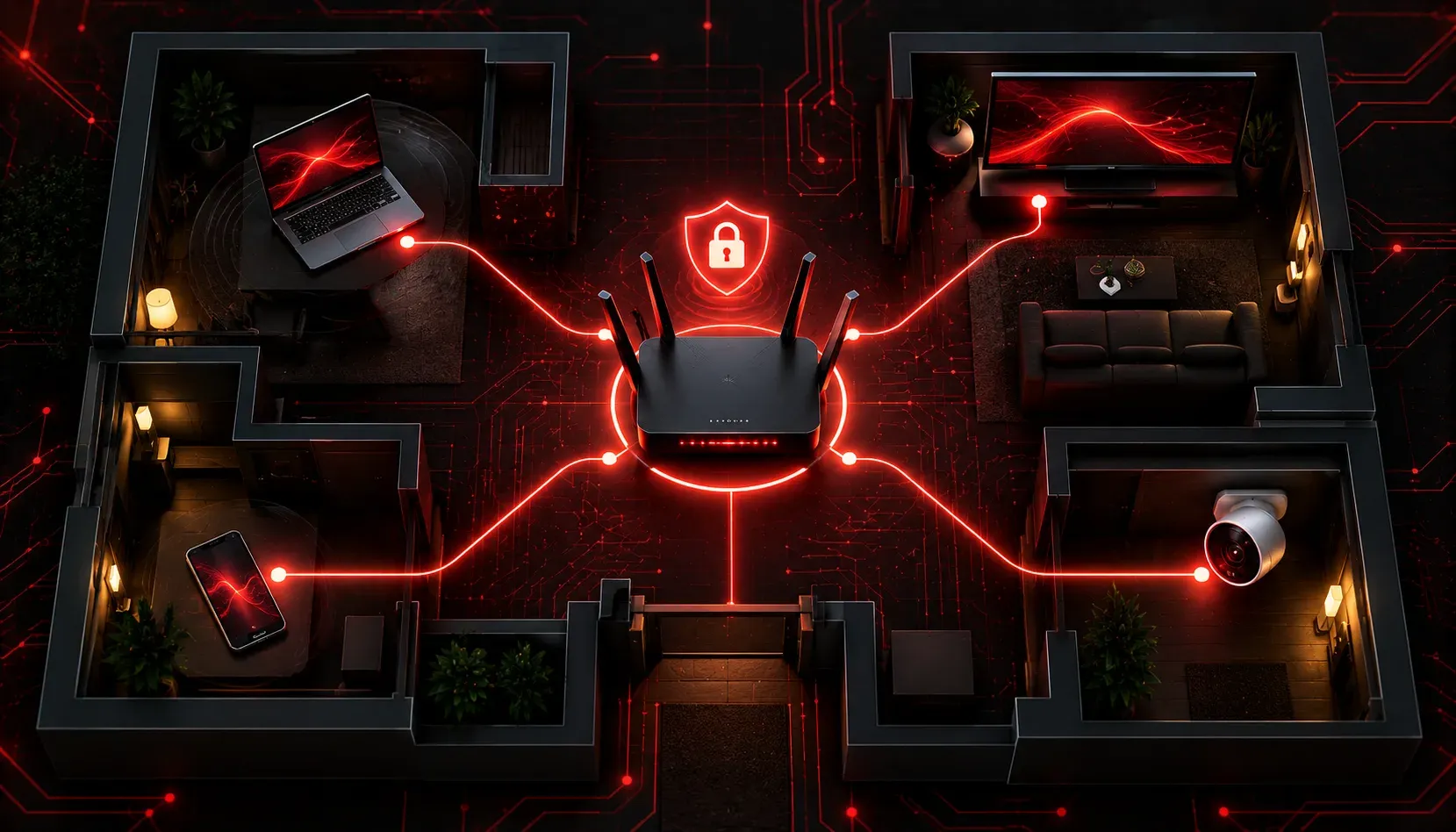
Your home network is more than just a way to stream videos or browse social media. It's the gateway to your personal data, your devices, and in many cases, your work life. Learning how to implement secure access at home is one of the most practical skills you can develop as you study cybersecurity, and the good news is that you don't need expensive hardware or advanced expertise to get started.
Let's walk through the most impactful steps you can take right now to lock down your home network.
Start With Your Router: The Front Door of Your Network
Your router is the single most important device on your home network. Every device that connects to the internet passes through it, which makes it a prime target. Most people leave their router in its default configuration, which is a significant risk.
Here's what you should do immediately:
- Change the default admin credentials: Every router ships with a default username and password, often something like
admin/adminoradmin/password. These are publicly known and easily guessed. Log into your router's admin panel (usually at192.168.1.1or192.168.0.1) and change them right away. - Update the firmware: Router manufacturers release firmware updates to patch known vulnerabilities. Check your router's admin panel for an update option, or visit the manufacturer's website.
- Disable remote management: Unless you specifically need to manage your router from outside your home, turn this feature off. It reduces your exposure significantly.
Use Strong Passwords Everywhere
Weak passwords are one of the most common entry points for attackers. A strong password is your first line of defense. When it comes to strong passwords, follow these guidelines:
- Use at least 12-16 characters
- Mix uppercase and lowercase letters, numbers, and symbols
- Avoid dictionary words, names, or dates
- Never reuse passwords across different accounts or devices
Managing unique passwords for every device and account sounds overwhelming, but a password manager like Bitwarden (free and open source) makes it simple. You only need to remember one strong master password, and the manager handles the rest.
Apply this same discipline to your Wi-Fi password. Your wireless network password should be long, complex, and changed periodically, especially after you've shared it with guests.
Enable Encryption on Your Wireless Network
Encryption scrambles the data traveling over your network so that even if someone intercepts it, they can't read it without the proper key. For home Wi-Fi, this means choosing the right security protocol in your router settings.
Here's a quick comparison of Wi-Fi security protocols:
- WEP (Wired Equivalent Privacy): Old and completely broken. If your router still uses this, upgrade immediately.
- WPA (Wi-Fi Protected Access): Better than WEP, but still considered weak by modern standards.
- WPA2-AES: The current standard for home networks. This is the minimum you should be using.
- WPA3: The newest and strongest protocol. If your router and devices support it, enable it.
To check and change your Wi-Fi encryption type, log into your router admin panel, navigate to the wireless settings section, and look for a security mode or authentication type dropdown.
Segment Your Network With a Guest Network
Most modern routers support a guest network feature. This creates a separate Wi-Fi network, isolated from your main one. When friends visit or when you add smart home devices like cameras and thermostats, put them on the guest network. That way, if one of those devices is compromised, the attacker doesn't automatically have access to your laptops, phones, and personal files.
This concept is called network segmentation, and it's a core principle in professional cybersecurity environments. Practicing it at home builds good habits early.
Enable Multi-Factor Authentication
Multi-factor authentication (MFA) adds a second layer of verification beyond your password. Even if an attacker discovers your password, they still can't log in without the second factor, which is usually a code sent to your phone or generated by an authentication app like Google Authenticator or Authy.
Enable MFA on every account that supports it: your email, cloud storage, social media, and especially your router's remote management interface if you use it.
What's Next
Now that you've covered the basics of how to implement secure access at home, the next step is understanding the threats you're protecting against. In the next post, we'll look at common attack types targeting home and small business networks, including phishing, man-in-the-middle attacks, and how to recognize them before they cause damage.