
Bash Script: Automating a Backup
This post walks beginners through writing a practical Bash backup script from scratch. It covers variables, command substitution, the cp command, and adding error handling with an if statement. Readers end up with a working, timestamped backup script they can adapt and schedule.

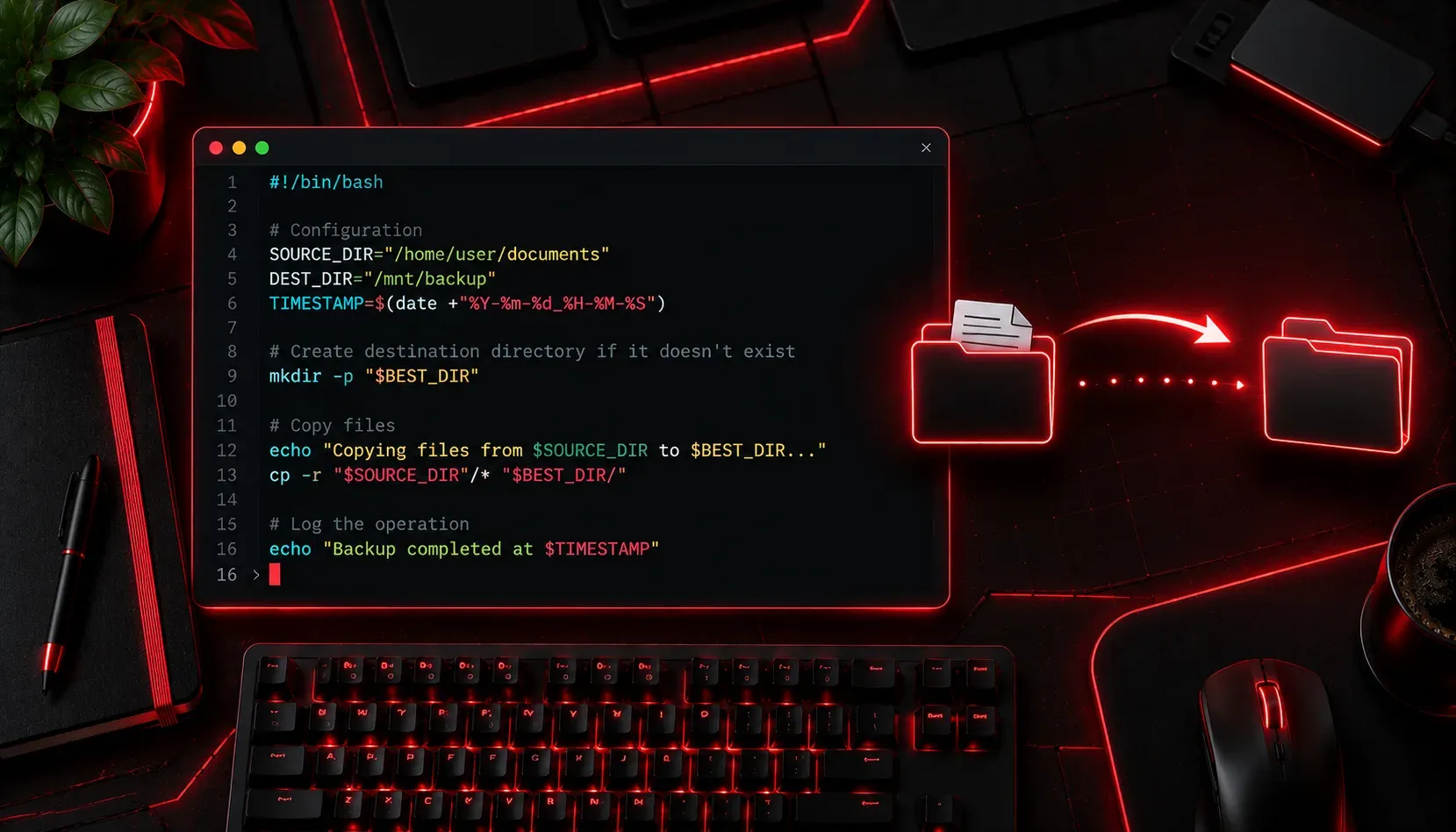
Automation is one of the most powerful skills you can develop as a Linux user or network engineer. One of the best places to start is with a simple backup script. Backing up files manually is tedious and error-prone. A well-written Bash script can do the same job reliably, every time, without you lifting a finger.
In this post, we will walk through building a practical Bash backup script from scratch. By the end, you will understand the core concepts involved and have a working script you can adapt for your own environment.
What We Want the Script to Do
Before writing any code, it helps to define the goal clearly. Our script will:
- Copy a source directory to a backup destination
- Add a timestamp to the backup folder name so each backup is unique
- Print a confirmation message when the backup completes
This is a practical, real-world pattern used in everything from home labs to production servers.
The Building Blocks
Variables
Variables store values we want to reuse. In Bash, you assign a variable without spaces around the equals sign. We will use variables to store our source and destination paths, making the script easy to modify later.
Command Substitution
We can capture the output of a command and store it in a variable using $(). This is how we will generate our timestamp using the date command.
The cp Command
The cp command copies files and directories. The -r flag tells it to copy recursively, meaning it will copy the directory and everything inside it.
Writing the Script
Open a terminal and create a new file called backup.sh. You can use any text editor, such as nano backup.sh.
#!/bin/bash

# --- Configuration ---
SOURCE="/home/user/documents"
DEST="/home/user/backups"
TIMESTAMP=$(date +"%Y-%m-%d_%H-%M-%S")
BACKUP_NAME="backup_$TIMESTAMP"

# --- Run the Backup ---
echo "Starting backup of $SOURCE..."

cp -r "$SOURCE" "$DEST/$BACKUP_NAME"

echo "Backup complete: $DEST/$BACKUP_NAME"
Let us break this down line by line:
#!/bin/bash: The shebang line. It tells the system to run this script using Bash.SOURCEandDEST: Variables holding the paths to our source directory and backup destination.TIMESTAMP=$(date +"%Y-%m-%d_%H-%M-%S"): Runs thedatecommand and stores the result as a formatted timestamp, for example2025-07-14_09-30-00.BACKUP_NAME: Combines the word "backup" with the timestamp to create a unique folder name.cp -r "$SOURCE" "$DEST/$BACKUP_NAME": Performs the actual copy. Wrapping variables in double quotes prevents issues with spaces in file paths.
Making the Script Executable and Running It
Before you can run the script, you need to give it execute permission using chmod.
chmod +x backup.sh
./backup.sh
If everything is set up correctly, your terminal output should look something like this:
Starting backup of /home/user/documents...
Backup complete: /home/user/backups/backup_2025-07-14_09-30-00
Navigate to your backups folder and you will see a new timestamped directory containing a full copy of your documents.
A Quick Improvement: Check If the Destination Exists
A more robust version of the script checks whether the destination directory exists before trying to write to it. We can do this with an if statement.
#!/bin/bash

SOURCE="/home/user/documents"
DEST="/home/user/backups"
TIMESTAMP=$(date +"%Y-%m-%d_%H-%M-%S")
BACKUP_NAME="backup_$TIMESTAMP"

if [ ! -d "$DEST" ]; then
  echo "Destination does not exist. Creating $DEST..."
  mkdir -p "$DEST"
fi

echo "Starting backup of $SOURCE..."
cp -r "$SOURCE" "$DEST/$BACKUP_NAME"
echo "Backup complete: $DEST/$BACKUP_NAME"
The -d flag checks if the path is a directory. The ! inverts it, so the block runs if the directory does NOT exist. The mkdir -p command creates the directory and any missing parent directories.
What's Next
Now that you have a working backup script, the natural next step is scheduling it to run automatically. In the next post, we will cover cron jobs, the built-in Linux task scheduler that lets you run scripts at specific times or intervals without any manual intervention. Pair that with this backup script and you have a fully automated, hands-off backup system.