
Speed and Duplex configuration

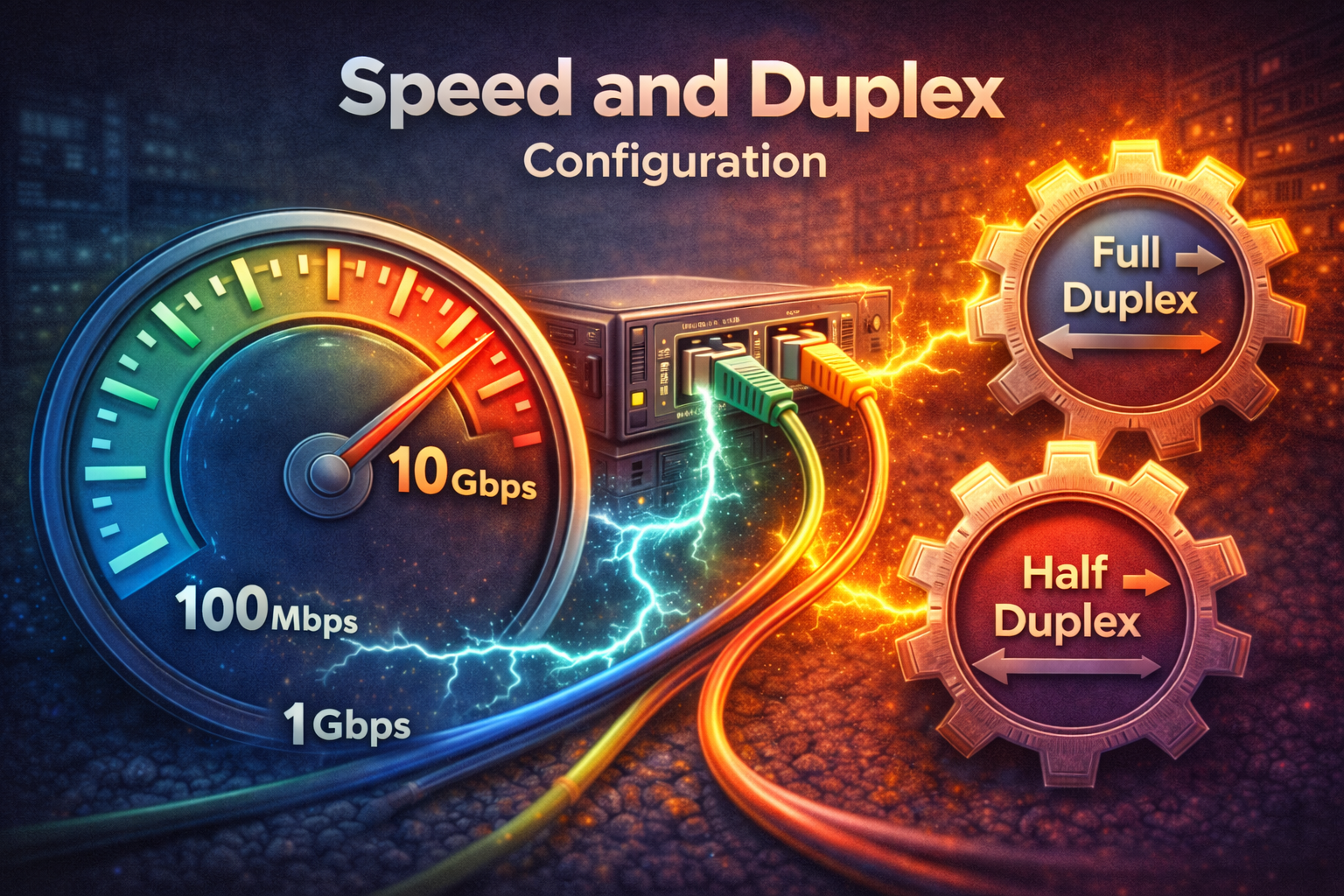
Speed and Duplex Configuration
When connecting devices to a switch, the speed and duplex settings are usually auto-negotiated between the devices. However, there are times when you may need to manually configure these settings.
Understanding Speed and Duplex
Speed refers to how fast data can be transmitted over the link, measured in bits per second (bps). Common ethernet speeds include:
- 10 Mbps (10BASE-T)
- 100 Mbps (100BASE-TX)
- 1000 Mbps or 1 Gbps (1000BASE-T)
Duplex refers to the direction of data transmission:
- Half-duplex: Data can flow in both directions, but only one direction at a time
- Full-duplex: Data can flow in both directions simultaneously
Auto-negotiation
By default, modern ethernet interfaces use auto-negotiation to determine the best speed and duplex settings. The devices communicate and agree on the highest common speed and duplex mode they both support.
However, auto-negotiation can sometimes fail or may not be desired in certain scenarios, such as:
- Connecting to older devices that don't support auto-negotiation
- Troubleshooting connectivity issues
- Ensuring consistent performance in critical links
Manual Configuration
To manually configure speed and duplex on a Cisco switch interface:
Switch(config)# interface FastEthernet0/1
Switch(config-if)# speed 100
Switch(config-if)# duplex full
Switch(config-if)# no shutdown
Available speed options depend on the interface type:
- FastEthernet:
10,100, orauto - GigabitEthernet:
10,100,1000, orauto
Duplex options are:
half- Half-duplex modefull- Full-duplex modeauto- Auto-negotiate duplex
Verification Commands
To verify the current speed and duplex settings:
Switch# show interface FastEthernet0/1
Switch# show interface status
The show interface status command provides a summary view of all interfaces, showing their status, VLAN, duplex, speed, and type.
Important Considerations
Duplex Mismatch: One of the most common issues occurs when one end of a link is configured for full-duplex and the other for half-duplex. This mismatch can cause:
- Reduced performance
- Excessive collisions
- Packet loss
Best Practices:
- Use auto-negotiation when possible
- If manual configuration is required, configure both ends of the link with the same settings
- Document any manual speed/duplex configurations
- Monitor interfaces for errors and performance issues
Understanding and properly configuring speed and duplex settings is essential for maintaining reliable network connectivity and optimal performance.