
Troubleshooting Common DHCP Issues for Beginners
This post walks beginners through the most common DHCP issues they'll encounter in real networks and on the CCNA exam. It covers pool exhaustion, address conflicts, missing relay agents, and misconfiguration, with Cisco CLI commands and a clear troubleshooting workflow.

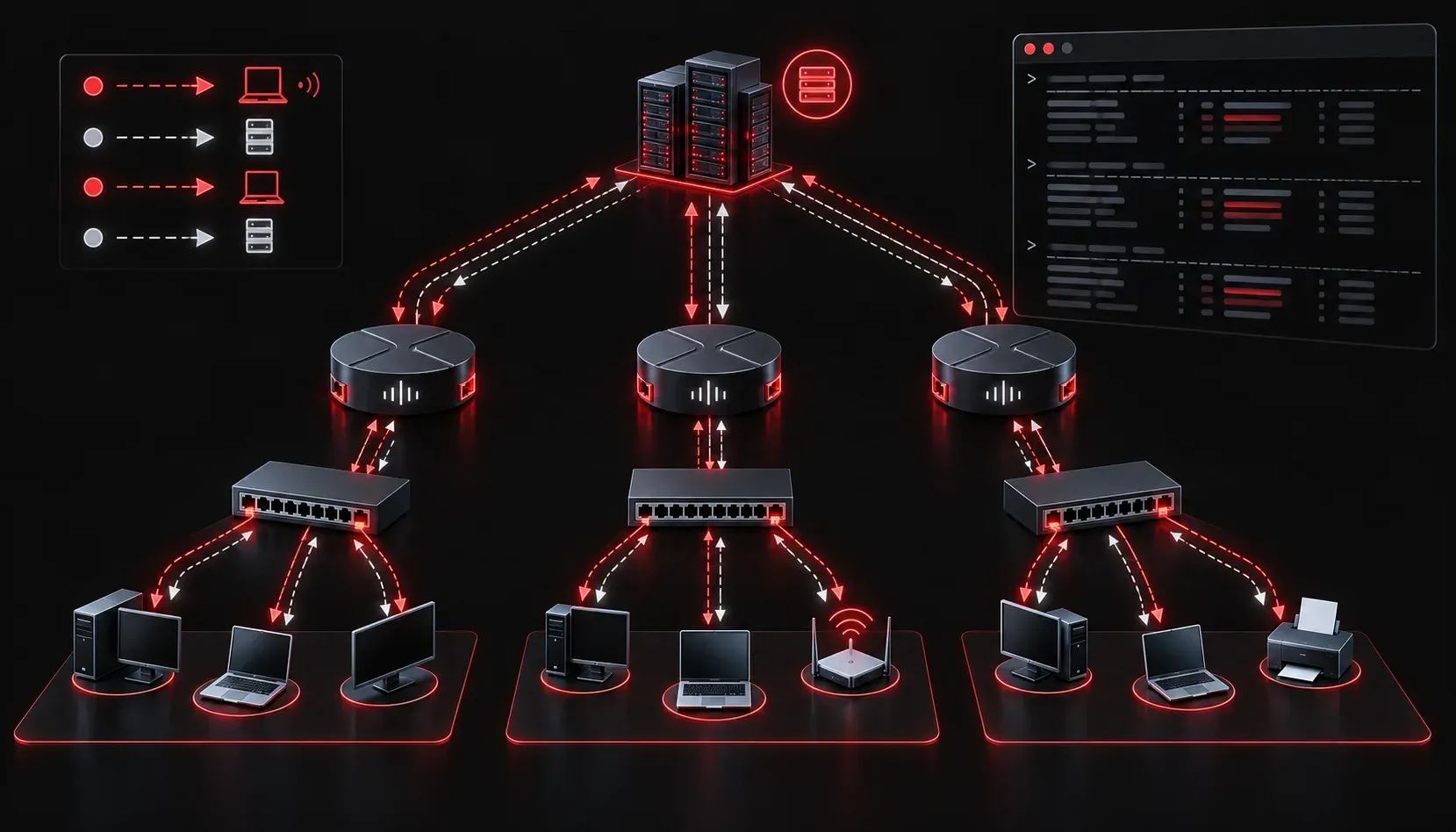
You plug in a new device, and it shows "Limited Connectivity" or grabs a 169.254.x.x address. Sound familiar? That self-assigned address is a telltale sign that DHCP has failed somewhere along the line. Before you start questioning your entire network design, let's walk through the most common DHCP issues and how to fix them methodically.
What DHCP Is Actually Doing
Before you can troubleshoot effectively, you need a mental model of the process. DHCP uses a four-step handshake called DORA:
- Discover: The client broadcasts a request looking for any available DHCP server.
- Offer: The server responds with an available IP address and configuration.
- Request: The client formally requests the offered address.
- Acknowledge: The server confirms and the lease is assigned.
If any step in this process breaks down, the client ends up without a valid IP address. Your job as a troubleshooter is to figure out exactly where it fell apart.
Common DHCP Issues and How to Spot Them
1. The DHCP Pool Is Exhausted
If your pool runs out of available addresses, new clients cannot get a lease. This is more common than you'd think on small networks with a limited scope. On a Cisco router acting as a DHCP server, check the pool status with:
Router# show ip dhcp pool

Pool CORP_POOL :
 Utilization mark (high/low)    : 100 / 0
 Total addresses                : 50
 Leased addresses               : 50
 Available addresses            : 0
If Available addresses is zero, either expand your pool range, reduce lease times, or investigate whether any devices are holding leases they no longer need.
2. Address Conflicts
When a statically configured device shares an IP with a DHCP lease, both devices suffer. Cisco routers track these conflicts automatically. Check for them using:
Router# show ip dhcp conflict

IP address        Detection method   Detection time          VRF
192.168.1.105     Ping               Jan 15 2024 10:23 AM
Clear the conflict log after you resolve it with clear ip dhcp conflict *. The real fix is to exclude static IP addresses from your DHCP pool using the ip dhcp excluded-address command.
3. Missing DHCP Helper Address (Relay Agent)
This is one of the most frequently missed issues in a routed network. DHCP Discover messages are broadcasts, and routers do not forward broadcasts by default. If your DHCP server lives on a different subnet from your clients, you need a DHCP relay agent configured on the router interface facing the clients.
Router(config)# interface GigabitEthernet0/1
Router(config-if)# ip helper-address 10.0.0.5
Replace 10.0.0.5 with the IP address of your actual DHCP server. Without this, clients on remote subnets will broadcast into the void and never receive an offer.
4. Incorrect DHCP Configuration
Sometimes the server is reachable but misconfigured. Verify your DHCP pool settings with:
Router# show running-config | section dhcp

ip dhcp excluded-address 192.168.1.1 192.168.1.10
!
ip dhcp pool CORP_POOL
 network 192.168.1.0 255.255.255.0
 default-router 192.168.1.1
 dns-server 8.8.8.8
 lease 1
Double-check that the network statement matches the client subnet, and that the default-router value is actually reachable from the client's perspective.
Client-Side Verification Commands
Always verify from both ends. On a Windows client, use:
ipconfig /release: Releases the current DHCP lease.ipconfig /renew: Requests a fresh lease from the server.ipconfig /all: Shows full IP configuration, including the DHCP server address.
If ipconfig /renew times out or fails, the problem is almost certainly network-level, either a missing relay agent, a downed server, or a routing issue between subnets.
A Quick Troubleshooting Workflow
When you encounter DHCP errors, work through this sequence:
- Check whether the client received an IP. If it shows
169.254.x.x, DHCP completely failed. - Verify the DHCP server is reachable and its service is running.
- Confirm the pool has available addresses using
show ip dhcp pool. - Check for conflicts using
show ip dhcp conflict. - Verify the relay agent is configured if the client is on a remote subnet.
- Review the pool configuration for typos in the network, gateway, or DNS settings.
What's Next
Now that you can diagnose and fix common DHCP issues, the next logical step is understanding DNS troubleshooting. Once your devices have valid IP addresses, name resolution is often the next thing to break. We'll cover how DNS queries work and how to verify resolution is functioning correctly from the command line.
Tools and resources for this topic
- CCNA Official Cert Guide (Wendell Odom) — The definitive CCNA study resource. Both volumes cover the 200-301 exam blueprint in full.
- Wendell Odom CCNA Vol 1 — Covers networking fundamentals, switching, and routing basics.
- Wendell Odom CCNA Vol 2 — Covers advanced routing, WAN, infrastructure services, and security.