
Bash Arguments: Passing Data to Scripts
Learn how to pass data to bash scripts using command-line arguments. Covers accessing arguments with $1, $2, etc., validation techniques, and practical examples for flexible script design.

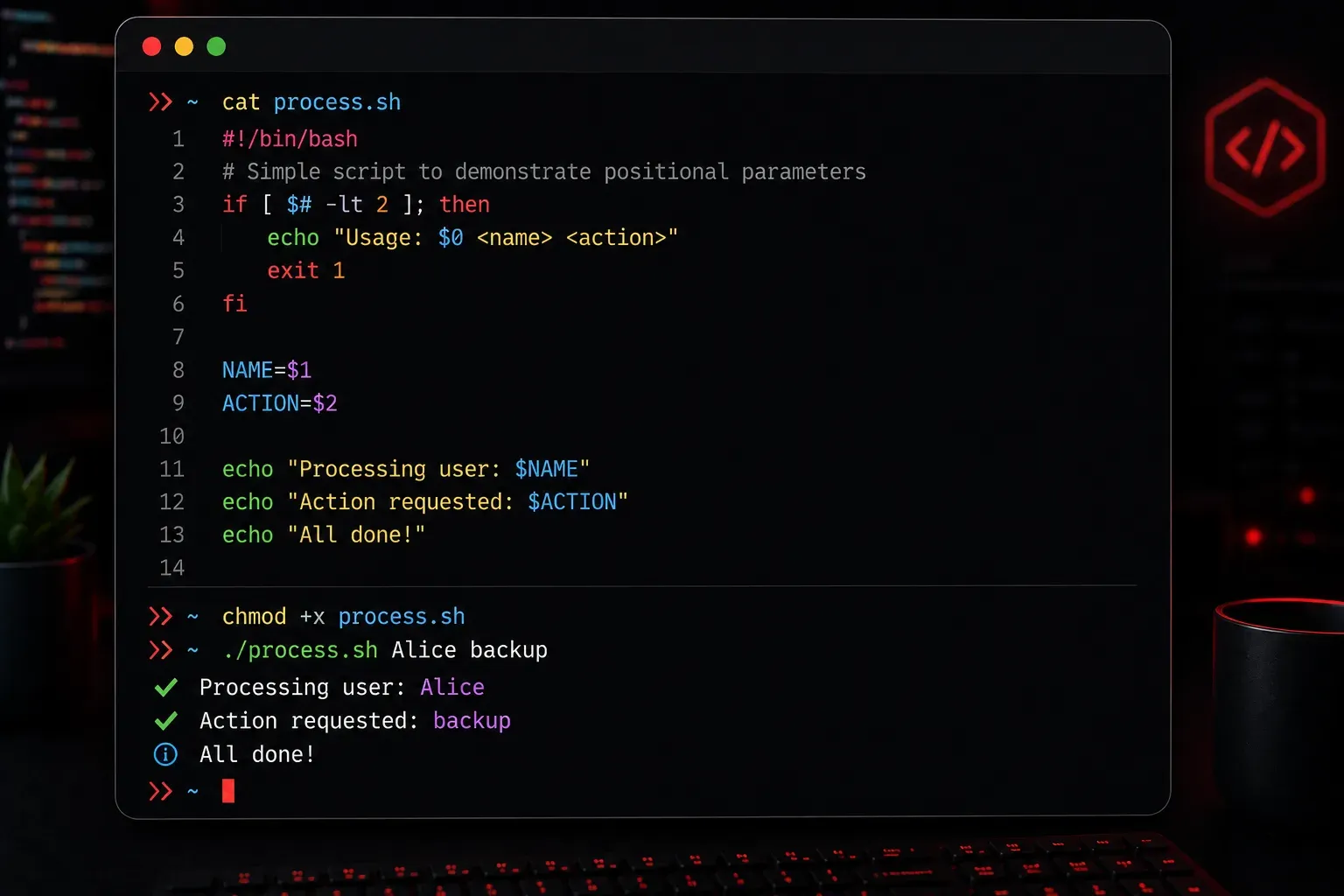
When you're writing bash scripts, you'll often need to pass information from the outside world into your script. This is where bash arguments come in. Think of arguments as a way to make your scripts flexible and reusable, rather than having to hardcode values every time.
What Are Bash Arguments?
Bash arguments are values you pass to your script when you run it from the command line. Instead of writing a script that always does the same thing, arguments let you customize the script's behavior each time you execute it.
Here's a simple example. Instead of running just ./backup.sh, you might run ./backup.sh /home/user/documents daily, where /home/user/documents and daily are arguments that tell the script what to backup and how often.
Accessing Arguments in Your Script
Bash provides special variables to access the arguments passed to your script:
$1- First argument$2- Second argument$3- Third argument (and so on)$0- The script name itself$#- Total number of arguments$@- All arguments as separate words$*- All arguments as a single string
The key difference between $@ and $* is how they handle arguments with spaces. $@ preserves each argument as a separate entity, while $* concatenates all arguments into one string.
Let's create a practical example. Save this as greet.sh:
#!/bin/bash

echo "Script name: $0"
echo "First argument: $1"
echo "Second argument: $2"
echo "Total arguments: $#"
echo "All arguments: $@"
Make it executable and test it. The chmod +x command gives execute permissions to the file, allowing you to run it as a program:
chmod +x greet.sh
./greet.sh Alice Engineer
You'll see output like:
Script name: ./greet.sh
First argument: Alice
Second argument: Engineer
Total arguments: 2
All arguments: Alice Engineer
Building a Practical Example
Let's create a more useful script that demonstrates how arguments make scripts flexible. This file copy script takes a source file and destination as arguments:
#!/bin/bash

# Check if we have the right number of arguments
if [ $# -ne 2 ]; then
    echo "Usage: $0  "
    echo "Example: $0 config.txt /backup/config.txt"
    exit 1
fi

SOURCE=$1
DESTINATION=$2

# Check if source file exists
if [ ! -f "$SOURCE" ]; then
    echo "Error: Source file '$SOURCE' does not exist"
    exit 1
fi

# Copy the file
cp "$SOURCE" "$DESTINATION"

if [ $? -eq 0 ]; then
    echo "Successfully copied '$SOURCE' to '$DESTINATION'"
else
    echo "Error: Failed to copy file"
    exit 1
fi
Save this as copyfile.sh and test it:
chmod +x copyfile.sh
echo "test content" > test.txt
./copyfile.sh test.txt backup.txt
Handling Variable Numbers of Arguments
Sometimes you need to process all arguments, regardless of how many there are. The $@ variable and a for loop make this easy. Here's a complete example script that checks multiple files:
#!/bin/bash

# Check if any arguments were provided
if [ $# -eq 0 ]; then
    echo "Usage: $0  [file2] [file3] ..."
    echo "Example: $0 file1.txt file2.txt file3.txt"
    exit 1
fi

echo "Processing files:"

for file in "$@"; do
    if [ -f "$file" ]; then
        line_count=$(wc -l < "$file")
        echo "Found: $file ($line_count lines)"
    else
        echo "Missing: $file"
    fi
done

echo "Finished processing $# files."
Save this as checkfiles.sh and test it with multiple files: ./checkfiles.sh file1.txt file2.txt file3.txt
Best Practices for Argument Handling
Always validate your arguments before using them. Check that you have the expected number of arguments, that files exist when required, and that values are in the expected format. Provide clear usage messages when arguments are missing or incorrect.
Use meaningful variable names by assigning arguments to descriptive variables: USERNAME=$1 is much clearer than remembering what $1 represents throughout your script.
Quote your variables when using them: "$1" instead of $1. This prevents issues when arguments contain spaces or special characters.
What's Next
Now that you understand basic argument handling, you're ready to explore more advanced input methods. Next, we'll cover reading user input interactively with the read command, which lets your scripts ask for information while they're running rather than requiring everything upfront.