
How to Check IP Configuration on Windows
Learn essential methods to check IP configuration on Windows systems using ipconfig, PowerShell, and GUI tools. Covers command-line techniques, interpreting network parameters, and basic troubleshooting for CCNA exam preparation.

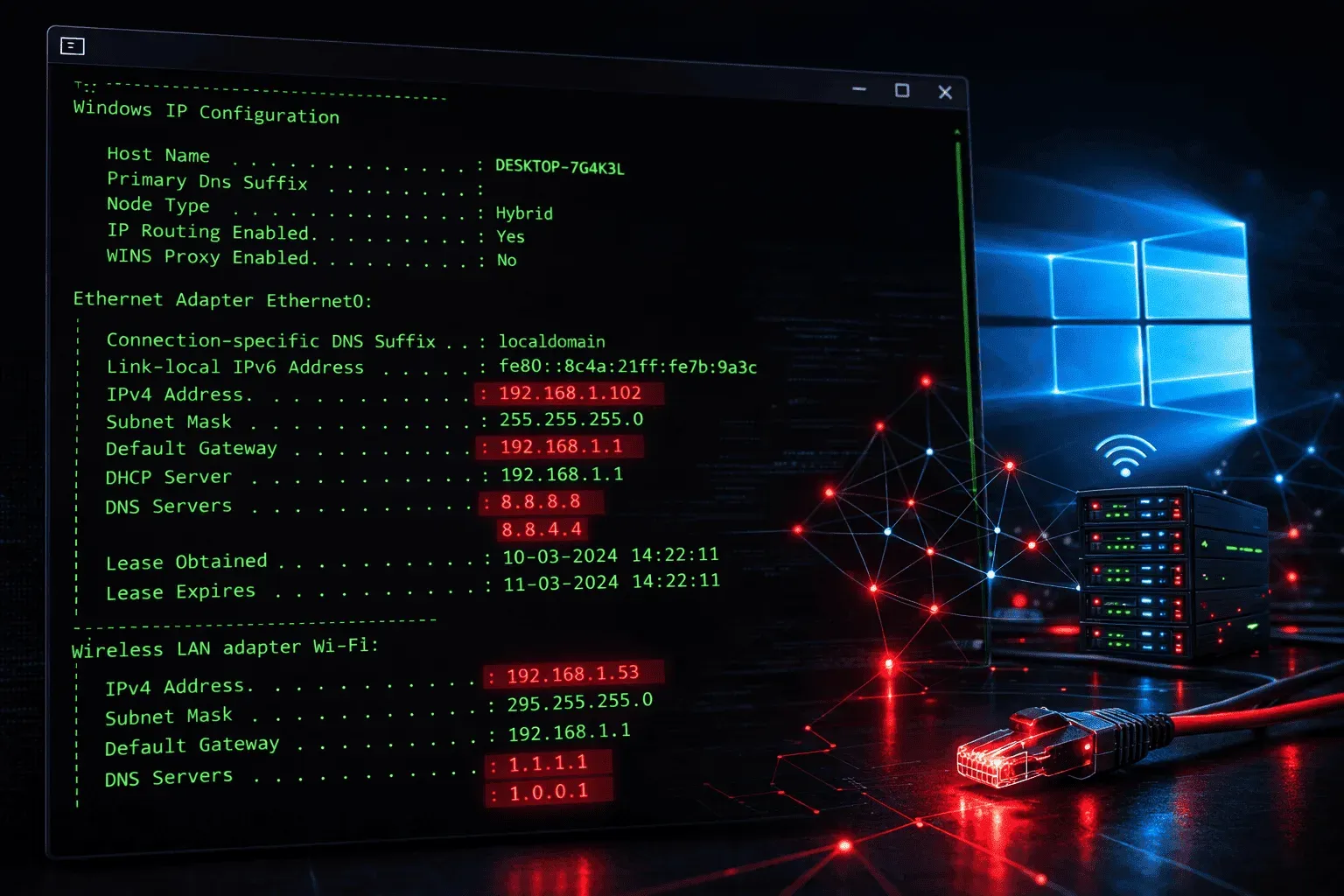
When troubleshooting network issues or setting up a new connection, knowing how to check IP configuration Windows systems is an essential skill for any network technician. Whether you're preparing for your CCNA exam or working on real-world network problems, understanding how to verify IP Windows settings will save you time and frustration.
Windows provides several built-in tools to view and verify network configuration. Let's explore the most effective methods to examine your Windows IP settings.
Method 1: Using Command Prompt (ipconfig)
The most reliable way to verify IP Windows configuration is through the command line. The ipconfig command is your go-to tool for quickly viewing network adapter information.
Open Command Prompt by pressing Win + R, typing cmd, and pressing Enter. Then use these commands:
ipconfigThis basic command shows the IP address, subnet mask, and default gateway for each active network adapter. For more detailed information, use:
ipconfig /allThe /all parameter reveals comprehensive details including:
- Physical (MAC) addresses
- DHCP status and lease information
- DNS server addresses
- DHCP server address
- Network adapter descriptions
Here's what typical output looks like:
Windows IP Configuration

Ethernet adapter Local Area Connection:

   Connection-specific DNS Suffix  . : company.local
   Description . . . . . . . . . . . : Intel(R) Ethernet Connection
   Physical Address. . . . . . . . . : 00-1A-2B-3C-4D-5E
   DHCP Enabled. . . . . . . . . . . : Yes
   Autoconfiguration Enabled . . . . : Yes
   IPv4 Address. . . . . . . . . . . : 192.168.1.100(Preferred)
   Subnet Mask . . . . . . . . . . . : 255.255.255.0
   Default Gateway . . . . . . . . . : 192.168.1.1
   DNS Servers . . . . . . . . . . . : 8.8.8.8
                                       8.8.4.4
Method 2: Using PowerShell
PowerShell offers more modern commands for checking network configuration Windows systems. Open PowerShell as an administrator and try:
Get-NetIPConfigurationThis command provides a clean, organized view of your network settings. For detailed adapter information, use:
Get-NetAdapter | Select-Object Name, InterfaceDescription, LinkSpeed, MediaTypeMethod 3: Network and Sharing Center (GUI Method)
For users who prefer graphical interfaces, Windows provides a visual way to check network settings:
- Right-click the network icon in the system tray
- Select "Open Network & Internet settings"
- Click "Change adapter options"
- Double-click your active network connection
- Click "Details" to view configuration information
This method displays the same information as command-line tools but in a user-friendly format.
Interpreting the Results
When you verify IP Windows settings, pay attention to these key parameters:
- IP Address: Should be within your network's valid range
- Subnet Mask: Defines your network's size (commonly 255.255.255.0 for /24 networks)
- Default Gateway: Your router's IP address (often ends in .1 or .254)
- DNS Servers: Should point to working DNS servers
- DHCP Status: Shows whether IP settings are automatic or manual
Troubleshooting Common Issues
If you see an IP address starting with 169.254, this indicates APIPA (Automatic Private IP Addressing) is active, meaning DHCP failed. To refresh your IP configuration, use:
ipconfig /release
ipconfig /renew
These commands will release your current IP lease and request a new one from the DHCP server.
What's Next
Now that you can check IP configuration on Windows systems, the next logical step is learning how to modify these settings. In our upcoming post, we'll cover how to configure static IP addresses and change network adapter settings through both GUI and command-line methods.
CCNA study resources
- CCNA Official Cert Guide Library (Wendell Odom) — Both volumes covering the full 200-301 exam blueprint. The definitive CCNA study resource.
- Wendell Odom CCNA Vol 1 — Networking fundamentals, switching, VLANs, STP, and IPv4 routing.
- Wendell Odom CCNA Vol 2 — Advanced routing, WAN, security, automation, and network management.