
Configuring SPAN for Effective Network Monitoring
This post delivers a detailed span configuration guide covering local SPAN, RSPAN, and ERSPAN on Cisco Catalyst switches. It includes step-by-step CLI configurations, verification commands, platform limitations, and a structured troubleshooting methodology for network traffic monitoring in enterpri

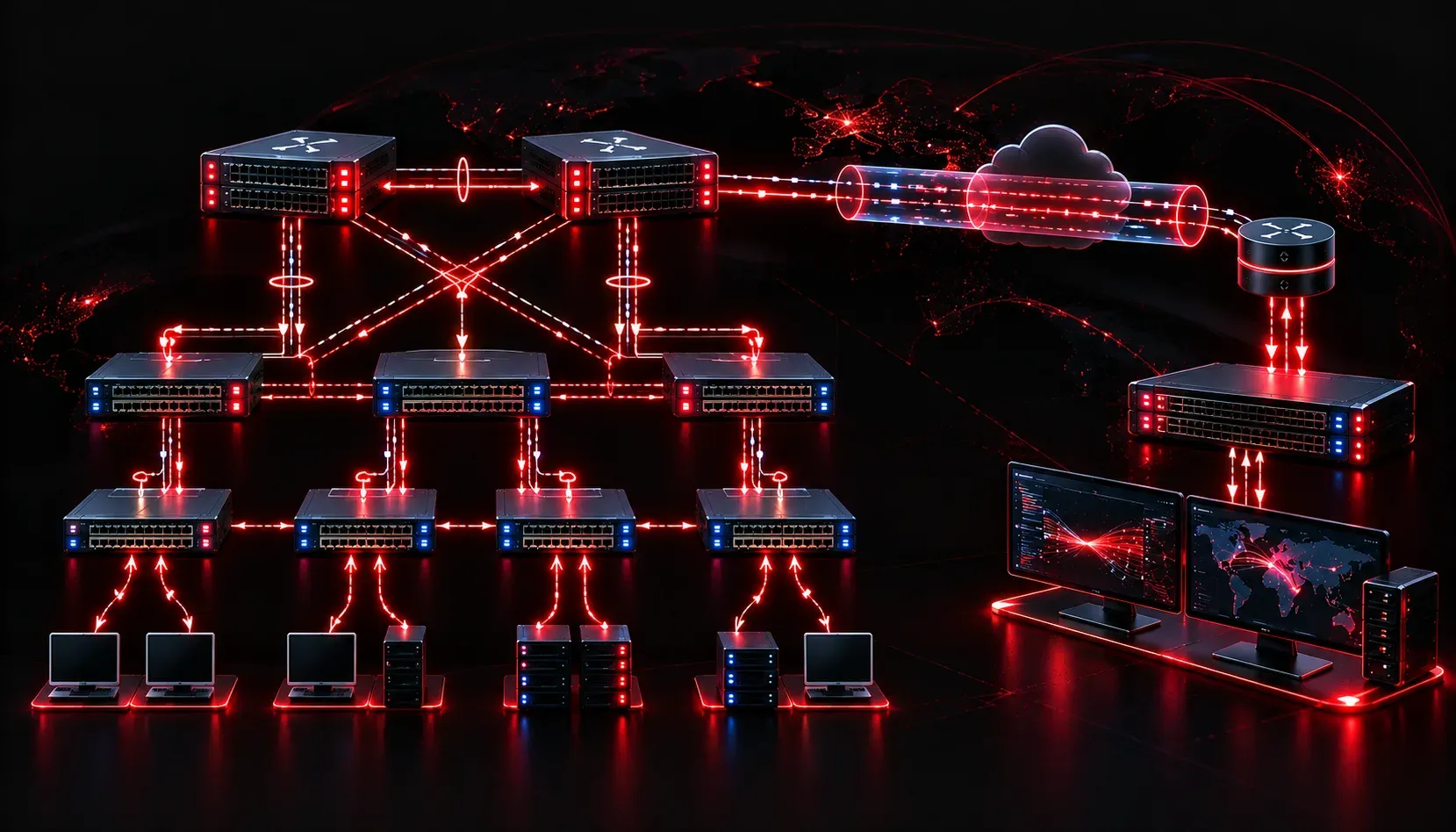
Network visibility is not optional in enterprise environments. When you need to capture traffic for security analysis, troubleshooting, or IDS/IPS integration, SPAN (Switch Port Analyzer) is your first tool on Cisco switches. This span configuration guide walks through local SPAN, Remote SPAN (RSPAN), and Encapsulated RSPAN (ERSPAN) with the precision you need for both production deployments and the ENCOR exam.
How SPAN Works
SPAN copies frames from one or more source ports or VLANs and sends them out a designated destination port. The destination port connects to a packet analyzer, such as Wireshark on a laptop or a dedicated network TAP appliance. Critically, the destination port stops participating in normal switching while SPAN is active. It will not forward user traffic, will not learn MAC addresses from attached devices, and will not participate in STP. Plan your port assignments accordingly before you start.
Three SPAN variants matter for the exam and for production:
- Local SPAN: Source and destination are on the same switch.
- RSPAN (Remote SPAN): Source and destination span across multiple switches using a dedicated RSPAN VLAN.
- ERSPAN (Encapsulated RSPAN): Extends SPAN across Layer 3 boundaries by encapsulating mirrored traffic in GRE. Available on supported Catalyst and Nexus platforms.
Local SPAN Configuration
Local SPAN is the most common setup. You define a session number (1-66 on most platforms), specify sources, and assign a destination. Sources can be individual ports, port ranges, or entire VLANs.
Example: Mirror all traffic on GigabitEthernet1/0/1 to GigabitEthernet1/0/24 for analysis.
SW1(config)# monitor session 1 source interface GigabitEthernet1/0/1 both
SW1(config)# monitor session 1 destination interface GigabitEthernet1/0/24
The both keyword captures ingress and egress traffic. You can substitute rx or tx to narrow scope. When sourcing a VLAN instead of a port:
SW1(config)# monitor session 1 source vlan 10 rxVerify with show monitor session 1:
SW1# show monitor session 1
Session 1
---------
Type              : Local Session
Source Ports      :
    Both          : Gi1/0/1
Destination Ports : Gi1/0/24
    Encapsulation : Native
          Ingress : Disabled
Notice the Ingress: Disabled line. By default, the destination port drops any traffic sent into it. If your analyzer needs two-way communication (for example, an inline IPS management plane), enable ingress forwarding and specify a VLAN:
SW1(config)# monitor session 1 destination interface GigabitEthernet1/0/24 ingress vlan 10Remote SPAN (RSPAN) Configuration
RSPAN extends monitoring across a switched network by flooding mirrored traffic across a dedicated RSPAN VLAN. This VLAN must be configured on every switch in the path between source and destination.
Step 1: Create the RSPAN VLAN on all switches. The remote-span command marks the VLAN as an RSPAN VLAN, which prevents normal MAC learning and suppresses flooding of regular traffic within it.
SW1(config)# vlan 999
SW1(config-vlan)# name RSPAN_VLAN
SW1(config-vlan)# remote-span
Step 2: Configure the source session on the ingress switch.
SW1(config)# monitor session 2 source interface GigabitEthernet1/0/5 both
SW1(config)# monitor session 2 destination remote vlan 999
Step 3: Configure the destination session on the switch where the analyzer is connected.
SW2(config)# monitor session 2 source remote vlan 999
SW2(config)# monitor session 2 destination interface GigabitEthernet1/0/48
Ensure VLAN 999 is allowed on all trunk links between SW1 and SW2. Forgetting this step is the most common RSPAN failure in production. Verify trunks with show interfaces trunk and confirm VLAN 999 appears in the allowed and active columns.
ERSPAN Configuration
ERSPAN is the tool for monitoring across Layer 3 boundaries, particularly useful in multi-site architectures or when sending mirrored traffic to a centralized security platform. ERSPAN wraps mirrored frames in a GRE header, allowing them to traverse routed networks.
ERSPAN Type II is the standard implementation. Configure it as follows on a supported Catalyst switch:
SW1(config)# monitor session 3 type erspan-source
SW1(config-mon-erspan-src)# source interface GigabitEthernet1/0/10 both
SW1(config-mon-erspan-src)# destination
SW1(config-mon-erspan-src-dst)# erspan-id 100
SW1(config-mon-erspan-src-dst)# ip address 192.168.50.10
SW1(config-mon-erspan-src-dst)# origin ip address 192.168.10.1
SW1(config-mon-erspan-src-dst)# no shutdown
The erspan-id must match between source and destination configurations. The origin ip address is the source IP used in the GRE header. On the receiving device (or a second switch acting as an ERSPAN destination), configure a matching ERSPAN destination session to accept and decapsulate the traffic.
SPAN Limitations to Know
Several constraints catch engineers off guard in production and on the exam:
- Destination port bandwidth: If multiple high-traffic sources are mirrored to a single destination port, traffic can be dropped when the copy rate exceeds destination link capacity. The switch does not buffer SPAN traffic.
- Maximum sessions: Platform-dependent, but typically 2-4 local SPAN sessions per switch. Know your hardware limits.
- Encapsulation stripping: By default, the destination port strips 802.1Q tags. To preserve tags for analysis, use the
encapsulation replicatekeyword on the destination. - CPU-generated traffic: SPAN does not capture traffic generated by the switch CPU itself (routing updates, LACP PDUs) unless you specifically configure CPU as a source on supported platforms.
- VLAN ACL interaction: VACLs applied to source VLANs affect what SPAN captures. SPAN copies traffic after VACL filtering.
Troubleshooting SPAN Issues
When SPAN sessions are configured but traffic is not appearing on the analyzer, work through this sequence:
- Run
show monitor session alland verify the session showsAdmin Enabledwith the correct source and destination assignments. - For RSPAN, confirm the RSPAN VLAN is created with the
remote-spanflag on every intermediate switch usingshow vlan id 999. - Verify trunk links are passing the RSPAN VLAN with
show interfaces trunk. - Confirm the destination port is connected and the analyzer NIC is in promiscuous mode. Without promiscuous mode, the OS drops frames destined to other MAC addresses.
- Check for competing sessions. A port cannot be both a source and destination in different sessions on most platforms.
What's Next
With SPAN providing the traffic capture foundation, the next logical step in network assurance is understanding IP SLA. IP SLA lets you proactively generate synthetic traffic to measure latency, jitter, and availability across your network without needing to capture live traffic. Together, SPAN and IP SLA give you reactive visibility and proactive performance baselining, two pillars of a solid network assurance strategy. We'll cover IP SLA configuration and threshold alerting in the next post.
Tools and resources for this topic
- CCNP ENCOR 350-401 Official Cert Guide — The definitive ENCOR study resource by Brad Edgeworth. Covers enterprise infrastructure, virtualisation, and automation.