
What Do the Lights on a Cisco Device Mean?
Learn what the colored status lights on Cisco networking devices mean, from power and system status indicators to link light colors that show network connectivity and speed. Essential knowledge for troubleshooting network hardware.

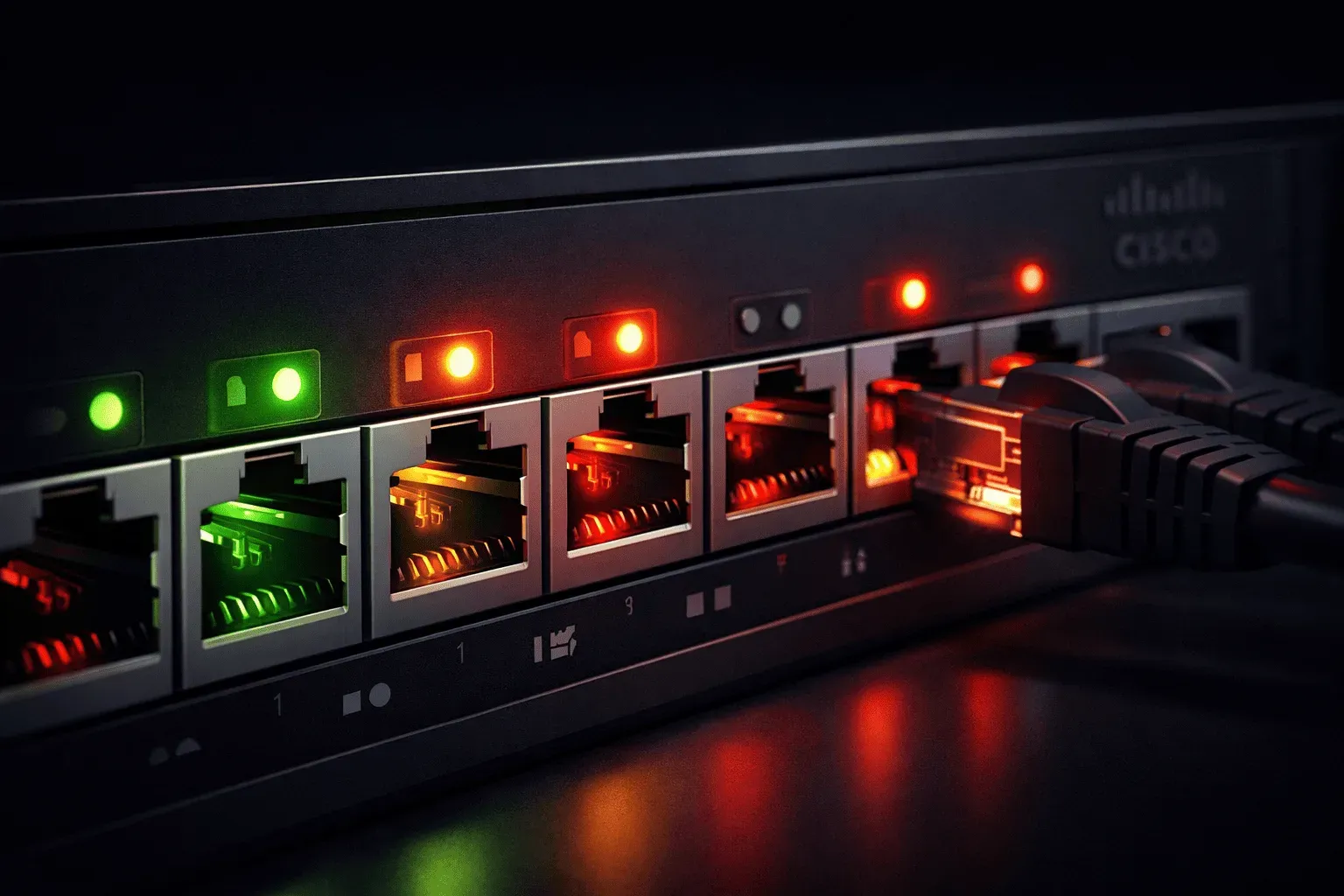
When you're working with Cisco networking equipment, those little colored lights on the front and back of your devices aren't just for show. These Cisco device status lights provide crucial information about your hardware's health, network connectivity, and operational status. Understanding what these indicators mean can help you quickly diagnose problems and verify that everything is working correctly.
Power and System Status Lights
Most Cisco devices have a primary system status light that tells you about the overall health of the device. Here's what the different colors typically mean:
- Green (Solid): The device has powered on successfully and is operating normally
- Amber/Orange (Solid): The device is booting up or running through its startup process
- Red (Solid): A critical system error has occurred, such as a hardware failure
- Amber/Orange (Blinking): The device has encountered a non-critical error or warning condition
- Off: No power is reaching the device
These hardware status indicators are your first checkpoint when troubleshooting any Cisco device. A solid green light means you can focus on configuration issues rather than hardware problems.
Ethernet Port Link Lights
The link light colors on Ethernet ports provide specific information about network connectivity and speed. Most Cisco switches and routers follow this standard pattern:
- Green (Solid): Link is established at 1000 Mbps (Gigabit)
- Amber/Orange (Solid): Link is established at 10/100 Mbps
- Blinking Green or Amber: Data is actively transmitting through the port
- Off: No link detected - cable unplugged, bad cable, or device on other end is down
Some newer Cisco devices may use slightly different color schemes, but the general principle remains the same: different colors indicate different speeds, and blinking shows activity.
Reading the Lights in Practice
Let's say you're troubleshooting a network connection issue. Here's how you'd use these network device indicators to diagnose the problem:
First, check the system status light. If it's solid green, the device itself is healthy. If it's red or blinking amber, you have a device-level problem that needs attention before you worry about individual ports.
Next, examine the specific port where your cable is connected. If the link light is off, you likely have a physical layer problem. Check the cable, try a different cable, or verify the device on the other end is powered on. If the light is solid (green or amber), you have connectivity but may need to investigate higher-layer issues like IP configuration or VLAN settings.
Special Considerations for Different Device Types
While the basic color meanings are consistent across Cisco devices, some specialized equipment has additional indicators:
Wireless Access Points often have radio status lights that show the operational state of the 2.4GHz and 5GHz radios. Firewalls may have additional lights for VPN status or security services. IP phones typically have handset and network port indicators.
Always consult your specific device's documentation, as some models may have unique light patterns or meanings. The principles covered here apply to most common Cisco switches, routers, and access points you'll encounter.
Pro Tips for Using Status Lights
Make checking the status lights part of your standard troubleshooting routine. Before diving into complex CLI commands or configuration changes, spend 30 seconds looking at the physical indicators. They often tell you exactly where to focus your efforts.
When documenting network issues, include the status light information in your notes. Phrases like "system light solid green, port light off" quickly communicate the current state to other technicians.
What's Next
Now that you understand what the lights mean, the next step is learning how to use Cisco's command-line interface to gather more detailed information about interface status and statistics. We'll explore the show interfaces command and how it complements the physical status indicators you can see.