
Syslog Severity Levels Explained for Beginners
Syslog severity levels provide a standardized way to categorize and prioritize network log messages on Cisco devices. This post explains all eight levels (0-7), how to read syslog messages, and how to configure logging thresholds to focus on what matters most during troubleshooting.

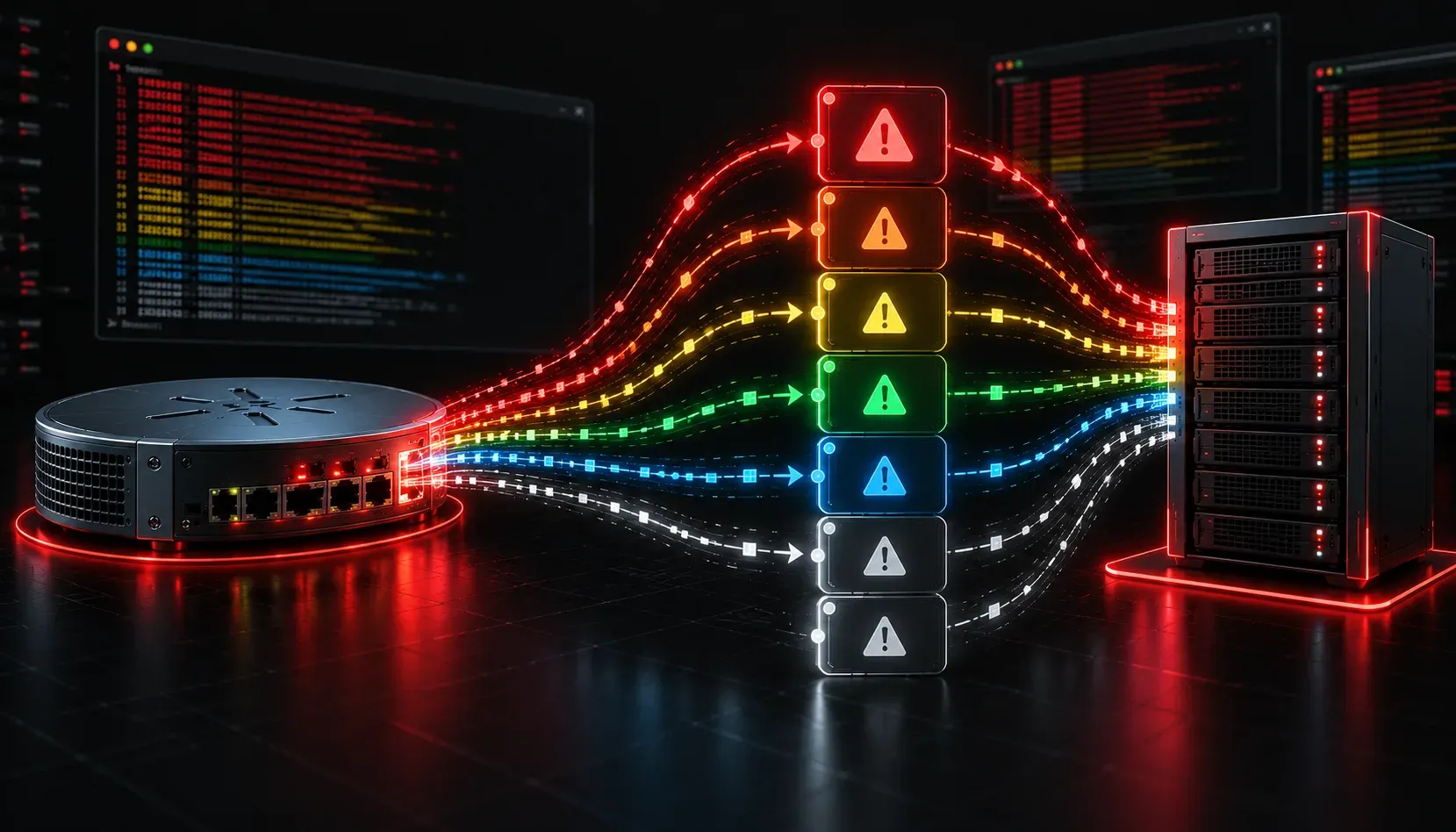
When something goes wrong on your network, logs are often your first clue. But not all log messages are created equal. Some are critical alerts demanding immediate attention, while others are just routine informational notes. Syslog severity levels give you a standardized way to categorize and prioritize those messages so you can focus on what matters most.
This post breaks down what syslog severity levels are, how they work on Cisco devices, and why understanding them is essential for both the CCNA exam and real-world troubleshooting.
What Is Syslog?
Syslog is a standard protocol used by network devices, servers, and applications to send log messages to a centralized logging server (or display them locally). On Cisco routers and switches, syslog messages are generated automatically when events occur: a link goes down, a configuration change is made, an authentication failure happens, and so on.
These network logs can be sent to several destinations:
- The console line (visible when connected via console cable)
- The terminal lines (visible during a Telnet or SSH session)
- An internal buffer (stored in RAM on the device)
- An external syslog server (such as a dedicated logging host)
The Eight Severity Levels
Syslog defines eight severity levels, numbered 0 through 7. The lower the number, the more critical the message. You need to know these for the CCNA exam, and a useful mnemonic is: "Every Awesome Cisco Engineer Will Need Daily Inspiration".
- 0 - Emergency: System is unusable. This is the most severe level.
- 1 - Alert: Immediate action required.
- 2 - Critical: Critical conditions that need urgent attention.
- 3 - Error: Error conditions that may affect functionality.
- 4 - Warning: Warning conditions that could lead to problems.
- 5 - Notification: Normal but significant events (also called "Notice").
- 6 - Informational: General informational messages about device activity.
- 7 - Debugging: Detailed debug output, typically only enabled during active troubleshooting.
In practice, you will rarely see severity 0 or 1 on a production device. Most day-to-day logs fall between levels 3 and 6. Level 7 (debugging) should be used with caution because it generates enormous volumes of output and can impact device performance.
Reading a Syslog Message
Here is what a typical syslog message looks like on a Cisco device:
%LINK-3-UPDOWN: Interface GigabitEthernet0/1, changed state to downBreaking that down:
- %LINK: The facility (the component generating the message).
- 3: The severity level (Error in this case).
- UPDOWN: The specific mnemonic identifying the event.
- The rest is a human-readable description of what happened.
Configuring Syslog on a Cisco Device
You can control which severity levels get logged to each destination using the logging command. The severity level you configure acts as a threshold: messages at that level and below (more critical) are logged, while messages above it are not.
To send logs to an external syslog server and set the logging level to Informational (6):
Router(config)# logging host 192.168.1.100
Router(config)# logging trap informational
To verify your current logging configuration:
Router# show loggingThe output will show you where logs are being sent and the current severity thresholds configured for each destination. This is a common verification step during troubleshooting and one you should be comfortable reading for the exam.
Why Log Prioritization Matters
Effective log prioritization is the difference between finding a problem in minutes versus hours. If you configure your syslog server to only capture severity levels 0 through 4 (Emergency through Warning), you filter out the noise of routine informational messages and focus only on events that actually require action.
During active troubleshooting, you might temporarily lower the threshold to level 6 or 7 to capture more detail. Once the issue is resolved, always raise it back up. Leaving debug logging enabled on a busy device is a recipe for performance problems.
What's Next
Now that you understand how syslog severity levels work, the next logical topic is NTP (Network Time Protocol). Accurate timestamps on syslog messages are only useful if your device clocks are synchronized. If your logs show the wrong time, correlating events across multiple devices becomes nearly impossible. We will cover how NTP keeps your network in sync in the next post.
For deeper reading, check out the Cisco Press CCNA 200-301 Official Cert Guide by Wendell Odom, which covers syslog in the context of network management and IP services in thorough detail.
Tools and resources for this topic
- Wendell Odom CCNA Vol 1 — Covers networking fundamentals, switching, and routing basics.
- Wendell Odom CCNA Vol 2 — Covers advanced routing, WAN, infrastructure services, and security.