
Converting JavaScript Objects to JSON
This post explains how to convert JavaScript objects to JSON strings using JSON.stringify(), including optional arguments for formatting and filtering. It also covers what data types get dropped during serialization and shows a real-world fetch API example.

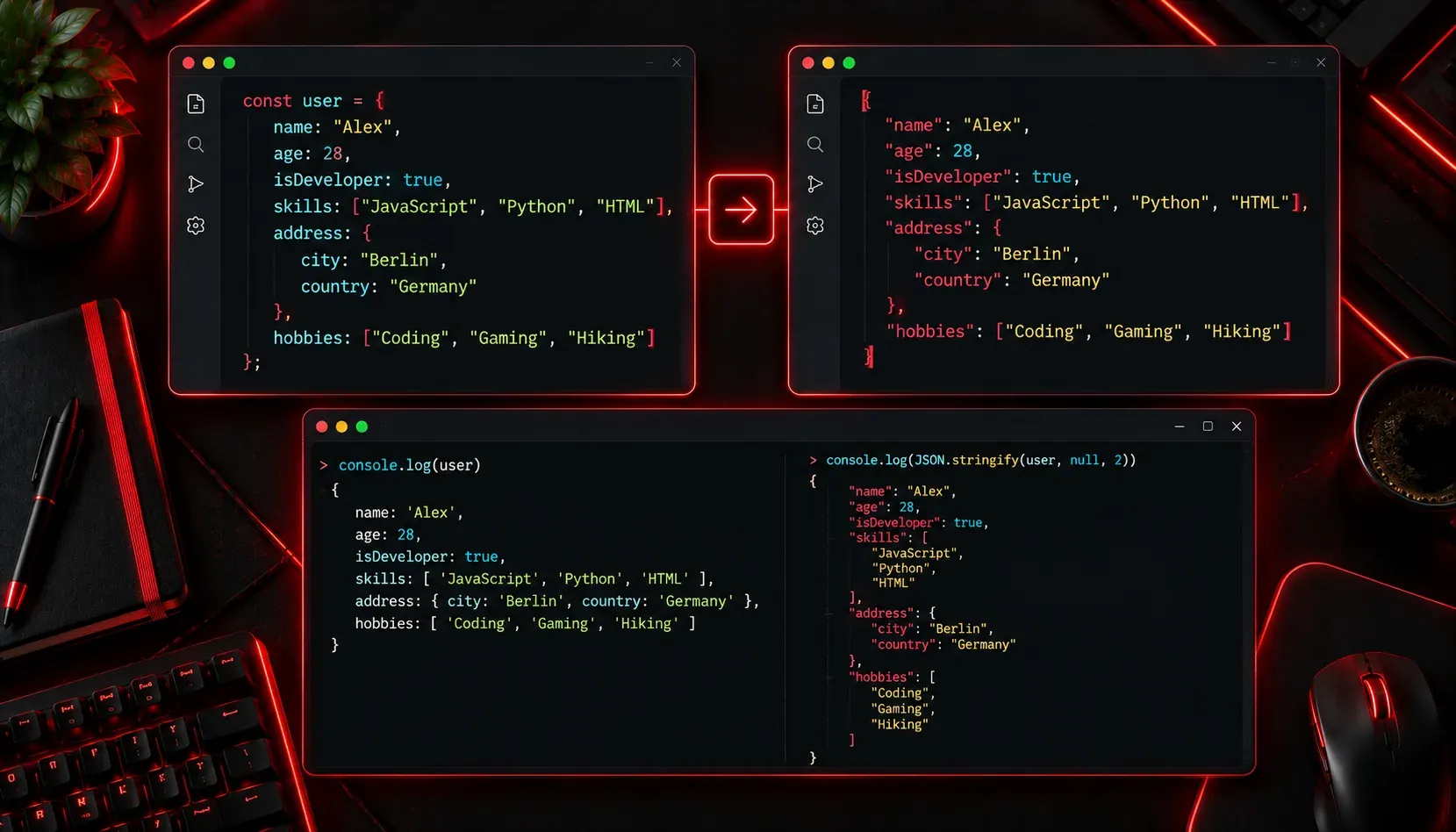
If you've been working with JavaScript for any length of time, you've almost certainly encountered objects. They're the fundamental building blocks of the language, used to group related data together in a clean, readable way. At some point, though, you'll need to send that data somewhere, whether that's to a server, an API, or a local file. That's where JSON comes in, and specifically, where converting JavaScript objects to JSON becomes an essential skill.
What Is the Difference Between a JavaScript Object and JSON?
This is a question that trips up a lot of beginners, and it's worth addressing clearly before diving into the conversion process.
A JavaScript object is a live, in-memory data structure. It exists inside your running program and can contain functions, undefined values, and complex nested structures. Here's a simple example:
const user = {
  name: "Alex",
  age: 30,
  isAdmin: false
};
JSON (JavaScript Object Notation) is a text-based data format used for transmitting data between systems. It looks similar to a JavaScript object, but it's actually just a string with strict formatting rules. For example, all keys must be quoted with double quotes, and values like functions or undefined are not allowed.
Think of it this way: a JavaScript object is a tool you use while programming, and JSON is how you package that data to send it somewhere else.
Converting an Object to JSON: JSON.stringify()
JavaScript provides a built-in method for this conversion: JSON.stringify(). It takes a JavaScript object and returns a JSON-formatted string.
const user = {
  name: "Alex",
  age: 30,
  isAdmin: false
};

const jsonString = JSON.stringify(user);
console.log(jsonString);
// Output: {"name":"Alex","age":30,"isAdmin":false}
That output is now a proper JSON string, ready to be sent in an HTTP request, written to a file, or stored in a database.
Adding Readability with Indentation
JSON.stringify() accepts two optional additional arguments. The second is a replacer (more on that in a moment), and the third is a space value for pretty-printing. Passing a number like 2 tells the method to indent the output by two spaces, making it much easier to read:
const jsonString = JSON.stringify(user, null, 2);
console.log(jsonString);
This produces:
{
  "name": "Alex",
  "age": 30,
  "isAdmin": false
}
This is particularly useful when debugging or logging data, since compressed JSON strings can be hard to read at a glance.
Using the Replacer Argument
The second argument to JSON.stringify() is called a replacer. You can pass an array of property names to include only specific keys in the output:
const user = {
  name: "Alex",
  age: 30,
  password: "supersecret123"
};

const jsonString = JSON.stringify(user, ["name", "age"], 2);
console.log(jsonString);
// Output:
// {
//   "name": "Alex",
//   "age": 30
// }
Notice that the password field is excluded. This is a handy way to avoid accidentally serializing sensitive data.
What Gets Dropped During Conversion?
It's important to understand that JSON.stringify() silently drops certain data types because JSON has no way to represent them. Specifically:
- Functions: any property with a function value is omitted entirely
- undefined values: properties set to
undefinedare dropped - Symbol keys: properties keyed by a Symbol are ignored
const data = {
  name: "Alex",
  greet: function() { return "Hello!"; },
  score: undefined
};

console.log(JSON.stringify(data));
// Output: {"name":"Alex"}
The greet function and score property simply disappear. This is expected behavior, not a bug, but it's something to keep in mind when working with complex objects.
A Practical Use Case
One of the most common reasons to convert an object to JSON is when making a fetch request to an API. Here's what that looks like in practice:
const payload = {
  username: "alex",
  email: "[email protected]"
};

fetch("https://api.example.com/users", {
  method: "POST",
  headers: {
    "Content-Type": "application/json"
  },
  body: JSON.stringify(payload)
});
The body of a fetch request must be a string, not a JavaScript object. JSON.stringify() handles that conversion cleanly, and the Content-Type header tells the server to expect JSON-formatted data.
What's Next
Now that you know how to convert a JavaScript object into a JSON string, the logical next step is learning to go the other direction: parsing a JSON string back into a usable JavaScript object using JSON.parse(). That skill becomes critical when you're receiving data from an API or reading a configuration file. We'll cover that in the next post in this series.