
Troubleshooting Common SPAN Configuration Issues
This post covers the most common SPAN configuration failures encountered in enterprise environments, including sessions that capture no traffic, one-directional captures, RSPAN VLAN propagation issues, and performance impacts. Each issue is paired with CLI verification commands and targeted fixes t

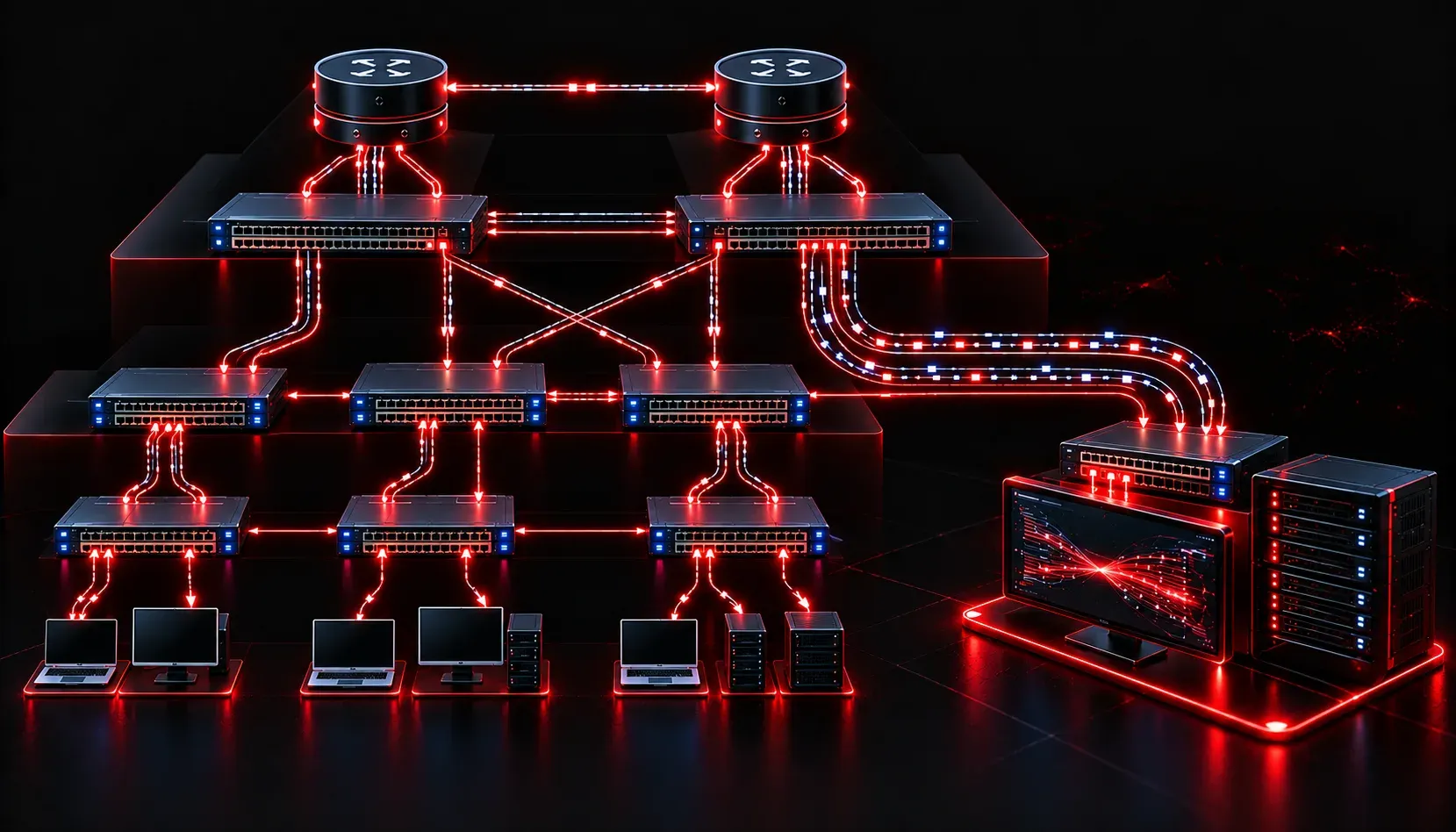
Why SPAN Troubleshooting Deserves Its Own Playbook
SPAN looks simple on paper: mirror traffic from a source to a destination, attach a capture tool, done. In practice, SPAN configurations break in ways that are surprisingly subtle. You get partial captures, one-directional traffic, or nothing at all, and your packet analyzer sits there looking useful while delivering nothing actionable. This post breaks down the most common failure modes, how to identify them quickly, and how to fix them without taking down production traffic.
Verifying the Baseline Configuration First
Before you start second-guessing your capture tool, verify the SPAN session itself. The fastest way to expose a misconfigured session is show monitor session.
SW1# show monitor session 1
Session 1
---------
Type                   : Local Session
Source Ports           :
    Both               : Gi1/0/1
Destination Ports      : Gi1/0/24
    Encapsulation      : Native
          Ingress      : Disabled
This output tells you the session type, source, destination, encapsulation, and ingress status. Check all four. A session that shows no source ports or no destination port means the configuration is incomplete. You can also use show monitor session all to see every active session on the switch and catch conflicts.
Issue 1: SPAN Not Capturing Any Traffic
This is the most common complaint. The capture tool is connected, the session is configured, and the interface counters on the destination port are flat. Here is what to check in order:
Destination Port Is Still in Normal Switching Mode
A SPAN destination port cannot simultaneously function as a normal access or trunk port. If the destination port is carrying production VLANs, the switch will often allow the SPAN session to be created but traffic behavior will be unpredictable. The port should show up as a monitoring port in show interfaces Gi1/0/24 status with no VLAN association for the destination interface.
If another device is plugged into the SPAN destination and generating traffic back toward the switch, that inbound traffic can also corrupt your capture. By default, ingress forwarding is disabled on SPAN destination ports, which is the correct state. Confirm with:
SW1# show monitor session 1 detail
...
Ingress      : Disabled
Source Port Direction Is Wrong
SPAN sources can be configured for rx, tx, or both. If you only configured rx and you are trying to see outbound traffic from a server, you will capture exactly half of the conversation. For full bidirectional visibility, always specify both unless you have a deliberate reason to filter direction:
SW1(config)# monitor session 1 source interface Gi1/0/1 bothHardware Limitation: No Available SPAN Resources
Many enterprise platforms have a hard limit on concurrent SPAN sessions. Catalyst 9000 series switches typically support a maximum of 8 local SPAN sessions per switch, but some earlier platforms allow fewer. If you have hit the platform limit, the session will either fail silently or generate a syslog error. Check existing sessions with show monitor session all and remove any stale sessions that are no longer needed.
Issue 2: Partial or One-Sided Captures
You can see traffic in one direction but not the other, or you are missing traffic from specific VLANs. This points to one of three root causes.
VLAN Filtering Applied Incorrectly
When the SPAN source is a trunk port, you can optionally filter which VLANs are mirrored using monitor session filter vlan. If this is configured but the VLANs you need are not in the filter list, those conversations will be invisible to your capture tool.
SW1# show monitor session 1 detail
Filter VLANs  : 10,20
If you need all VLANs on that trunk, remove the filter entirely:
SW1(config)# no monitor session 1 filter vlanRSPAN vs. Local SPAN Confusion
Remote SPAN introduces additional failure points. If the RSPAN VLAN is not pruned from trunks correctly or is not allowed end-to-end, mirrored traffic never reaches the destination switch. Confirm the RSPAN VLAN is present on every trunk between source and destination:
SW1# show interfaces trunk
...
VLANs allowed and active in management domain: 1,10,20,999
VLAN 999 in this example is the RSPAN VLAN. If it is missing, add it with switchport trunk allowed vlan add 999 on every intermediate trunk.
Issue 3: SPAN Impacting Production Performance
SPAN is not entirely free from a performance standpoint. On high-traffic interfaces, mirroring can consume significant CPU and switching resources, particularly on software-based platforms or older ASIC designs. Symptoms include interface input drops on the destination port and increased CPU utilization on the supervisor.
If this occurs, consider these mitigations:
- Reduce source scope: Instead of monitoring an entire trunk, narrow the source to specific ports or a filtered VLAN list.
- Use ERSPAN to offload: Encapsulated Remote SPAN tunnels mirrored traffic as GRE over IP to a remote collector, distributing the load across the network rather than concentrating it on a single local port.
- Use Embedded Packet Capture (EPC): For short-duration captures on IOS-XE platforms, EPC is less resource-intensive than a full SPAN session and does not require a dedicated physical port.
Issue 4: Capture Tool Not Seeing Tagged Frames
When the SPAN source is a trunk, mirrored frames arrive at the destination port with 802.1Q tags intact. If your NIC or capture tool does not support VLAN tagging, you will see frames but lose VLAN context, or some frames may be dropped entirely depending on the NIC driver.
Confirm your capture tool is configured to accept tagged frames. In Wireshark, 802.1Q headers are decoded automatically if the NIC delivers them. On Linux-based capture hosts, verify with:
ip link show eth0
# Confirm no VLAN filtering is applied at the OS level
Alternatively, configure the SPAN destination as an access port assigned to a specific VLAN if you only need to capture traffic from a single VLAN and want to strip the tag before it reaches your tool.
Quick Troubleshooting Reference
- No traffic captured: Verify source and destination are configured, check ingress is disabled, confirm destination port is not in active switching use.
- One-directional traffic: Check source direction; ensure
bothis specified. - Missing VLANs: Review VLAN filters; confirm RSPAN VLAN is allowed on all trunks.
- Performance issues: Narrow source scope, consider ERSPAN or EPC as alternatives.
- Tagged frame issues: Verify NIC and capture tool support 802.1Q, or use access-mode destination port.
What's Next
With SPAN and RSPAN troubleshooting covered, the next logical step is understanding IP SLA. IP SLA gives you active, synthetic monitoring beyond what passive capture can show: round-trip delay, jitter, packet loss, and reachability, all without a physical tap or dedicated capture port. It is a critical tool for network assurance in enterprise environments and features prominently in ENCOR exam scenarios.
Tools and resources for this topic
- CCNP ENCOR 350-401 Official Cert Guide — The definitive ENCOR study resource by Brad Edgeworth. Covers enterprise infrastructure, virtualisation, and automation.