
Common Mistakes When Connecting Network Devices
This post covers the most common network connection mistakes beginners make when setting up small network topologies, including wrong cable types, incorrect port usage, forgotten interface shutdowns, and physical power errors. It includes Cisco CLI examples and a practical pre-troubleshooting check

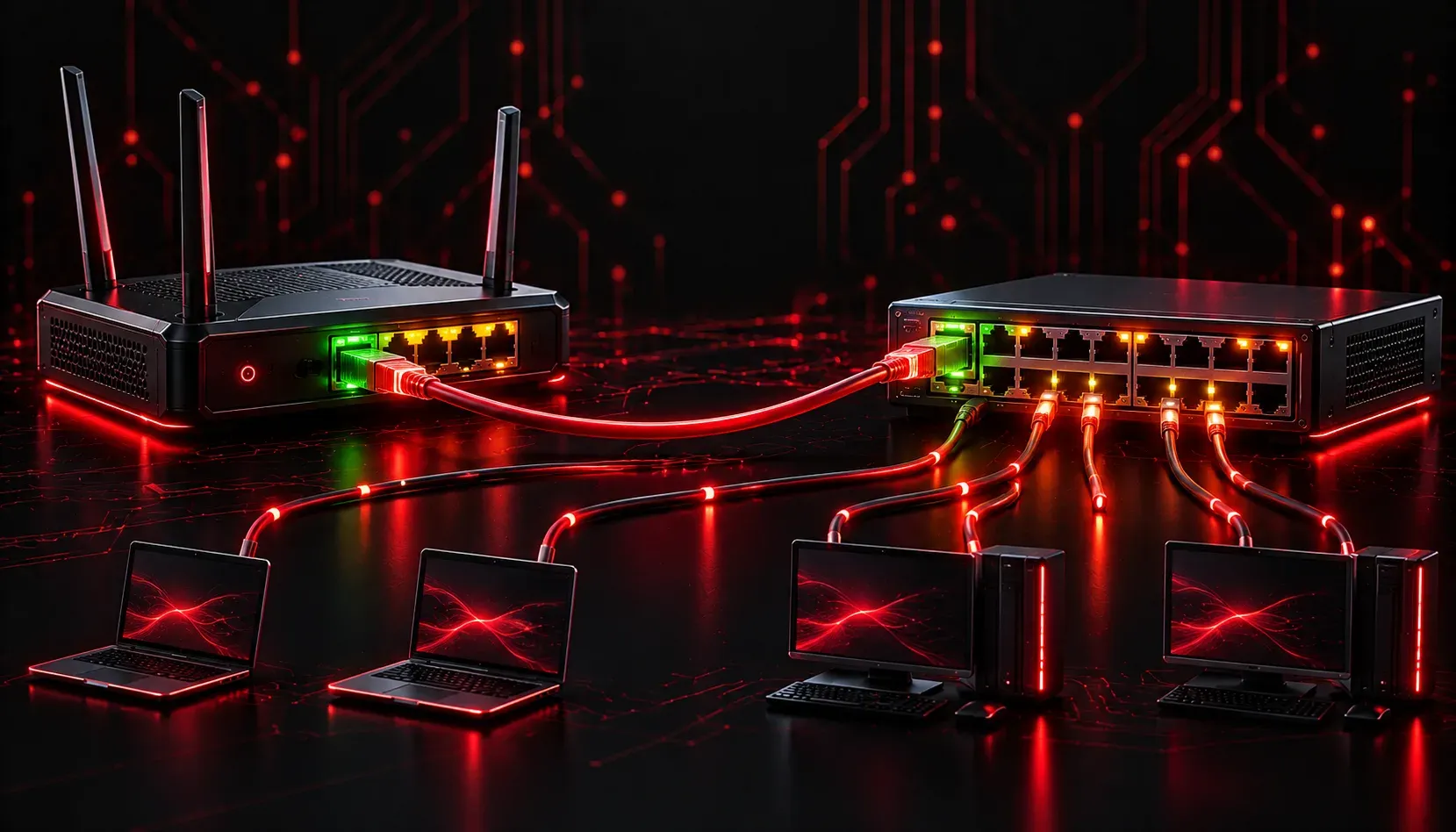
Getting hands-on with real networking equipment for the first time is exciting. You have cables, switches, routers, and a plan. But between the plan and a working network, there are quite a few places where things can go quietly wrong. This post walks through the most common network connection mistakes beginners make, so you can recognize and avoid them before they cost you hours of troubleshooting.
Using the Wrong Cable Type
Patch cables look identical on the outside, but what is inside matters. The two most common types you will encounter are straight-through and crossover cables. A straight-through cable connects devices of different types, such as a PC to a switch, or a switch to a router. A crossover cable connects devices of the same type, such as switch to switch or PC to PC.
Most modern switches support Auto-MDIX, which automatically detects and adjusts for the wrong cable type. But older equipment does not. If you plug a straight-through cable between two switches on older hardware and the link light never comes on, this is the first thing to check.
Also confirm you are using the right cable category for the speed you need. Cat5e supports up to 1 Gbps. Cat6 is better for 10 Gbps over short distances. Using a damaged or low-quality cable can cause intermittent connectivity that is very difficult to diagnose.
Connecting to the Wrong Port Type
Routers and switches have different port types, and confusing them is one of the most common beginner mistakes when troubleshooting network setup for the first time.
- Console port: Used for out-of-band management only. You connect a laptop here with a rollover cable or USB adapter to configure the device. No traffic passes through the console port.
- Ethernet LAN ports: Used to connect hosts or other switches. On a router, these are labeled
GigabitEthernet0/0,GigabitEthernet0/1, etc. - WAN port: On a router, this connects to the upstream provider or internet connection.
A classic mistake is plugging a PC into the console port expecting network access. The link light may not even appear, and you will get no connectivity. Always check which port type you are using before assuming the cable or device is faulty.
Forgetting to Enable Interfaces
Cisco routers ship with all interfaces in a shutdown state by default. Even if your cable is perfectly connected, the interface will show as down until you explicitly enable it. Here is what that looks like on a Cisco router:
Router# show ip interface brief
Interface              IP-Address      OK? Method Status    Protocol
GigabitEthernet0/0    192.168.1.1     YES manual down      down
The status column shows down and protocol shows down. This means the interface is administratively shut down. Fix it with:
Router(config)# interface GigabitEthernet0/0
Router(config-if)# no shutdown
After a moment, the interface will come up and you will see:
%LINK-5-CHANGED: Interface GigabitEthernet0/0, changed state to upSwitches do not shut down ports by default, but routers do. This catches a lot of beginners.
Power and Physical Setup Errors
Physical and power mistakes are easy to overlook when you are focused on configuration. A few things to always verify:
- Power sequence: Power on core devices first (routers, then switches, then hosts). This gives each layer time to initialize before downstream devices try to connect.
- Cable management: In a rack or patch panel environment, bundling cables neatly prevents accidental disconnections and makes troubleshooting much faster.
- Check link lights: A solid green link light typically means the physical connection is good. An amber or no-light condition usually points to a cable, port, or speed mismatch issue.
- PoE awareness: If you are connecting IP phones or wireless access points, make sure your switch supports Power over Ethernet on that port, or use an external PoE injector.
A Quick Checklist Before You Start Troubleshooting
- Is the correct cable type being used for the device pairing?
- Is the cable plugged into the correct port type?
- Is the interface administratively enabled on the router?
- Are link lights showing a healthy physical connection?
- Is power applied and stable to all devices?
Running through this list before diving into configuration takes two minutes and eliminates the most common physical layer problems. Most network connection mistakes at this level are not complex. They are just easy to overlook when you are excited to get into the software side of things.
What's Next
Now that you can identify and avoid the most common physical connection errors, the next step is understanding how traffic actually moves once everything is connected. In the next post, we will look at how switches use MAC address tables to forward frames, which is the foundation of how a local network functions.