
Essential Linux File Utilities Explained
This post introduces three essential Linux file utilities: cd, ls, and cp. Beginners will learn how to navigate the filesystem, list directory contents, and copy files and directories using practical terminal examples aligned with the CompTIA Linux+ exam.

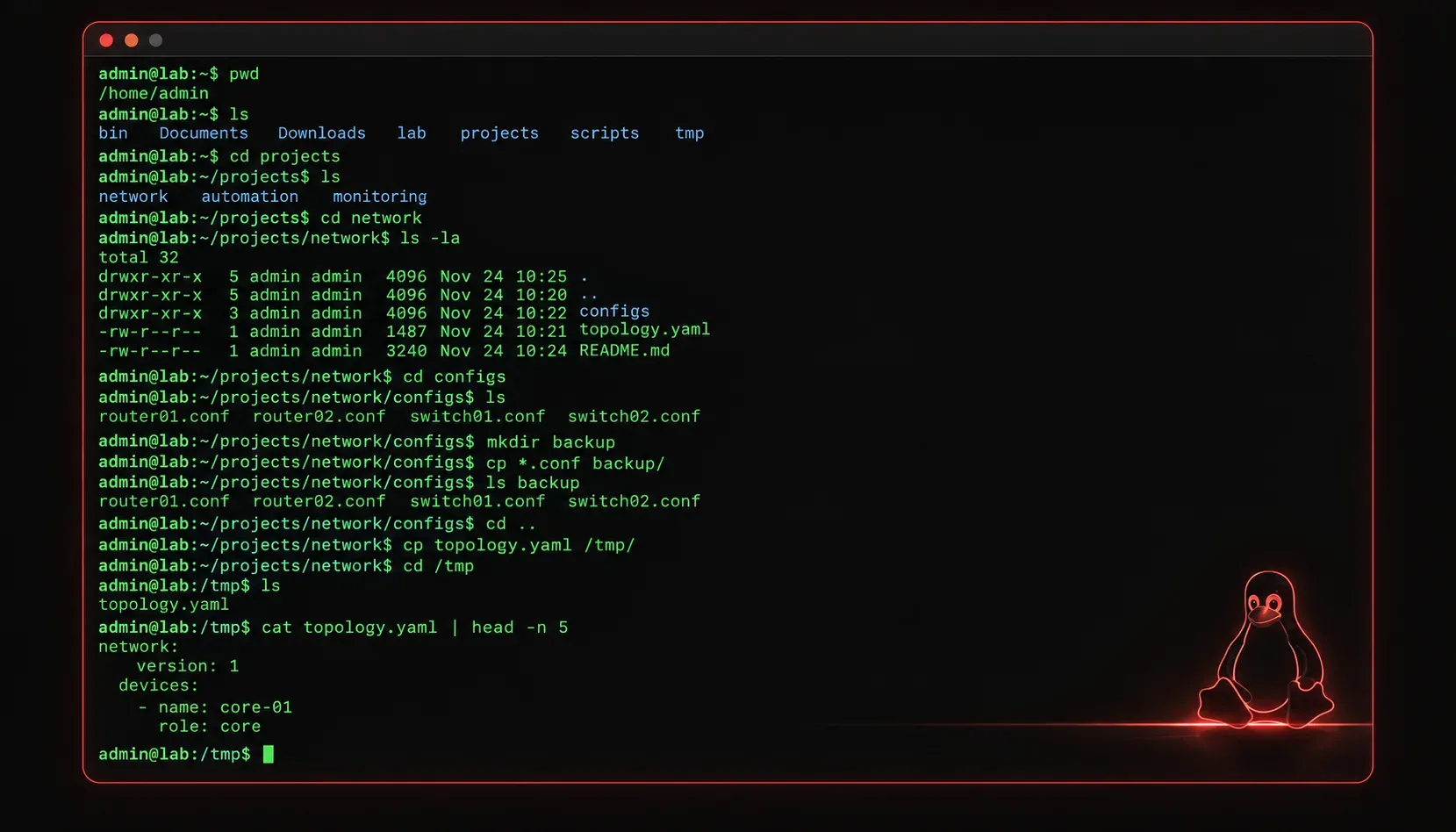
If you're just getting started with Linux, one of the first things you'll need to master is navigating and managing files from the command line. Unlike graphical file managers where you click and drag, Linux gives you powerful text-based tools that work consistently across virtually every system you'll ever touch. These are called Linux file utilities, and learning them is a foundational skill for any Linux administrator or engineer.
This post covers three of the most commonly used file utilities: cd, ls, and cp. Once you understand these, you'll have a solid foundation to build on.
Navigating the Filesystem with cd
The cd command stands for change directory. It's how you move around the Linux filesystem. Think of it like double-clicking a folder in a file manager, except you type where you want to go.
Here are the most common ways to use it:
# Move into a specific directory
cd /etc

# Move up one level (to the parent directory)
cd ..

# Move to your home directory
cd ~

# Move to the previous directory you were in
cd -
After running cd /etc, your prompt will reflect the new location. If you ever get lost, run pwd (print working directory) to see exactly where you are in the filesystem.
Listing Files and Directories with ls
The ls command lists the contents of a directory. By itself, it gives you a simple list of files and folders. Add a few options, and it becomes much more informative.
# Basic listing
ls

# Long format: shows permissions, owner, size, and timestamps
ls -l

# Show hidden files (files starting with a dot)
ls -a

# Combine options: long format with hidden files
ls -la

# Human-readable file sizes
ls -lh
The output of ls -lh might look like this:
total 24K
drwxr-xr-x 2 alice alice 4.0K Oct 10 09:15 Documents
-rw-r--r-- 1 alice alice 1.2K Oct 10 08:45 notes.txt
-rwxr-xr-x 1 alice alice 8.5K Oct 09 14:30 script.sh
The first column shows file permissions, followed by the owner, group, file size, modification date, and filename. You'll use this output constantly when troubleshooting and managing systems.
Copying Files and Directories with cp
The cp command copies files or directories from one location to another. It's one of the most frequently used utilities you'll encounter on the job.
# Copy a file to another location
cp notes.txt /tmp/notes_backup.txt

# Copy a file into a directory
cp notes.txt /home/alice/Documents/

# Copy a directory and all its contents (recursive)
cp -r /home/alice/Documents /tmp/docs_backup

# Preserve file attributes (permissions, timestamps)
cp -p notes.txt /tmp/notes_backup.txt

# Prompt before overwriting an existing file
cp -i notes.txt /tmp/notes_backup.txt
The -r flag is critical when copying directories. Without it, cp will refuse to copy a directory and return an error. The -i flag is a good habit to use when you're learning; it prevents you from accidentally overwriting files.
Putting It Together
Here's a quick practical example that uses all three commands together:
# Navigate to your home directory
cd ~

# List the files there
ls -lh

# Copy your notes file to a backup location
cp notes.txt /tmp/notes_backup.txt

# Navigate to /tmp and verify the copy
cd /tmp
ls -lh notes_backup.txt
This kind of workflow is something you'll repeat daily as a Linux administrator. The commands are simple individually, but together they give you full control over your filesystem.
Study Resources
If you're preparing for the CompTIA Linux+ exam, these utilities fall under Domain 2: Systems Configuration. For deeper coverage of file management and all related exam objectives, the CompTIA Linux+ Study Guide by Richard Blum is an excellent companion resource to work through alongside hands-on practice.
What's Next
Now that you can navigate, list, and copy files, the next step is learning how to move and remove them using the mv and rm commands. We'll also look at mkdir for creating directories and find for locating files across the system. These utilities round out your core file management toolkit and are just as essential for day-to-day Linux work.
Tools and resources for this topic
- CompTIA Linux+ Study Guide — Comprehensive Linux+ exam preparation covering system administration, security, and scripting.