
How to Identify Network Bottlenecks at Home
This post walks beginners through identifying common home network bottlenecks that cause slowdowns and buffering. It covers routers, cabling, NICs, Wi-Fi congestion, and too many connected devices, with a practical checklist for troubleshooting. Aligned with CompTIA Network+ Domain 5.4.

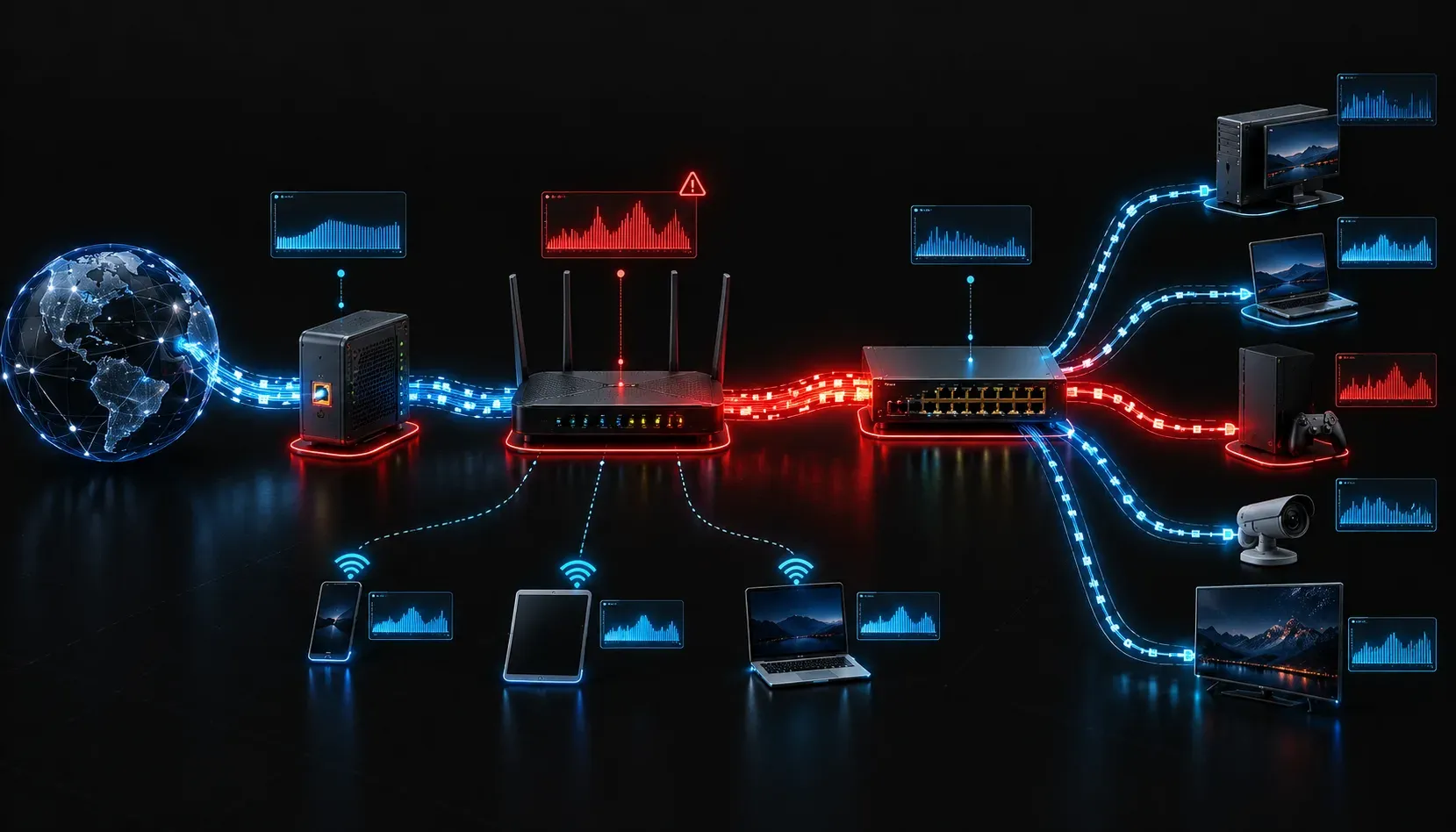
Your internet connection feels sluggish. Videos buffer, video calls drop, and downloads crawl. Before you call your ISP in frustration, the problem might be right inside your home. Learning to identify network bottlenecks is a core troubleshooting skill covered in CompTIA Network+ Domain 5, and it applies directly to real-world situations you'll face every day.
A bottleneck is any point in your network where traffic is restricted, slowed down, or overwhelmed. Think of it like a highway that narrows from four lanes to one. Plenty of capacity on either side, but one choke point ruins the flow. Let's walk through how to find yours.
Start With a Baseline Speed Test
Before digging into hardware and cables, establish a baseline. Visit a site like fast.com or speedtest.net and run a test while connected directly to your modem via an Ethernet cable. No router, no switches, just a wired connection straight to the modem.
If those speeds match what your ISP promises, great. The problem is inside your network. If they don't, the bottleneck is at or before the modem, and that's a conversation for your ISP.
Common Home Network Bottlenecks
Your Router
The router is the most frequent culprit. Older routers can't handle the throughput that modern internet plans provide. If your ISP delivers 500 Mbps but your router's specs cap out at 100 Mbps, that's your ceiling right there. Check your router's specifications and compare them to your plan speed.
Also consider CPU and memory on the router itself. Budget routers under heavy load (lots of connected devices, active torrents, streaming) can saturate their processors and cause network slowdowns for everyone on the network.
Your Cabling
Ethernet cables have categories that determine their maximum speed. A Cat5 cable maxes out at 100 Mbps. If you're using older cables between your modem, router, and switch, you may be limiting your own throughput. Upgrading to Cat5e or Cat6 is cheap and often solves the problem immediately.
For wireless connections, physical obstructions like walls, floors, and appliances reduce signal strength and available bandwidth. Distance from the access point also matters significantly.
Network Interface Cards (NICs)
On older PCs or laptops, the built-in NIC might only support 100 Mbps (Fast Ethernet) rather than 1 Gbps (Gigabit Ethernet). You can verify this on Windows by checking your adapter settings:
- Open Device Manager
- Expand Network Adapters
- Right-click your adapter and select Properties
- Under the Advanced tab, look for Speed and Duplex
If it's set to 100 Mbps Full Duplex and your plan is faster, that NIC is your bottleneck.
Wi-Fi Band and Channel Congestion
If you live in an apartment building or densely populated area, your 2.4 GHz Wi-Fi channel is probably congested. The 2.4 GHz band only has three non-overlapping channels (1, 6, and 11), and everyone's router is fighting for space on them.
Switching affected devices to the 5 GHz band offers more available channels and less interference. Tools like Wi-Fi Analyzer (available on Android and Windows) let you visualize nearby networks and their channels, making it easy to spot congestion.
Too Many Devices
Every device connected to your network consumes some bandwidth, even in the background. Smart TVs, game consoles, phones, tablets, smart speakers, and IoT devices all generate traffic. If you have 20 devices sharing a 50 Mbps connection, you're going to feel it. Log into your router's admin panel (usually accessible at 192.168.1.1 or 192.168.0.1) and review connected devices. You might find devices you forgot were even online.
Quick Troubleshooting Checklist
- Run a wired speed test: Rule out ISP issues first
- Check cable categories: Replace anything older than Cat5e
- Review router specs: Make sure it matches your plan speed
- Check NIC speed: Confirm Gigabit support on your devices
- Analyze Wi-Fi channels: Switch to a less congested channel or the 5 GHz band
- Audit connected devices: Remove or limit background bandwidth users
What's Next
Now that you can identify network bottlenecks at home, the next step is understanding how to troubleshoot internet connectivity issues more systematically using the OSI model as a framework. Working from Layer 1 up gives you a structured, methodical approach to any network problem, whether it's at home or in an enterprise environment. We'll cover that process in the next post in this series.
Tools and resources for this topic
- CompTIA Network+ Study Guide — Comprehensive N10-009 exam preparation covering all five domains.