
How to Identify Physical Interface Problems
This post walks beginners through identifying and troubleshooting physical interface problems in networking equipment. It covers common symptoms, CLI commands for checking interface status on Cisco devices, and practical hands-on checks to isolate hardware issues at Layer 1.

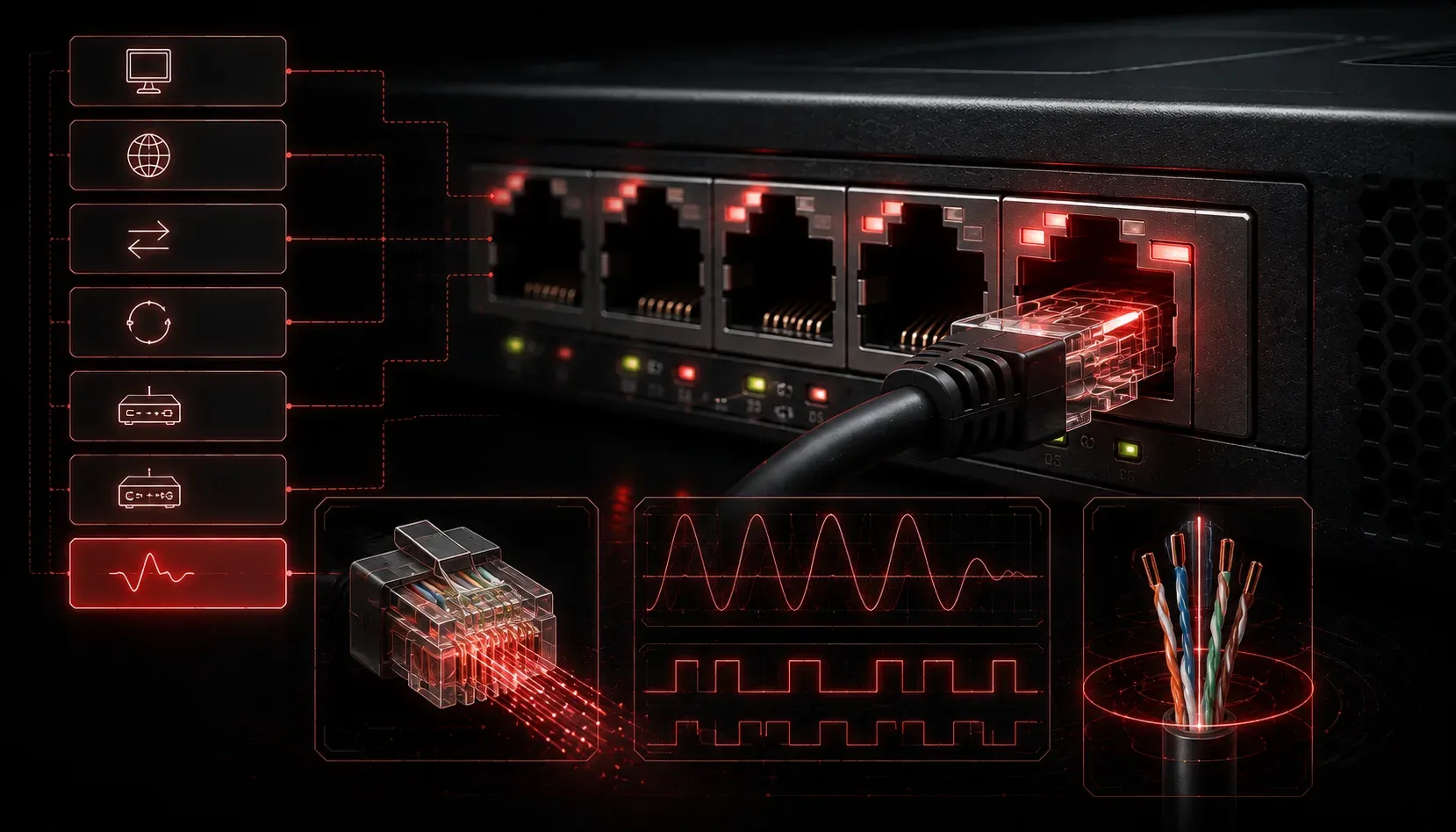
When a network connection fails, the first instinct is often to jump straight into software settings or configuration files. But before you dig into complex troubleshooting, it pays to check the physical layer first. Physical interface problems are surprisingly common, and they are often the easiest to fix once you know what to look for.
Think of your network interface like a power outlet. If the lamp does not turn on, you check the plug, the outlet, and the power switch before assuming the lamp itself is broken. The same logic applies to network hardware.
What Is a Physical Interface?
A physical interface is the hardware component that connects a device to a network. This includes the Network Interface Card (NIC) in your computer, the Ethernet port on a switch, and the cables connecting them. When any of these components fail or behave unexpectedly, you have a physical interface problem.
Physical layer issues fall under Layer 1 of the OSI model. If Layer 1 is broken, nothing above it, including IP addressing, routing, or application data, can function properly.
Common Symptoms of Physical Interface Problems
Recognizing the symptoms is the first step in troubleshooting. Here are the most common signs that something is wrong at the physical layer:
- Link light is off: Most NICs and switch ports have an LED indicator. No light usually means no physical connection.
- Intermittent connectivity: The connection drops randomly, often caused by a loose or damaged cable.
- Slow speeds: A gigabit link that is running at 100 Mbps or 10 Mbps may be experiencing a duplex mismatch or a failing cable.
- High error counts: Excessive CRC errors, input errors, or runts on an interface often point to a bad cable or a faulty port.
- Interface is down/down: The interface shows no signal at all, indicating a complete physical failure.
How to Check Interface Status with CLI
On a Cisco device, the show interfaces command is your best friend. It gives you a detailed view of what is happening at the physical and data link layers.
Switch# show interfaces GigabitEthernet0/1
GigabitEthernet0/1 is up, line protocol is up
  Hardware is Gigabit Ethernet, address is 0011.2233.4455
  MTU 1500 bytes, BW 1000000 Kbit/sec, DLY 10 usec
  Input errors: 0, CRC: 0, Frame: 0, Overrun: 0, Ignored: 0
  Output errors: 0, Collisions: 0, Interface resets: 0
Pay close attention to the first line. The output is up, line protocol is up means the physical connection and the data link are both functioning. If you see is down, line protocol is down, you have a physical problem. The phrase is administratively down means the port has been manually shut down, which is a configuration issue rather than a hardware failure.
Also watch the error counters. A few errors over a long uptime are normal. A rapidly increasing count is a red flag pointing to a bad cable, a dirty connector, or a failing NIC.
Quick Physical Checks to Run First
Before touching any CLI, start with these hands-on checks:
- Inspect the cable for visible damage, kinks, or crushed sections.
- Re-seat the cable at both ends. RJ45 connectors can work loose over time.
- Swap the cable with a known-good replacement cable to isolate the fault.
- Check the LED indicators on both the NIC and the switch port.
- Try a different switch port to rule out a dead port on the switch.
- Use a cable tester to verify continuity and correct pin-out.
Hardware Issues Beyond the Cable
Sometimes the cable is fine, but the NIC itself is faulty. A failed NIC may appear as a missing interface in the operating system, or it may show up but fail to pass traffic. Replacing the NIC or using a USB-to-Ethernet adapter for testing can help confirm whether the problem lives in the card rather than the cable.
Switch ports can also go bad. If swapping the cable does not resolve the issue, move the device to a different port on the switch. If the connection comes back immediately, the original port is likely failed or misconfigured.
What's Next
Now that you can identify physical interface problems, the next step is understanding how to interpret the error counters you find in those show interfaces outputs. In the next post, we will break down what CRC errors, runts, giants, and collision counters actually mean, and what each one tells you about the health of your network link.
Tools and resources for this topic
- CompTIA Network+ Study Guide — Comprehensive N10-009 exam preparation covering all five domains.