
Understanding Linux User Permissions
This post introduces Linux user permissions for beginners, covering the three permission categories (owner, group, others), how to read permission output with ls -l, and how to set permissions using chmod in both symbolic and numeric modes. It also covers changing file ownership with chown and appl

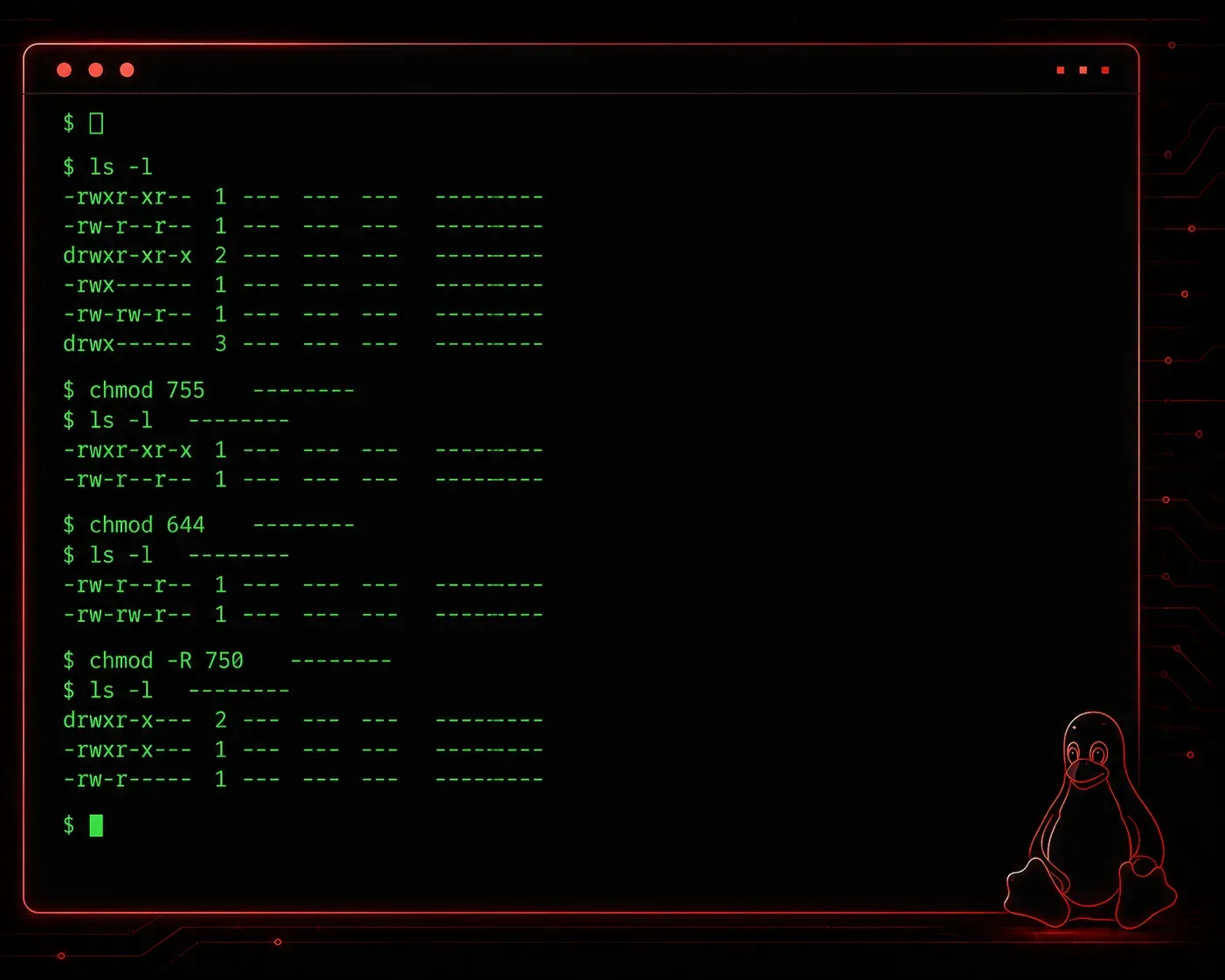
One of the first things you need to understand when working with Linux is how the system controls who can do what with files and directories. Linux user permissions are at the heart of system security and are a core concept on the CompTIA Linux+ exam. If you get this right, you lay a solid foundation for everything else in Linux administration.
The Three Permission Categories
Linux assigns permissions based on three categories of users:
- Owner (User): the person who created the file or was assigned ownership
- Group: a defined set of users who share access rights to the file
- Others: everyone else on the system
Each category can be granted three types of access:
- Read (r): view the contents of a file, or list a directory
- Write (w): modify a file, or create and delete files within a directory
- Execute (x): run a file as a program, or enter a directory
Reading Permission Output
Run ls -l in any directory and you will see something like this:
-rwxr-xr-- 1 alice devteam 4096 Jun 10 09:22 deploy.shBreaking down that first field, -rwxr-xr--:
- Position 1 (
-): file type.-means regular file,dmeans directory,lmeans symbolic link - Positions 2-4 (
rwx): owner permissions (read, write, execute) - Positions 5-7 (
r-x): group permissions (read, no write, execute) - Positions 8-10 (
r--): others permissions (read only)
Setting Permissions with chmod
The chmod command is your primary tool for setting permissions in Linux. There are two ways to use it: symbolic mode and numeric (octal) mode.
Symbolic Mode
Symbolic mode uses letters to modify permissions. For example:
# Add execute permission for the owner
chmod u+x deploy.sh

# Remove write permission from others
chmod o-w deploy.sh

# Give the group read and write access
chmod g+rw notes.txt
The letters map as follows: u for user (owner), g for group, o for others, and a for all three.
Numeric (Octal) Mode
Each permission type has a numeric value: read is 4, write is 2, and execute is 1. You add these values together for each category to form a three-digit code.
# rwxr-xr-- = 7 (4+2+1), 5 (4+0+1), 4 (4+0+0)
chmod 754 deploy.sh

# rw-r--r-- = common for config files
chmod 644 config.conf

# rwx------ = private script, only owner can do anything
chmod 700 private.sh
Octal notation is faster once you get the hang of it, and you will see it constantly in documentation and scripts. Memorizing common values like 644, 755, and 700 will save you a lot of time.
Changing Ownership with chown
Sometimes you need to transfer ownership of a file to a different user or group. That is where chown comes in:
# Change the owner to bob
chown bob deploy.sh

# Change both owner and group
chown bob:devteam deploy.sh

# Recursively change ownership on a directory
chown -R alice:devteam /var/www/html
You need root or sudo privileges to change ownership. Regular users can only change group ownership to a group they already belong to.
A Quick Permissions Checklist
When setting file permissions Linux environments require, ask yourself these questions:
- Who actually needs access to this file?
- Do they need to read it, write to it, or execute it?
- Should others on the system have any access at all?
Following the principle of least privilege, grant only the minimum access needed to get the job done.
Recommended Reading
For a deeper dive into this topic and thorough Linux+ exam preparation, check out the CompTIA Linux+ Study Guide by Richard Blum. It covers permissions in detail alongside the rest of the exam objectives.
What's Next
Now that you understand basic file permissions Linux uses, the natural next step is learning about special permissions: SUID, SGID, and the sticky bit. These add another layer of control that comes up frequently in real-world administration and on the Linux+ exam. We will cover those in the next post.
Tools and resources for this topic
- CompTIA Linux+ Study Guide — Comprehensive Linux+ exam preparation covering system administration, security, and scripting.