
Guide to Linux Device Types in the /dev Directory
This post explains the device files found in the Linux /dev directory, focusing on the two primary Linux device types: block devices and character devices. It covers how to identify each type using ls -l output, provides real command examples, and highlights common devices like hard drives, termina

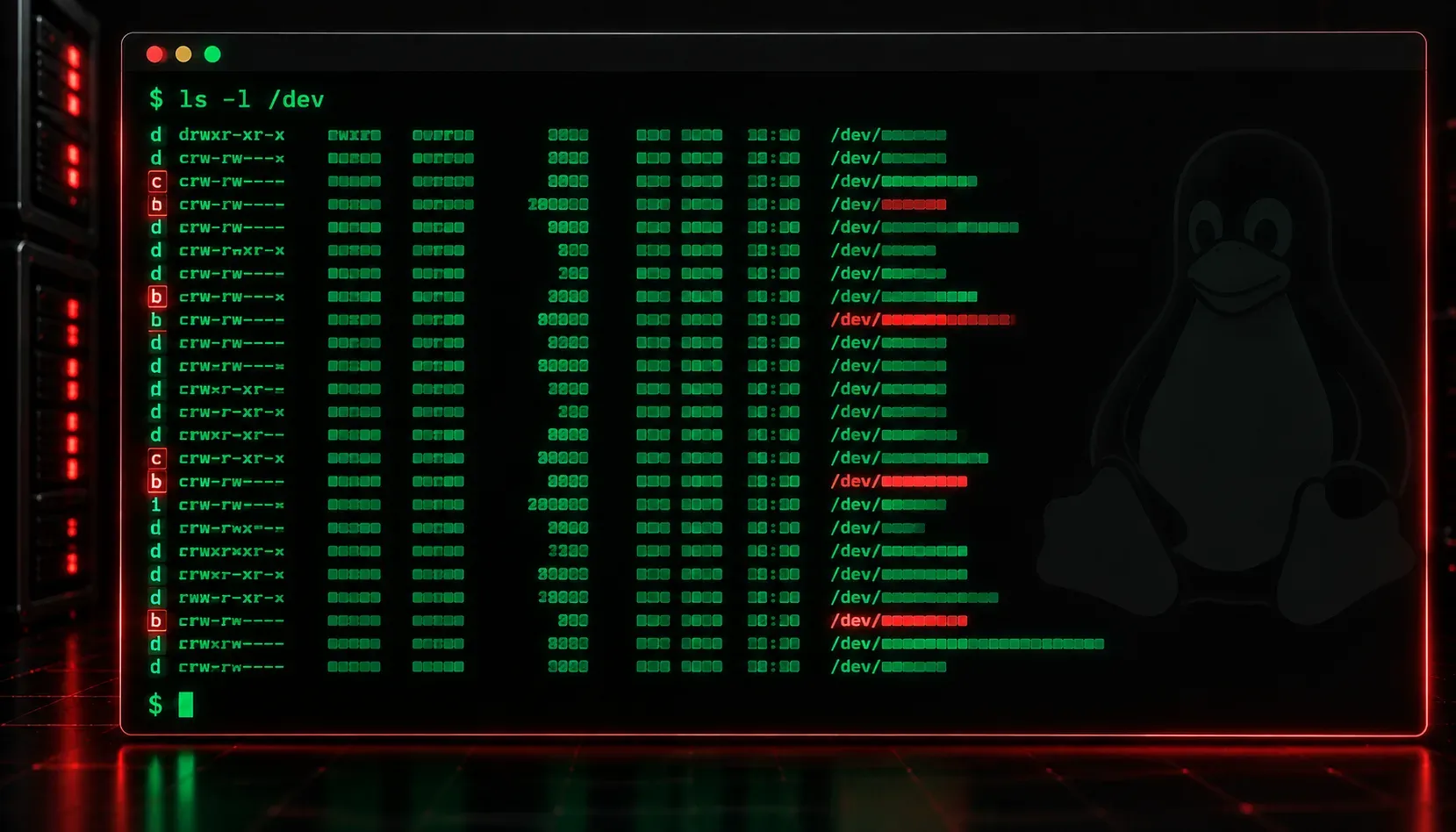
When you first peek inside the /dev directory on a Linux system, it can look like a confusing jumble of cryptic filenames. But this directory is actually one of the most elegant parts of Linux design. Everything is a file, including your hardware. Understanding the device types found here is a foundational skill for the Linux+ exam and for real-world Linux administration.
What Is the /dev Directory?
The /dev directory is a virtual filesystem that the kernel populates with device files. These files are not data files in the traditional sense; they are interfaces to hardware components and kernel features. When a program reads from or writes to a device file, it is communicating directly with the kernel, which then talks to the actual hardware.
This design philosophy, "everything is a file," means you can interact with a hard drive, a terminal, a USB port, or even system memory using the same file operations you use for text files.
The Two Primary Linux Device Types
Block Devices
Block devices read and write data in fixed-size chunks called blocks. They support random access, meaning the system can jump to any block on the device without reading everything before it. Storage hardware is the classic example of a block device.
Common block devices you will see in /dev include:
- sda, sdb, sdc: SCSI or SATA hard drives and SSDs
- sda1, sda2: Partitions on a drive
- nvme0n1: NVMe solid-state drives
- vda: Virtual drives in cloud or virtual machine environments
You can identify block devices in a directory listing by the letter b at the start of the permissions field:
$ ls -l /dev/sda
brw-rw---- 1 root disk 8, 0 Jun 10 09:14 /dev/sda
That leading b tells you this is a block device.
Character Devices
Character devices read and write data one character (byte) at a time. They are sequential; you cannot seek to a random position. Terminals, serial ports, and input devices fall into this category.
Common character devices include:
- tty0, tty1: Virtual terminals
- ttyS0: Serial ports
- null: The "black hole" device, discards everything written to it
- zero: Returns an endless stream of null bytes
- random, urandom: Kernel random number generators
Character devices show a c at the start of their permissions field:
$ ls -l /dev/null /dev/tty1
crw-rw-rw- 1 root root 1,  3 Jun 10 09:14 /dev/null
crw--w---- 1 root tty  4,  1 Jun 10 09:14 /dev/tty1
Other Special Files in /dev
Beyond block and character devices, you will encounter a couple of other special file types in /dev.
Symbolic links: Many entries in /dev are symlinks that point to the actual device file. For example, /dev/disk/by-uuid/ contains symlinks that map UUID identifiers to physical drives, making disk identification consistent across reboots.
Pipes and sockets: Some subsystems create named pipes (p in the permissions field) or sockets (s) inside /dev for inter-process communication.
A Quick Way to List Device Types
Use the ls -l command and look at the first character of each line. Here is a handy reference:
b: Block devicec: Character devicel: Symbolic linkp: Named pipes: Socket
You can also use the file command to inspect a device file directly:
$ file /dev/sda
/dev/sda: block special (8/0)
Why This Matters for the Exam
The Linux+ exam (objective 2.1.3) expects you to recognize device file types, understand the difference between block and character devices, and know common examples of each. Memorizing that b means block and c means character when reading ls -l output is a small detail that appears in multiple question formats.
For a deeper dive into device management and storage concepts, the CompTIA Linux+ Study Guide by Richard Blum provides excellent coverage of the /dev directory alongside hands-on exercises.
What's Next
Now that you understand the types of devices Linux exposes through /dev, the next step is understanding how Linux mounts those devices and makes them accessible as part of the filesystem. The next post in this series covers the Linux filesystem hierarchy and how storage devices are attached to directory mount points.
Tools and resources for this topic
- CompTIA Linux+ Study Guide — Comprehensive Linux+ exam preparation covering system administration, security, and scripting.