
Linux Environment Variables Explained
Environment variables are named values stored in your shell session that programs and scripts can read at runtime. This post explains what they are, how to view and set them, and how to make them permanent across sessions. A practical example of modifying $PATH is included.

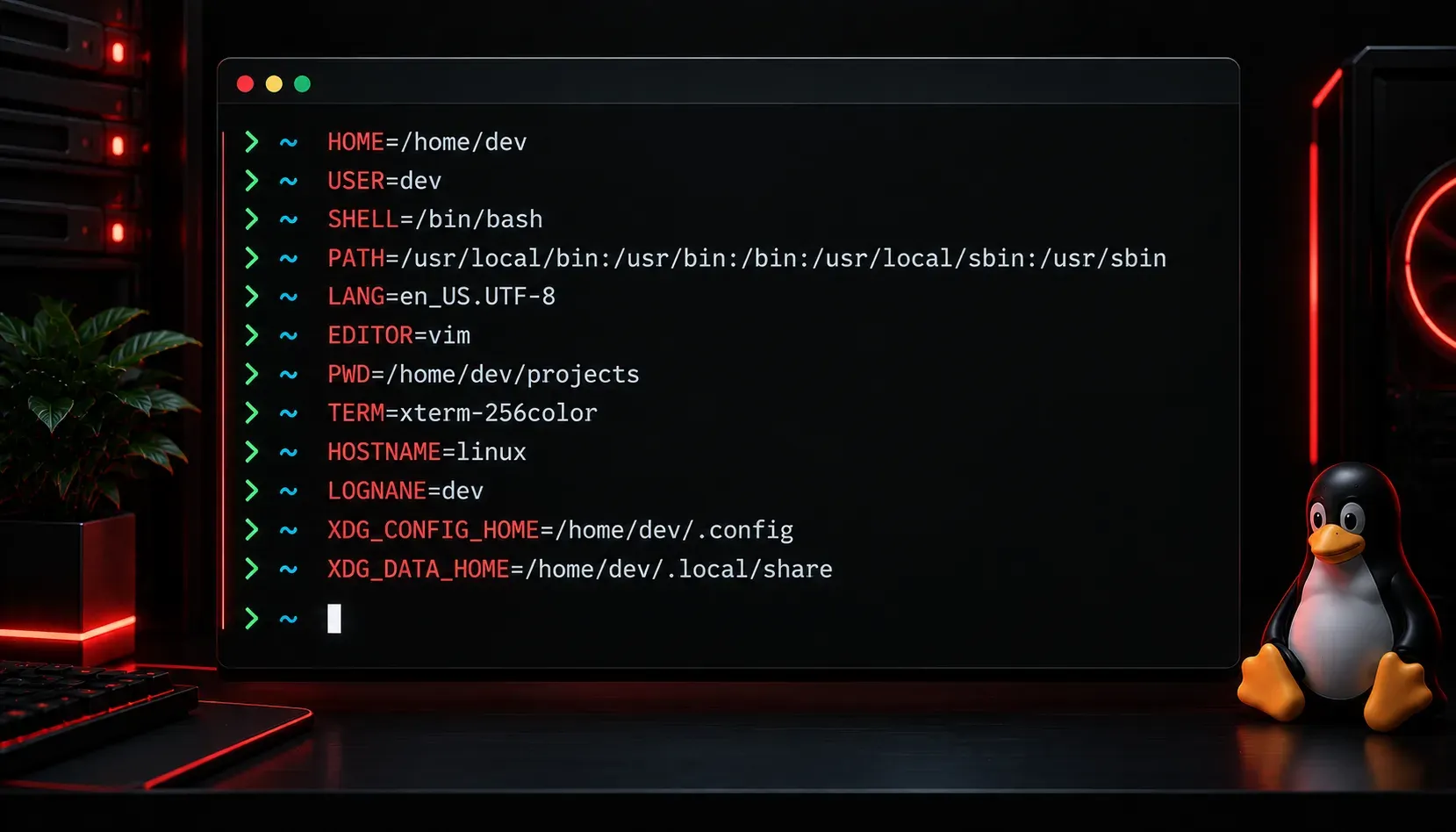
If you have spent any time in the Linux terminal, you have probably encountered things like $HOME, $PATH, or $USER without fully understanding what they are. These are environment variables, and once you understand how they work, a lot of Linux behaviour that seemed mysterious will start to make perfect sense.
What Is an Environment Variable?
An environment variable is a named value stored in your shell's memory that programs and scripts can read at runtime. Think of it like a sticky note that your operating system keeps nearby. When you open a terminal session, Linux automatically sets up dozens of these variables to describe your environment: who you are, where your home directory is, what language to use, and which directories to search for executable programs.
The key thing to understand is that environment variables are session-scoped by default. They exist for the duration of your terminal session and are passed down to any child processes you start from that session.
Viewing Environment Variables
The quickest way to see all currently set environment variables is with the printenv command:
printenvThis will print a long list of NAME=value pairs. To view a specific variable, pass its name as an argument:
printenv HOMEYou can also use echo with a dollar sign prefix to print a variable's value:
echo $HOME
echo $USER
echo $PATH
Another useful command is env, which also lists all environment variables and is commonly used to run a command in a modified environment.
Common Environment Variables You Should Know
- $HOME: The path to your home directory (e.g.,
/home/alice). - $USER: Your current username.
- $PATH: A colon-separated list of directories Linux searches when you run a command.
- $SHELL: The path to your current shell binary (e.g.,
/bin/bash). - $PWD: Your present working directory.
- $LANG: The system locale, which controls language and character encoding.
- $EDITOR: The default text editor used by programs that need to open one.
Setting and Exporting Variables
You can create your own variable in the current shell using a simple assignment:
MY_NAME="Alice"
echo $MY_NAME
However, this variable is only available in the current shell. If you run a script or open a child process, it will not see MY_NAME. To make a variable available to child processes, you need to export it:
export MY_NAME="Alice"Now any program or script launched from this shell session can read MY_NAME.
Making Variables Permanent
Variables set in the terminal are lost when you close the session. To make them permanent, you need to define them in a shell configuration file. For Bash users, the right place is usually ~/.bashrc (for interactive sessions) or ~/.bash_profile (for login sessions).
Open the file and add your export line:
export MY_API_KEY="abc123"Then reload the file without closing your terminal:
source ~/.bashrcThis is exactly how tools like Python virtual environments, Node.js version managers, and custom scripts add themselves to your $PATH.
A Practical Example: Modifying $PATH
Suppose you have installed a custom script in /opt/mytools/bin and want to run it from anywhere. You would append that directory to your $PATH:
export PATH="$PATH:/opt/mytools/bin"Notice the $PATH at the beginning: this preserves all existing directories and simply adds your new one to the end. Add this line to your ~/.bashrc to make it stick across sessions.
What's Next
Now that you understand environment variables, the next logical step is to look at shell configuration files in more depth. Files like ~/.bashrc, ~/.profile, and /etc/environment each play a slightly different role in how your shell is set up, and knowing the difference will help you troubleshoot issues and customise your Linux environment like a pro. We will cover that in the next post in this series.