
Setting Up a DHCP Client: A Beginner's Guide
This post explains how to configure a DHCP client on a Cisco router interface so it can automatically obtain an IP address from a DHCP server. It covers the DORA process, the key IOS commands, and how to verify the lease is active. Common pitfalls are also highlighted for beginners.

Manually assigning IP addresses to every device on a network gets old fast. One typo and suddenly you have a duplicate IP conflict, or a device that cannot reach the gateway. This is exactly the problem DHCP solves, and understanding how to set up a DHCP client is one of those foundational skills that will serve you throughout your networking career.
What Is a DHCP Client?
DHCP stands for Dynamic Host Configuration Protocol. When a device is configured as a DHCP client, it automatically requests an IP address from a DHCP server rather than requiring you to configure one manually. The server responds with an IP address, subnet mask, default gateway, and DNS server addresses. The client stores this information for a set period called a lease.
Think of it like checking into a hotel. You do not own the room permanently; you are assigned one for a specific duration, and when your stay ends, the room goes back into the pool for the next guest.
How DHCP Works: The DORA Process
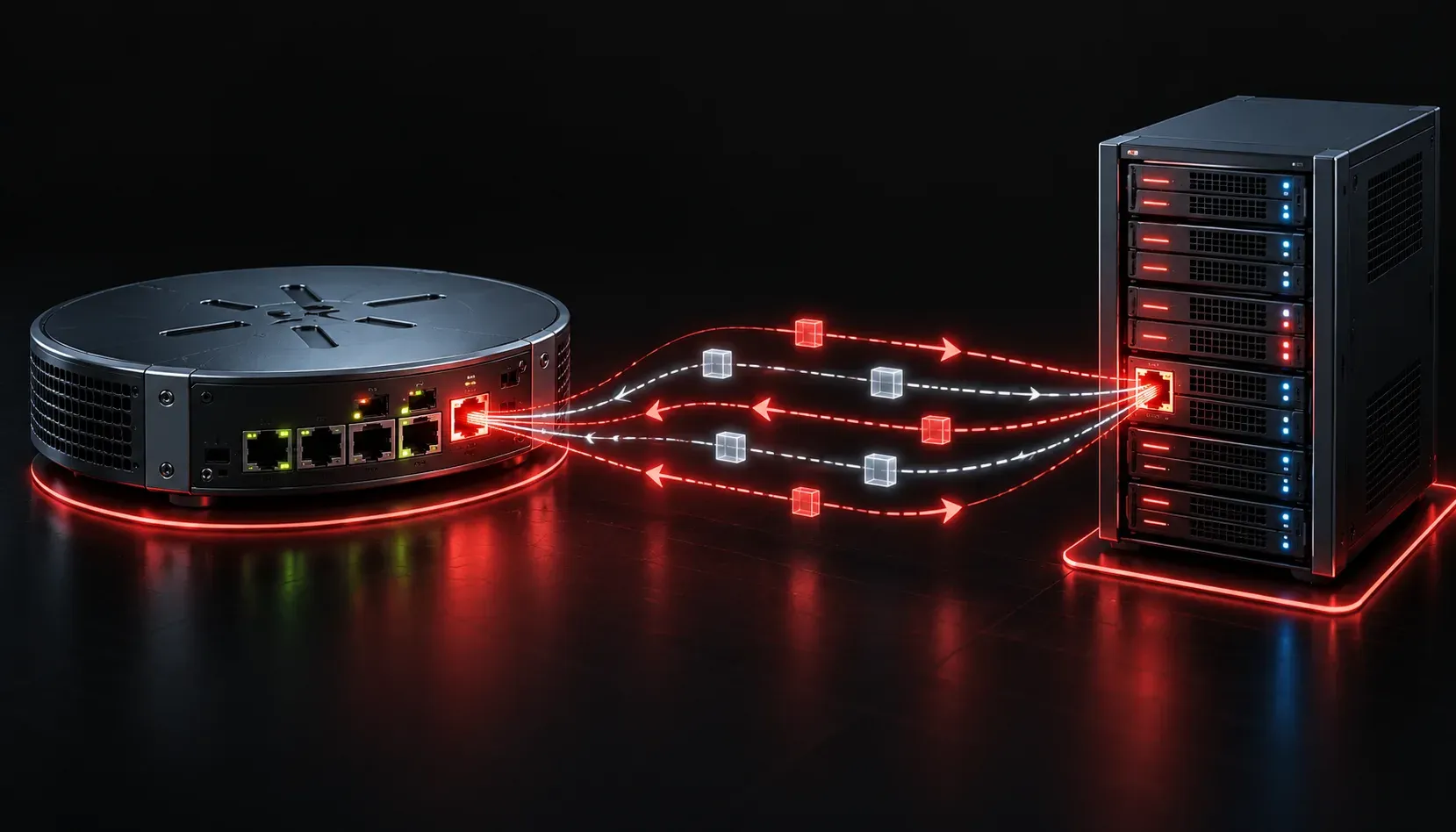
Before configuring anything, it helps to understand what happens behind the scenes. DHCP uses a four-step process known as DORA:
- Discover: The client broadcasts a request looking for any available DHCP server.
- Offer: The server responds with an available IP address and configuration details.
- Request: The client formally requests the offered IP address.
- Acknowledge: The server confirms the lease and the client applies the configuration.
This entire exchange happens in seconds, usually before you even notice your device has connected to the network.
Configuring a DHCP Client on a Cisco Router Interface
On Cisco IOS devices, router interfaces do not use DHCP by default. They require a manually assigned IP address unless you explicitly configure them to act as a DHCP client. This is common on interfaces facing an ISP or an upstream device.
Here is how to configure an interface to obtain its IP address automatically using DHCP:
Router> enable
Router# configure terminal
Router(config)# interface GigabitEthernet0/0
Router(config-if)# ip address dhcp
Router(config-if)# no shutdown
Router(config-if)# end
The key command here is ip address dhcp. This tells the interface to send out a DHCP Discover message and wait for an offer from a server.
Verifying the DHCP Client Configuration
Once configured, you need to confirm the interface actually received an IP address. Use the following commands to verify:
Router# show ip interface briefYou should see an IP address populated on the interface you configured. For more detail about the lease itself, use:
Router# show dhcp leaseExample output might look like this:
Temp IP addr: 192.168.1.100  for peer on Interface: GigabitEthernet0/0
Temp  sub net mask: 255.255.255.0
   DHCP Lease server: 192.168.1.1, state: 3 Bound
   DHCP transaction id: 1AB2
   Lease: 86400 secs,  Renewal: 43200 secs,  Rebind: 75600 secs
   Next timer fires after: 11:58:01
   Retry count: 0   Client-ID: cisco-aabb.cc00.0100-Gi0/0
   Client-ID hex dump: 636973636F2D
   Hostname: Router
This output confirms the device is in a Bound state, meaning the lease was successfully obtained and is active.
Common Issues to Watch For
- Interface is shutdown: A shutdown interface will never send a DHCP Discover. Always confirm the interface is up with
no shutdown. - No DHCP server reachable: If the server is on a different subnet, you will need a DHCP relay agent (covered in a future post).
- Conflicting static configuration: If a static IP was previously configured on the interface, remove it with
no ip addressbefore applyingip address dhcp.
What's Next
Now that you know how to configure a device to receive an IP address automatically, the next logical step is understanding the other side of the conversation: setting up a Cisco router as a DHCP server so it can hand out those addresses to client devices on your network. That is coming up next in this series.
If you want to go deeper on DHCP and other IP services topics, the Cisco Press CCNA 200-301 Official Cert Guide by Wendell Odom is the definitive reference for CCNA exam preparation.
Tools and resources for this topic
- Wendell Odom CCNA Vol 1 — Covers networking fundamentals, switching, and routing basics.
- Wendell Odom CCNA Vol 2 — Covers advanced routing, WAN, infrastructure services, and security.