
Linux Users and Groups: A Beginner Guide
Learn the fundamentals of Linux users and groups, including different user types, how to check user information with commands like whoami and id, and why understanding this system is crucial for file permissions and system administration.

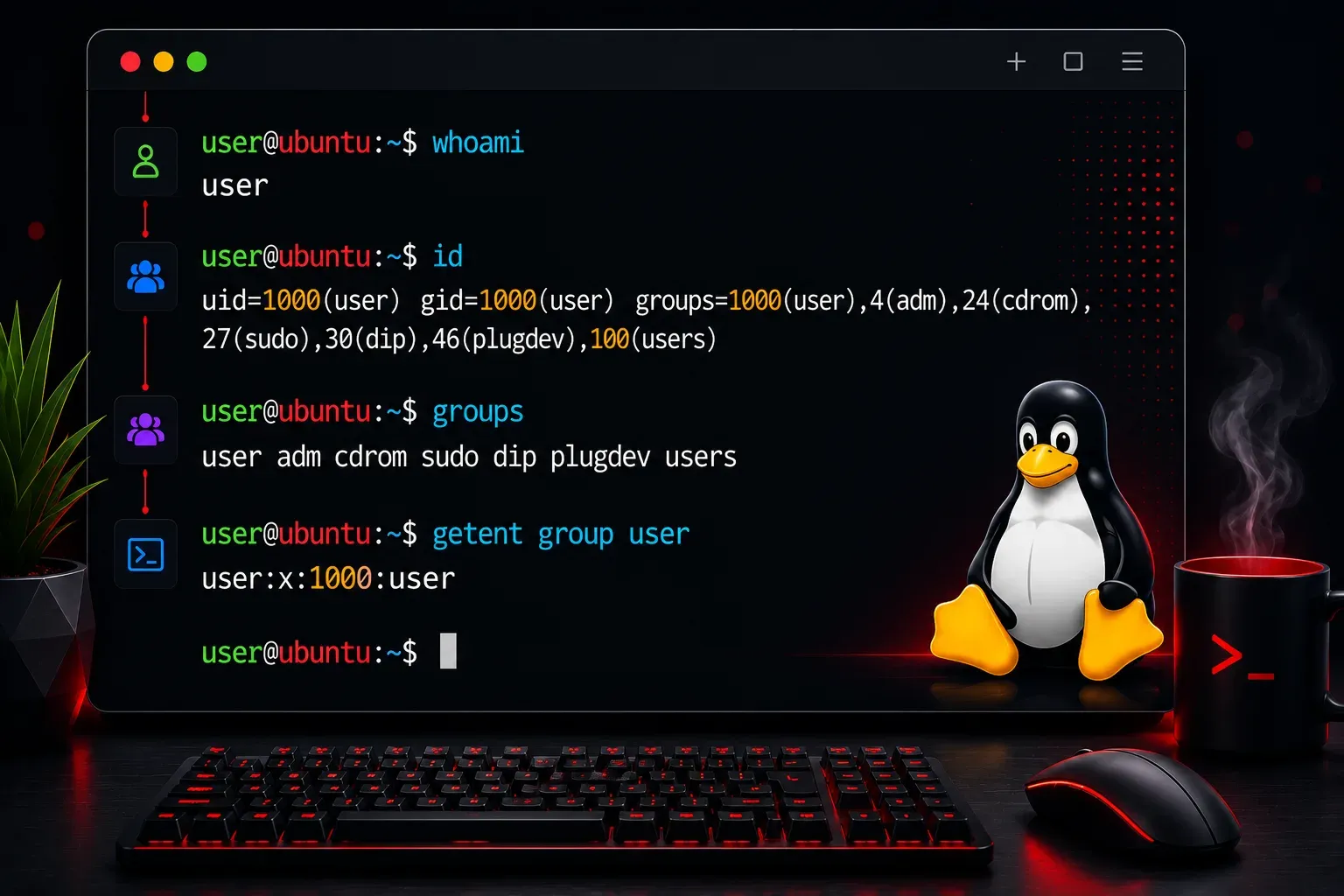
Understanding users and groups is fundamental to working with any Linux system. Whether you're managing a personal Ubuntu desktop or a production server, knowing how Linux handles user accounts and permissions will save you countless headaches down the road.
What Are Users and Groups?
In Linux, every process and file belongs to a user. Even when you're the only person using your computer, Linux creates multiple system users behind the scenes to run different services safely. Each user has a unique identifier called a User ID (UID), and users can belong to one or more groups, each with their own Group ID (GID).
Think of users as individual identities, and groups as collections of users who need similar access to files and resources. For example, all users who need to access audio devices might belong to an audio group.
Types of Users
Linux systems have three main types of users:
- Root user (UID 0): The superuser with complete system access
- System users (UID range varies): Special accounts for running services like web servers or databases. Commonly UID 1-999 on many distributions, but this range can vary between different Linux distributions
- Regular users (UID 1000+): Human users like yourself
You can see which user you're currently logged in as with the whoami command:
$ whoami
john
Exploring User Information
The id command shows detailed information about your current user and group memberships:
$ id
uid=1000(john) gid=1000(john) groups=1000(john),4(adm),24(cdrom),27(sudo),30(dip)
This output tells us the user "john" has UID 1000, belongs to a primary group also called "john" with GID 1000, and is a member of several additional groups including sudo (which allows running commands as root).
To see all users on the system, you can examine the /etc/passwd file:
$ cat /etc/passwd | head -5
root:x:0:0:root:/root:/bin/bash
daemon:x:1:1:daemon:/usr/sbin:/usr/sbin/nologin
bin:x:2:2:bin:/bin:/usr/sbin/nologin
sys:x:3:3:sys:/dev:/usr/sbin/nologin
sync:x:4:65534:sync:/bin:/bin/sync
Each line contains seven fields separated by colons: username, password placeholder (the "x" indicates encrypted passwords are stored in /etc/shadow), UID, primary GID, description, home directory, and default shell.
Working with Groups
Groups are defined in /etc/group. To see which groups exist on your system:
$ cat /etc/group | grep sudo
sudo:x:27:john
This shows the sudo group has GID 27 and contains the user "john". The groups command shows which groups your current user belongs to:
$ groups
john adm cdrom sudo dip plugdev lpadmin sambashare
Practical Examples
Let's say you want to check if a user can run administrative commands. Look for membership in the sudo group:
$ groups $USER | grep sudo
john adm cdrom sudo dip plugdev lpadmin sambashare
If you see sudo in the output, that user can run commands with sudo.
To see detailed information about any user on the system, use id with their username:
$ id root
uid=0(root) gid=0(root) groups=0(root)
Why This Matters
Understanding users and groups becomes crucial when you start working with file permissions, running services, or managing multiple users on a system. Every file and directory has an owner and group, and Linux uses this information to determine who can read, write, or execute files.
For example, when you see permission denied errors, it's often because your user doesn't have the right group membership or the file belongs to a different user entirely.
What's Next
Now that you understand how Linux identifies users and groups, the next logical step is learning how file permissions work. In our next post, we'll explore how Linux uses these user and group identities to control access to files and directories through the permission system.