
Pretty Printing JSON for Readability
Pretty printing JSON reformats compact, hard-to-read JSON data with indentation and line breaks to make it human-friendly. This post covers how to pretty print JSON using Python's json module, the json.tool command-line utility, and the jq tool, including practical options like indent levels and ke

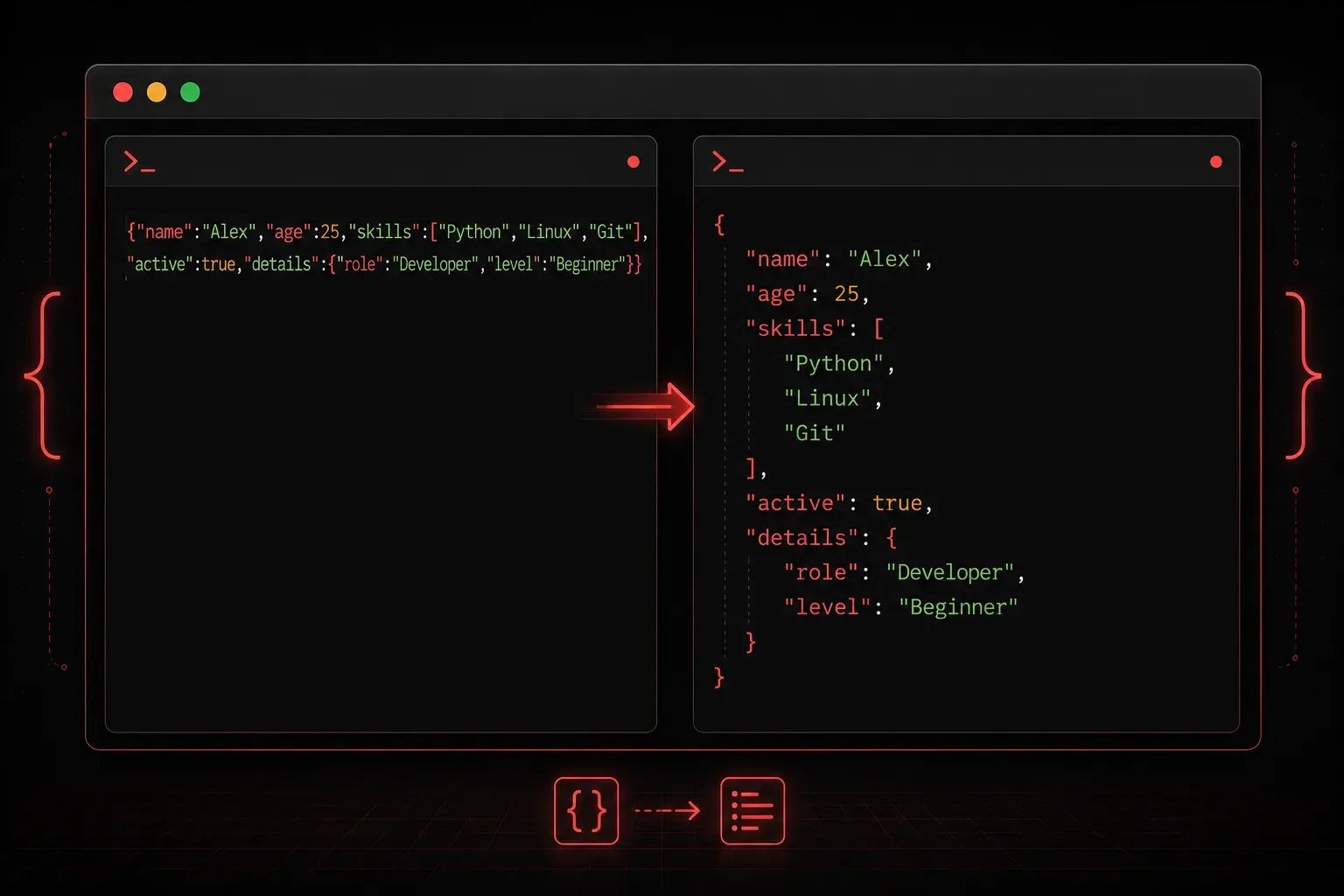
If you have ever worked with JSON data, you have probably seen something like this land in your terminal or log file:
{"name":"Alice","age":30,"city":"New York","hobbies":["reading","coding","hiking"]}That is valid JSON, and a computer will parse it perfectly. But for a human trying to read, debug, or understand that data? It is a nightmare. This is where pretty printing comes in.
What Is Pretty Printing?
Pretty printing is the process of formatting JSON (or any structured data) with indentation, line breaks, and consistent spacing so that it is easy for humans to read. The data itself does not change, only the way it is displayed.
Here is the same JSON from above, pretty printed:
{
  "name": "Alice",
  "age": 30,
  "city": "New York",
  "hobbies": [
    "reading",
    "coding",
    "hiking"
  ]
}
Much better. You can immediately see the structure, the keys, the values, and how nested data (like the hobbies array) is organized.
Pretty Printing JSON in Python
Python's built-in json module makes this straightforward. The key parameter is indent, which tells Python how many spaces to use for each level of nesting.
import json

data = {
    "name": "Alice",
    "age": 30,
    "city": "New York",
    "hobbies": ["reading", "coding", "hiking"]
}

print(json.dumps(data, indent=2))
Running this script produces the nicely formatted output you saw earlier. The json.dumps() function converts a Python dictionary to a JSON string. The indent=2 argument is what triggers the pretty printing. You can use indent=4 if you prefer a wider indentation style, which is common in many style guides.
Sorting Keys for Consistency
Another useful option is sort_keys=True. This sorts the keys alphabetically, which makes it easier to compare two JSON objects or find a specific key in a large structure.
print(json.dumps(data, indent=2, sort_keys=True))Output:
{
  "age": 30,
  "city": "New York",
  "hobbies": [
    "coding",
    "hiking",
    "reading"
  ],
  "name": "Alice"
}
Pretty Printing from the Command Line
You do not always need to write a Python script. If you have a JSON file and just want to view it cleanly, Python's json.tool module works directly from the terminal:
echo '{"name":"Alice","age":30}' | python3 -m json.toolOutput:
{
    "age": 30,
    "name": "Alice"
}
Notice that json.tool sorts keys by default and uses 4-space indentation. You can also pipe a file through it:
cat data.json | python3 -m json.toolOr, if you have jq installed on your Linux or Mac system, this is another popular option:
cat data.json | jq .jq adds syntax highlighting on top of formatting, which makes it especially useful when working with large API responses in the terminal.
When Does Pretty Printing Matter?
Pretty printing is useful in several real-world scenarios:
- Debugging API responses: when you call an API and get a wall of JSON back, formatting it first saves a lot of time
- Log files: structured logs in JSON format are much easier to audit when they are readable
- Configuration files: many tools use JSON for config, and well-formatted config files are easier to maintain
- Code reviews: reviewing changes to JSON data structures is much cleaner when the formatting is consistent
One important note: pretty printed JSON is larger in file size because of the extra whitespace. For data sent over a network (like API responses in production), compact JSON is preferred to reduce bandwidth. Pretty printing is a tool for human readability, not for production data transmission.
What's Next
Now that you can read JSON clearly, the next step is learning how to access and work with specific values inside a JSON structure using Python. In the next post, we will cover how to parse JSON responses, navigate nested objects, and pull out exactly the data you need. That skill is fundamental for working with APIs and building automation scripts.