
Common Issues with Interswitch Connectivity and How to Fix Them
This post walks through the most common interswitch connectivity issues CCNA students and junior network engineers encounter, including trunk link failures, VLAN allowed list misconfigurations, native VLAN mismatches, missing VLAN database entries, and speed/duplex problems. Each issue is paired wi

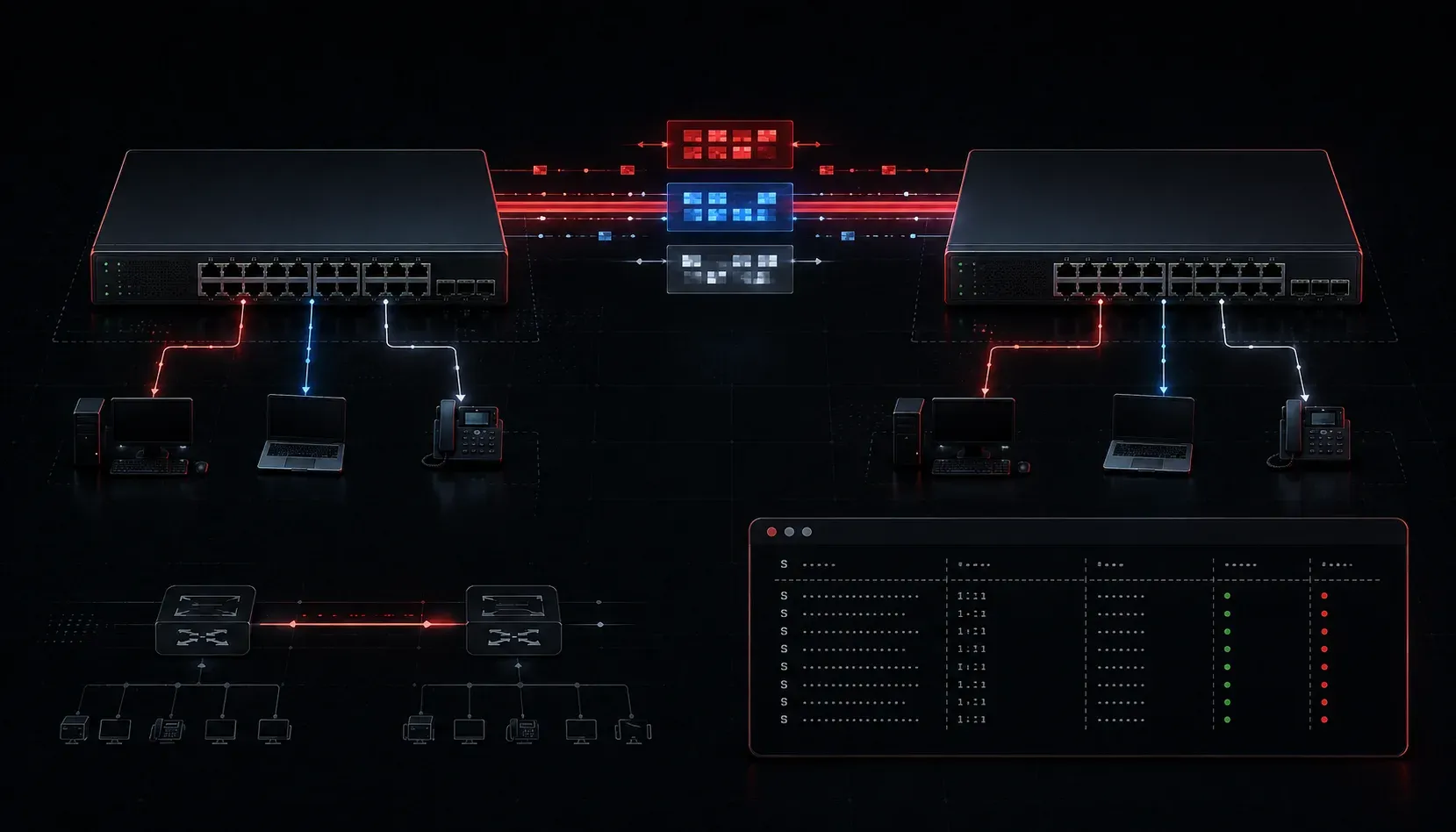
If you've ever set up a network with multiple switches and wondered why traffic isn't flowing correctly between them, you're not alone. Interswitch connectivity issues are some of the most common problems you'll encounter in real networks, and they're a key topic on the CCNA 200-301 exam. This troubleshooting guide walks you through the most frequent problems and how to resolve them.
What Is Interswitch Connectivity?
Before diving into the problems, let's quickly clarify the concept. Interswitch connectivity refers to the links between switches in a network, typically configured as trunk links. These trunk links carry traffic from multiple VLANs across a single physical connection. When this breaks down, entire segments of your network can lose communication.
Common Interswitch Connectivity Issues
1. Trunk Link Not Forming
This is probably the most frequent issue. If the trunk link doesn't form, VLANs won't pass between switches at all. The usual culprits are mismatched trunking modes or encapsulation types.
Check the trunk status on both switches using:
Switch# show interfaces trunkIf you see no output, the trunk isn't up. Verify the port modes with:
Switch# show interfaces GigabitEthernet0/1 switchportA common misconfiguration is setting one side to access mode while the other is set to trunk. The fix is to explicitly set both sides:
Switch(config)# interface GigabitEthernet0/1
Switch(config-if)# switchport mode trunk
Also check the encapsulation. On older switches, you may need to specify dot1q explicitly:
Switch(config-if)# switchport trunk encapsulation dot1q2. VLANs Not Passing Over the Trunk
Even when the trunk link is up, specific VLANs might not be passing traffic. This is almost always a VLAN allowed list issue.
Check which VLANs are allowed on the trunk:
Switch# show interfaces trunkLook at the "VLANs allowed and active in management domain" section. If your VLAN isn't listed, it's being filtered. You can add it with:
Switch(config)# interface GigabitEthernet0/1
Switch(config-if)# switchport trunk allowed vlan add 10,20,30
Be careful with the switchport trunk allowed vlan command. Using it without the add keyword will replace the entire allowed list, potentially breaking connectivity for all other VLANs.
3. Native VLAN Mismatch
The native VLAN carries untagged traffic on a trunk link. If both ends of a trunk link don't agree on the native VLAN, Cisco switches will log warnings and the mismatch can cause traffic to land in the wrong VLAN, which is both a connectivity problem and a security risk.
You'll often see a message like this in your logs:
%CDP-4-NATIVE_VLAN_MISMATCH: Native VLAN mismatch discovered on GigabitEthernet0/1Fix it by setting the native VLAN to match on both sides:
Switch(config)# interface GigabitEthernet0/1
Switch(config-if)# switchport trunk native vlan 99
4. VLAN Not in the VLAN Database
A VLAN must exist in the local VLAN database before traffic for that VLAN can be forwarded. Even if the trunk allows it, if the VLAN isn't created, it simply won't work.
Check your VLAN database:
Switch# show vlan briefIf the VLAN is missing, create it:
Switch(config)# vlan 10
Switch(config-vlan)# name Sales
Remember: this needs to be done on every switch that needs to carry or terminate traffic for that VLAN.
5. Speed and Duplex Mismatches
Physical layer issues can cause interswitch links to flap or perform poorly. If one side is set to full duplex and the other is auto-negotiating to half duplex, you'll see errors and retransmissions.
Check interface statistics:
Switch# show interfaces GigabitEthernet0/1Look for increasing input errors, CRC errors, or late collisions. These are classic signs of a duplex mismatch. Best practice is to explicitly set speed and duplex on interswitch links:
Switch(config)# interface GigabitEthernet0/1
Switch(config-if)# speed 1000
Switch(config-if)# duplex full
A Quick Troubleshooting Checklist
- Physical layer: Is the link up? Check LEDs and
show interfacesfor line protocol status. - Trunk mode: Are both sides configured correctly with
show interfaces switchport? - Allowed VLANs: Is your VLAN in the allowed list on the trunk?
- Native VLAN: Do both ends agree on the native VLAN?
- VLAN database: Does the VLAN exist on each switch?
- Speed and duplex: Are there errors piling up on the interface?
What's Next
Now that you can identify and resolve the most common interswitch connectivity issues, the next logical step is understanding Spanning Tree Protocol (STP). STP is what prevents loops in networks with multiple interswitch links, and understanding how it works, and how it can cause its own connectivity problems, is essential for the CCNA exam and real-world troubleshooting.
Tools and resources for this topic
- CCNA Official Cert Guide (Wendell Odom) — The definitive CCNA study resource. Both volumes cover the 200-301 exam blueprint in full.
- Wendell Odom CCNA Vol 1 — Covers networking fundamentals, switching, and routing basics.
- Wendell Odom CCNA Vol 2 — Covers advanced routing, WAN, infrastructure services, and security.