
What Is a Package Manager and How Does It Work
This post explains what a Linux package manager is, how it resolves dependencies automatically, and covers the most common package managers by distribution. It walks through essential APT commands with practical examples so beginners can start managing software on Ubuntu right away.

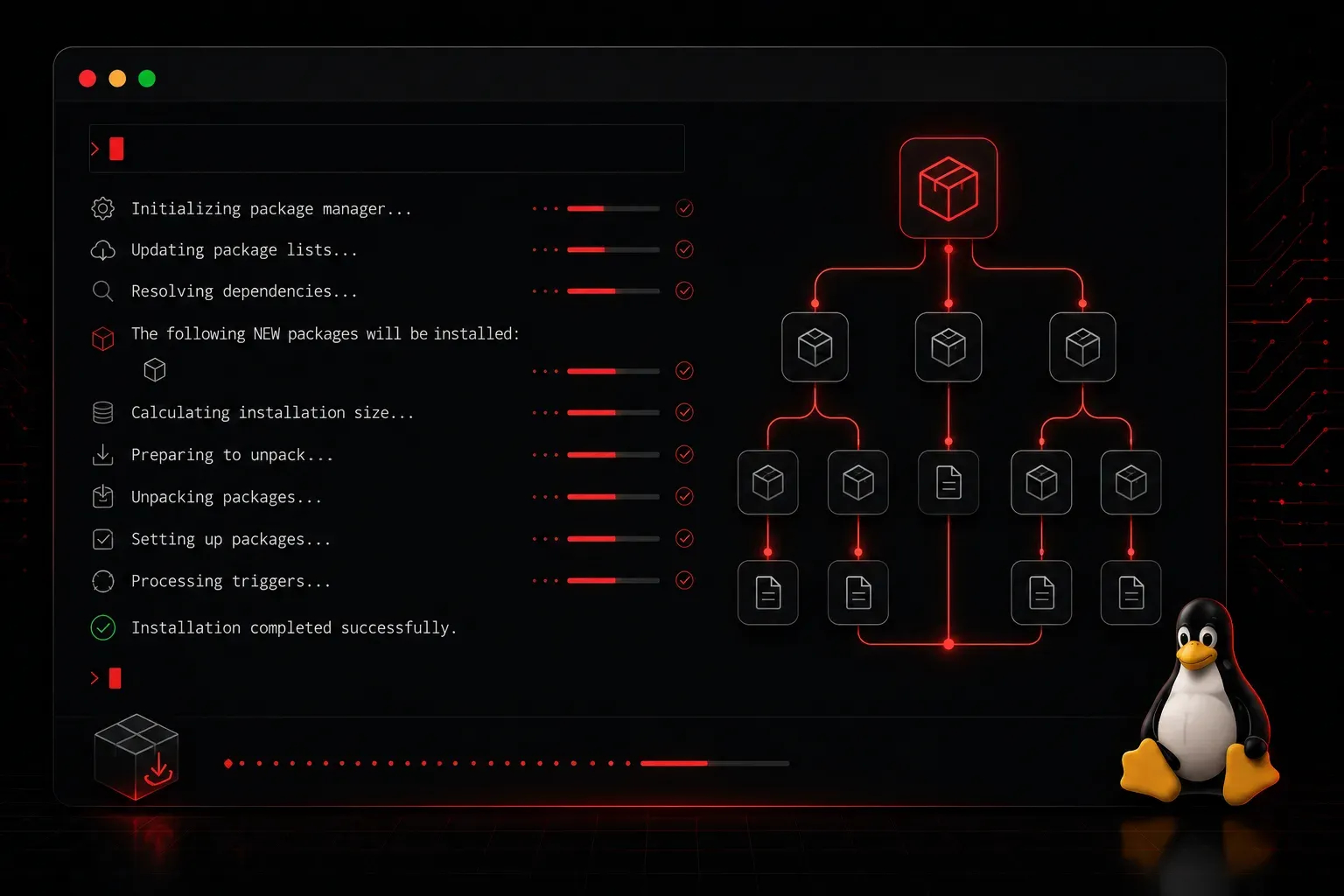
If you have ever installed software on Linux and typed a single command to get everything set up automatically, you have already used a package manager. For anyone coming from Windows or macOS, this concept might feel foreign at first, but once you understand it, you will wonder how you ever lived without it.
The Problem Package Managers Solve
Installing software sounds simple until you realize that most programs depend on other programs to run. These dependencies can run several levels deep. Install one application, and it might need three libraries. Those libraries might each need two more. Tracking all of this manually would be a nightmare.
A package manager is a tool that automates the entire process: downloading software, resolving dependencies, installing everything in the right order, and keeping track of what is installed on your system. It is essentially an app store for your terminal, except everything is free and open source.
What Is a Package?
Before going further, it helps to understand what a "package" actually is. A package is a compressed archive that contains:
- The compiled program or library files
- Metadata describing the package (name, version, author)
- A list of dependencies the package requires
- Optional pre-install and post-install scripts
Packages are stored in remote repositories, which are servers maintained by the Linux distribution or the open source community. When you run an install command, the package manager reaches out to these repositories, downloads the right package, and handles everything else.
Common Package Managers by Distro
Different Linux distributions use different package managers and package formats. The most common ones you will encounter are:
- APT (Advanced Package Tool): used on Debian-based systems like Ubuntu. Commands use
aptorapt-get - YUM / DNF: used on Red Hat-based systems like RHEL, CentOS, and Fedora. Modern systems prefer
dnf - Pacman: used on Arch Linux and its derivatives like Manjaro
- Zypper: used on openSUSE
If you are just getting started, Ubuntu is the most common choice for beginners, so apt is what you will use most often.
APT in Action: Basic Commands
Here are the core apt commands you will use constantly as a Linux beginner.
Before installing anything, update your local list of available packages:
sudo apt updateThis does not upgrade your software. It simply syncs the package index from the repositories so your system knows what versions are available.
To install a package, for example the network tool curl:
sudo apt install curlTo remove a package:
sudo apt remove curlTo upgrade all installed packages to their latest versions:
sudo apt upgradeTo search for a package by name:
apt search htopRunning apt update followed by apt upgrade regularly is considered good hygiene. It keeps your system secure and up to date.
How the Install Process Works Step by Step
When you run sudo apt install htop, here is what happens behind the scenes:
- APT checks its local package index for a package named
htop - It reads the dependency list from the package metadata
- It calculates which dependencies are already installed and which need to be downloaded
- It downloads all required packages from the configured repositories
- It installs everything in the correct order
- It registers the installed packages in its local database so it can track them later
All of this happens in seconds, and you did not have to think about a single dependency yourself.
Where Packages Come From
Your system's repositories are defined in configuration files. On Ubuntu, the main file is /etc/apt/sources.list. You can also add third-party repositories called PPAs (Personal Package Archives) to install software that is not included in the official Ubuntu repositories.
For most day-to-day tasks, the default repositories have everything you need. Stick to official sources until you are comfortable with how the system works.
What's Next
Now that you understand how package managers work, the logical next step is learning how to navigate the Linux filesystem. Knowing where files live and how directories are structured will help you understand where packages install their files and how to find configuration files when something goes wrong. That is exactly what we cover next.