
Awk: Processing Text Data in Bash
This post introduces awk, the powerful text-processing tool built into Linux and Unix systems. It covers the basic syntax, field splitting, custom delimiters, pattern filtering, and built-in variables with practical examples you can use right away in Bash scripts.

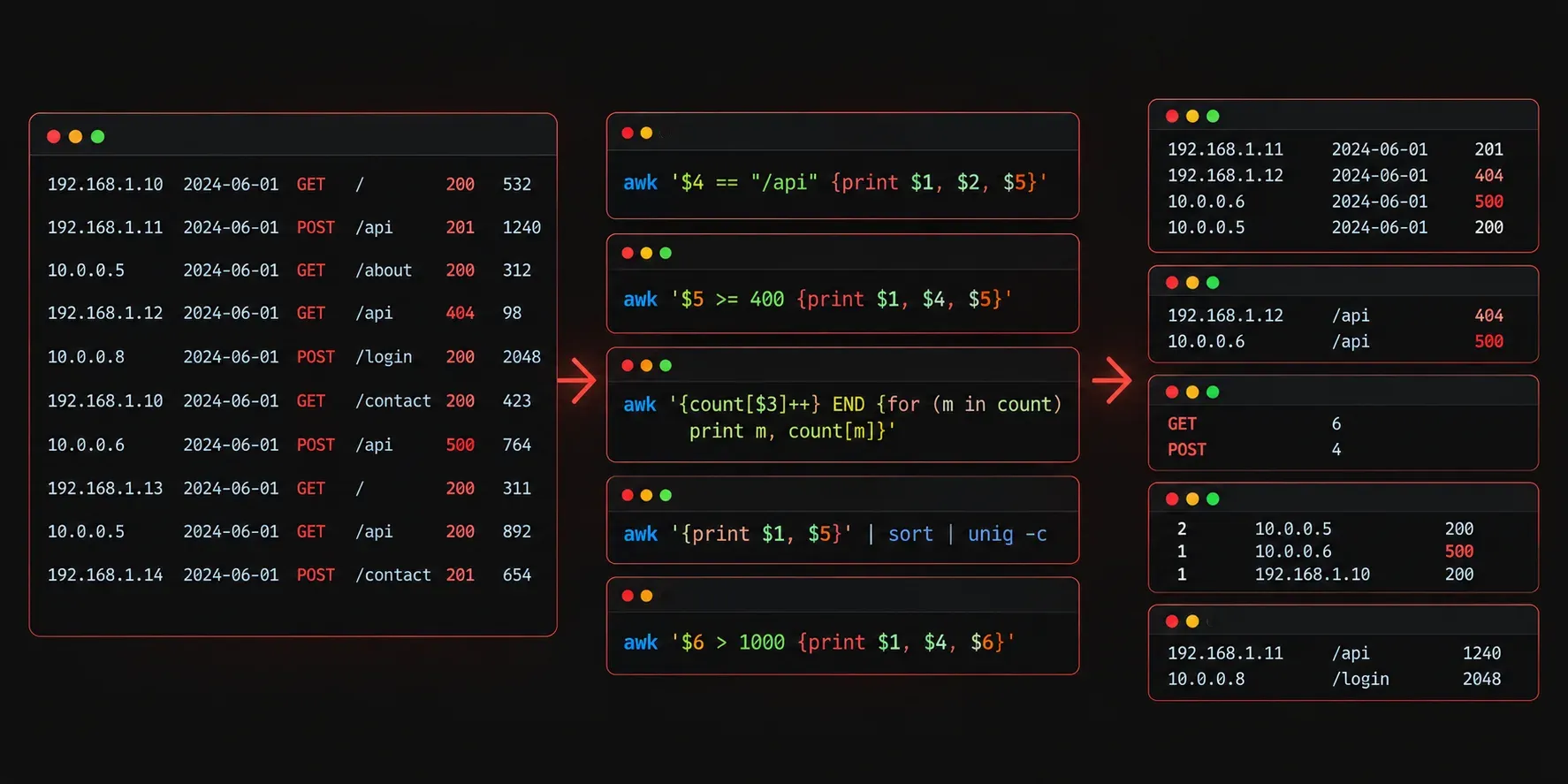
If you have ever needed to extract a specific column from a CSV file, filter log entries, or reformat text output in a Bash script, awk is the tool you want. It is one of those utilities that looks intimidating at first, but once you understand its core logic, it becomes one of the most useful commands in your toolkit.
What Is Awk?
awk is a text-processing tool built into virtually every Unix and Linux system. It reads input line by line, splits each line into fields, and lets you perform actions on those fields. Think of it as a mini programming language designed specifically for working with structured text data.
The name comes from its three creators: Aho, Weinberger, and Kernighan. You will typically use awk directly on the command line or inside Bash scripts to process files, command output, or logs.
The Basic Syntax
Every awk command follows the same pattern:
awk 'pattern { action }' filename- Pattern: a condition that must be true for the action to run (optional)
- Action: what to do when the pattern matches
- Filename: the file to process (or pipe input from another command)
If you leave out the pattern, the action runs on every line. If you leave out the action, awk prints every matching line by default.
Fields and Separators
awk automatically splits each line into fields. By default, it uses whitespace (spaces and tabs) as the delimiter. Fields are referenced with $1, $2, $3, and so on. The special variable $0 represents the entire line.
Here is a quick example. Say you have a file called users.txt:
alice   admin   active
bob     user    inactive
carol   admin   active
To print just the first column (usernames):
awk '{ print $1 }' users.txtOutput:
alice
bob
carol
To print the first and third columns together:
awk '{ print $1, $3 }' users.txtOutput:
alice active
bob inactive
carol active
Using a Custom Field Separator
CSV files use commas instead of spaces. You can tell awk to use a different delimiter with the -F flag:
awk -F',' '{ print $2 }' data.csvThis prints the second column from a comma-separated file. You can use any character as a separator, including colons, pipes, or tabs.
Filtering with Patterns
Patterns let you filter which lines get processed. You can use regular expressions wrapped in forward slashes:
awk '/admin/ { print $1 }' users.txtThis only prints usernames from lines that contain the word "admin":
alice
carol
You can also use comparison operators on field values:
awk '$3 == "active" { print $1 }' users.txtThis prints only users whose third field is exactly "active".
Built-In Variables
awk provides several useful built-in variables:
- NR: the current line number (Number of Records)
- NF: the number of fields in the current line
- FS: the field separator (same as setting
-F) - OFS: the output field separator (what goes between fields when you print)
For example, to number every line in your output:
awk '{ print NR, $1 }' users.txtOutput:
1 alice
2 bob
3 carol
A Practical Example: Parsing Command Output
awk is especially powerful when chained with other commands. Here is how you might extract just the process IDs from a ps command:
ps aux | awk '{ print $2 }'Or filter for a specific process and grab its PID:
ps aux | awk '/nginx/ { print $2 }'This kind of one-liner is something you will find yourself reaching for regularly when working in Bash.
What's Next
You now have a solid foundation for using awk to extract and filter text data. In the next post, we will look at sed, the stream editor, which pairs naturally with awk for find-and-replace operations and in-place file editing. Together, awk and sed cover the majority of text-processing tasks you will encounter in Bash scripting.