
What Causes Slow Network Speeds and How to Fix Them
This post covers the most common causes of slow network speeds, including bandwidth congestion, duplex mismatches, faulty cabling, wireless interference, and overloaded devices. It provides a practical step-by-step troubleshooting approach and quick fixes to improve network performance. Written for

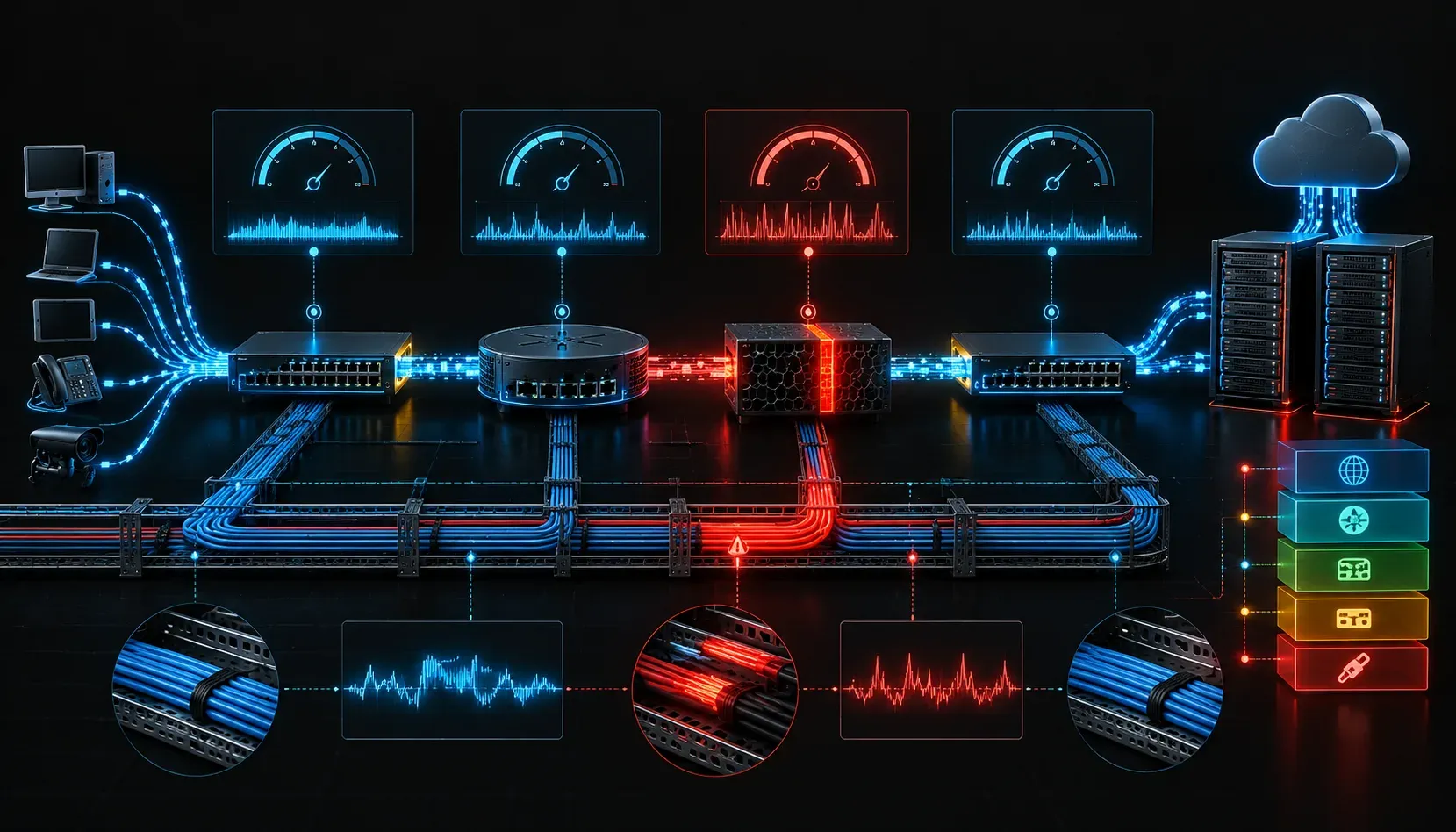
Slow network speeds are one of the most common complaints in any IT environment, and they can have dozens of different causes. Before you can fix the problem, you need to understand what is actually happening on the network. This post walks through the most common culprits behind sluggish performance and gives you a practical troubleshooting approach to track them down and resolve them.
Why Networks Slow Down
Network speed issues rarely come from a single cause. More often, they are the result of several smaller problems stacking up. Here are the most common reasons your network might be running slower than expected.
Bandwidth Congestion
Bandwidth is a shared resource. When too many devices are competing for the same pipe at the same time, everyone gets a smaller slice. Think of it like a highway during rush hour. The road has not changed, but everyone is moving slower because there are more cars. In a business environment, large file transfers, video conferencing, and cloud backups all consume significant bandwidth. Without proper traffic management in place, these activities can crowd out everything else.
Duplex Mismatches
A duplex mismatch happens when one side of a network link is set to full-duplex and the other is set to half-duplex. This causes collisions and retransmissions, which dramatically slow down throughput even though the physical connection looks healthy. You might see the link light glowing green on both ends and still experience terrible performance. This is a classic network troubleshooting scenario that shows up on the Network+ exam because it is so easy to overlook.
Faulty or Low-Quality Cabling
Physical layer problems cause a surprising number of speed issues. A damaged cable, a poor crimp, or a cable run that is too long can introduce signal errors that force the network interface to retransmit data constantly. Category 5e cable is rated for up to 1 Gbps at 100 meters, but a degraded cable can drop performance well below that ceiling even before it fails completely.
Wireless Interference
Wi-Fi networks are particularly vulnerable to interference. Neighboring networks on overlapping channels, microwave ovens, Bluetooth devices, and even walls can all reduce signal quality. Lower signal strength forces wireless clients to drop to slower data rates to maintain a connection, which directly impacts throughput. If users in one part of the building consistently report slow speeds, interference or poor access point placement is worth investigating early.
Overloaded Network Devices
Switches, routers, and firewalls all have processing limits. A device that is pushing the limits of its CPU or memory will start dropping or delaying packets. This is especially common with firewalls performing deep packet inspection or routers handling complex routing tables. Checking device utilization is an important step in any speed troubleshooting workflow.
How to Troubleshoot Slow Network Speeds
A structured approach saves time and prevents you from chasing the wrong problem. Use these steps when dealing with speed issues.
- Identify the scope: Is the problem affecting one user, one floor, or the entire network? Scope helps you isolate whether this is a local issue or something upstream.
- Run a speed test: Tools like
iperf3let you measure actual throughput between two points on the network. This gives you hard numbers instead of vague complaints. - Check interface statistics: Look for errors, collisions, or discards on switch and router interfaces. A high error count almost always points to a physical or duplex problem.
- Review bandwidth utilization: Use your network monitoring platform or the router's built-in tools to identify what is consuming bandwidth. A single device doing a large backup can saturate a link for everyone.
- Inspect physical connections: Reseat cables, check patch panel connections, and look for damaged cable runs. If you have a cable tester, use it.
- Check for interference on wireless: Use a Wi-Fi analyzer app to see nearby networks and channel overlap. Moving to a less congested channel can make an immediate difference.
Quick Wins That Often Help
Not every fix requires a major project. These quick changes frequently resolve or significantly improve slow network speeds:
- Force interface speed and duplex: Rather than relying on auto-negotiation between mismatched devices, manually set the speed and duplex on both ends of a link.
- Implement Quality of Service (QoS): QoS policies prioritize critical traffic like voice and video over less time-sensitive traffic like file downloads.
- Replace aging hardware: Old switches and routers may not support the throughput your users need today. Hardware that was sufficient five years ago may now be a bottleneck.
- Segment the network with VLANs: Breaking a flat network into smaller broadcast domains reduces unnecessary traffic and can improve overall performance.
What's Next
Now that you understand the common causes of slow network speeds and how to approach troubleshooting them, the next logical step is diving deeper into network performance metrics. In an upcoming post, we will cover how to read and interpret interface statistics on network devices so you can spot problems before users even notice them. Understanding what normal looks like is the foundation of effective network troubleshooting.
Tools and resources for this topic
- CompTIA Network+ Study Guide — Comprehensive N10-009 exam preparation covering all five domains.