
What Are Common Network Troubleshooting Tools?
This post introduces the most common network troubleshooting tools covered on the CompTIA Network+ exam, including ping, traceroute, and netstat. Each tool is explained with real CLI examples and practical guidance on interpreting output. Additional tools like nslookup, arp, and Wireshark are also

When something breaks on the network, the first thing you need is the right tool for the job. Fortunately, most operating systems come loaded with built-in utilities that can tell you a tremendous amount about what is happening on your network. These tools are fast, free, and essential for any networking professional. Let's walk through the most common network troubleshooting tools you will encounter on the Network+ exam and in real-world environments.
Why Troubleshooting Tools Matter
Network issues rarely announce themselves with a clear error message. A user just says, "The internet is slow," or "I can't reach the server." Your job is to narrow down the problem systematically. The tools below help you do exactly that: test connectivity, trace the path traffic takes, examine active connections, and verify DNS resolution. Each tool answers a specific question.
Ping: The First Test You Should Run
ping is the most fundamental network troubleshooting tool. It sends ICMP echo request packets to a target host and waits for a reply. If the host responds, you know basic IP connectivity exists. If it does not respond, you have a starting point for deeper investigation.
Here is what a successful ping looks like on a Windows machine:
C:\> ping 8.8.8.8

Pinging 8.8.8.8 with 32 bytes of data:
Reply from 8.8.8.8: bytes=32 time=14ms TTL=117
Reply from 8.8.8.8: bytes=32 time=13ms TTL=117
Reply from 8.8.8.8: bytes=32 time=14ms TTL=117
Reply from 8.8.8.8: bytes=32 time=14ms TTL=117

Ping statistics for 8.8.8.8:
    Packets: Sent = 4, Received = 4, Lost = 0 (0% loss)
Key things to look for in ping output:
- Reply received: Basic connectivity is working between your device and the target.
- Request timed out: The host is unreachable, blocking ICMP, or the path is broken.
- TTL (Time to Live): Tells you roughly how many routers the packet has passed through.
- Round-trip time: High latency can indicate network congestion or a routing problem.
Traceroute: Following the Path
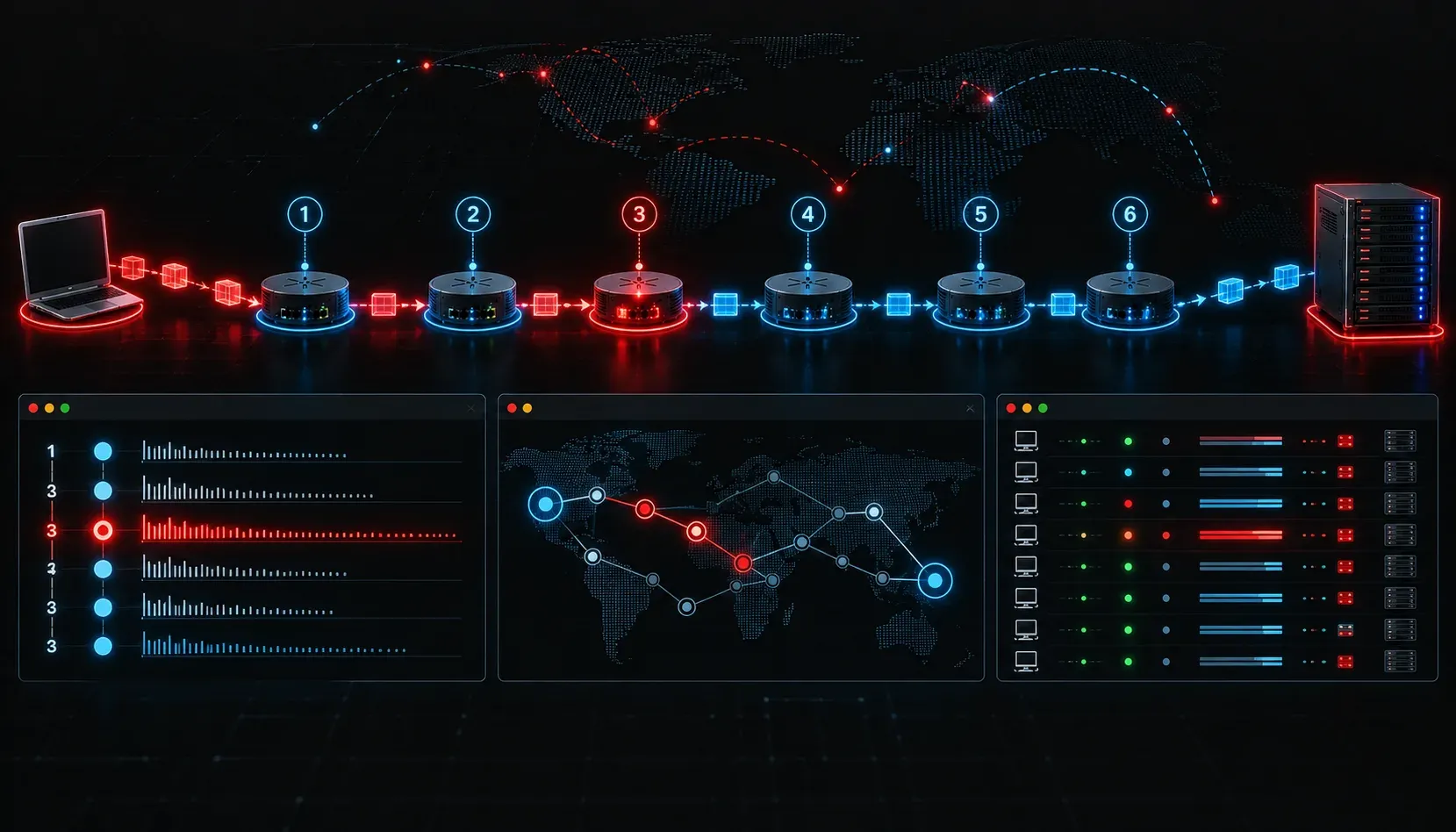
traceroute (called tracert on Windows) takes ping one step further. Instead of just testing whether a destination is reachable, it maps every hop along the route. Each router the packet passes through is listed, along with the round-trip time for each hop. This is incredibly useful for identifying exactly where a connection is failing or slowing down.
C:\> tracert google.com

Tracing route to google.com [142.250.80.46]
over a maximum of 30 hops:

  1     1 ms     1 ms     1 ms  192.168.1.1
  2    12 ms    11 ms    12 ms  10.20.0.1
  3    13 ms    12 ms    13 ms  72.14.215.165
  4    14 ms    14 ms    14 ms  142.250.80.46

Trace complete.
If you see a specific hop where the latency spikes dramatically or where you get asterisks (* * *), that is where your investigation should focus. Asterisks mean a router either did not respond or is configured to drop ICMP packets, which is common on the public internet.
Netstat: Seeing Active Connections
netstat (network statistics) shows you the active network connections on a local machine. This is useful when you want to confirm that a service is listening on the right port, check for unexpected outbound connections, or see how many sessions are currently established.
C:\> netstat -an

Active Connections

  Proto  Local Address          Foreign Address        State
  TCP    0.0.0.0:80             0.0.0.0:0              LISTENING
  TCP    192.168.1.50:49201     142.250.80.46:443      ESTABLISHED
  TCP    192.168.1.50:49205     52.114.75.78:443       ESTABLISHED
Common netstat flags to know:
- -a: Shows all connections and listening ports.
- -n: Displays addresses and port numbers numerically instead of resolving names.
- -b (Windows): Shows the executable associated with each connection.
Other Tools Worth Knowing
Beyond these three core utilities, the Network+ exam also covers several others you should be familiar with:
- nslookup / dig: Query DNS servers to verify name resolution is working correctly.
- ipconfig / ifconfig: Display IP address configuration on Windows and Linux respectively.
- arp: View and manage the ARP cache, which maps IP addresses to MAC addresses.
- route: Display and modify the local routing table.
- Wireshark: A graphical packet capture tool for deep analysis of network traffic.
What's Next
Now that you know which tools are available, the next step is learning how to apply them in a logical troubleshooting methodology. In the next post, we will cover the CompTIA troubleshooting model, a structured step-by-step process for approaching any network problem systematically. Knowing the tools is only half the equation; knowing when and how to use them is what separates a good technician from a great one.
Tools and resources for this topic
- CompTIA Network+ Study Guide — Comprehensive N10-009 exam preparation covering all five domains.