
Resources Management in VM Operations: Storage, RAM, and CPU
This post explains how to manage storage, RAM, and CPU for virtual machines on Linux systems. It covers qcow2 disk images, virsh memory and vCPU commands, thin provisioning, memory ballooning, and CPU overcommitment with practical terminal examples.

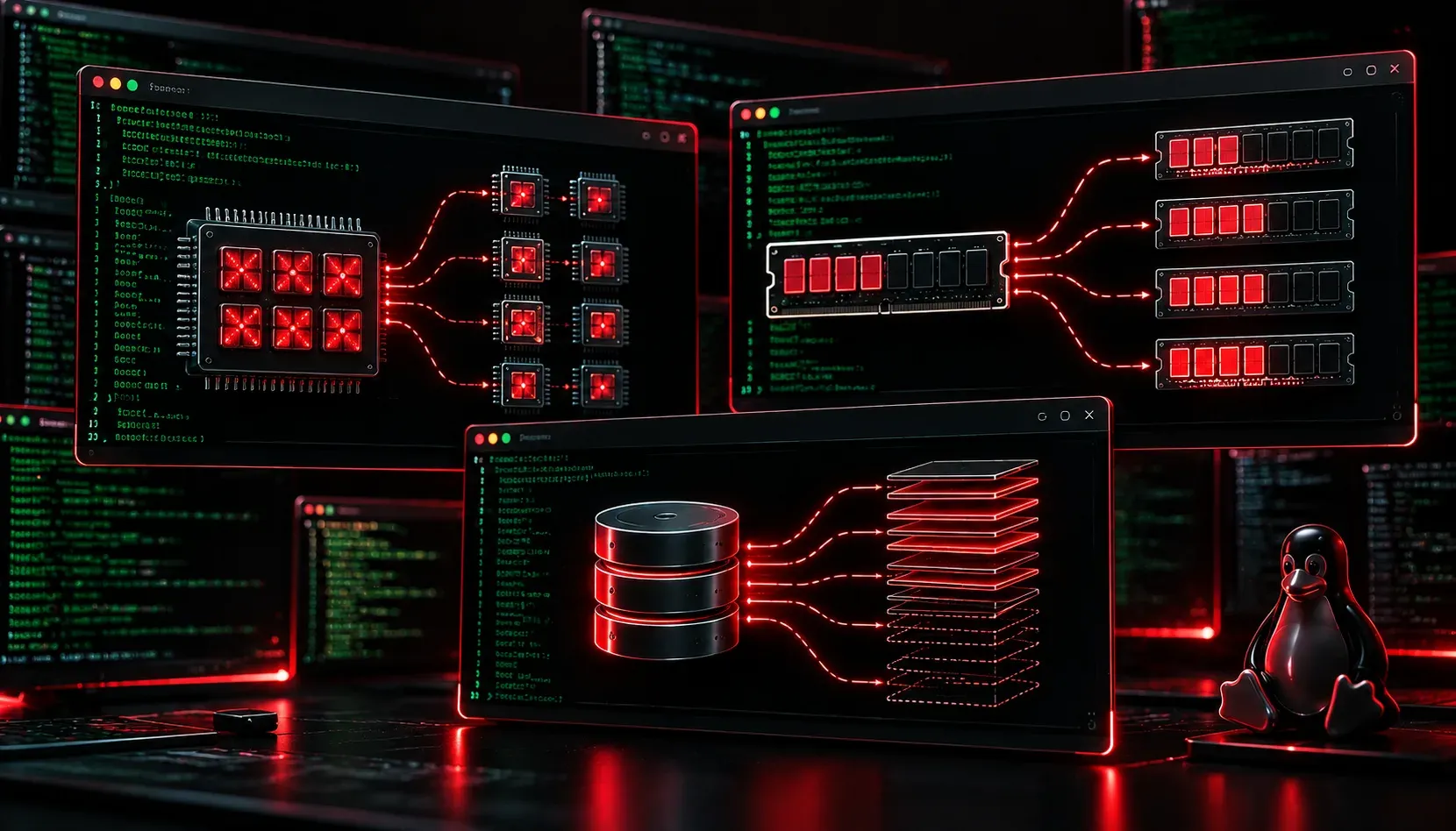
When you spin up a virtual machine on Linux, you are essentially carving out a slice of your physical hardware and handing it to a guest operating system. Getting that resource allocation right is one of the most practical skills you will develop as a Linux administrator. Too little RAM and your VM crawls; too much CPU and your host starves. This post walks you through the core concepts of VM resources management: storage, RAM, and CPU.
Storage: Giving Your VM a Place to Live
Linux VM storage comes in two main flavors: thick provisioning and thin provisioning. Understanding the difference will save you from unpleasant surprises down the road.
- Thick provisioning: The full disk size is allocated immediately on the host filesystem. A 40 GB virtual disk claims 40 GB right now, even if the guest only uses 5 GB. Predictable performance, but wasteful of space.
- Thin provisioning: The virtual disk grows on demand. That same 40 GB disk might only occupy 5 GB on the host today. Space-efficient, but you must watch for overcommitment.
The most common disk image format you will encounter with KVM/QEMU is qcow2. It supports thin provisioning, snapshots, and compression. You can create a virtual disk with this command:
qemu-img create -f qcow2 myvm-disk.qcow2 40GTo check the actual size versus the allocated size of an existing image:
qemu-img info myvm-disk.qcow2The output will show both the disk size (actual space used on the host) and virtual size (what the guest sees). That distinction is the heart of thin provisioning.
RAM: Balancing Memory Between Host and Guest
VM RAM is defined when you create a virtual machine and can be adjusted while the VM is shut down. With virsh, the command-line interface for managing KVM virtual machines, you can view and modify memory settings easily.
To see the current memory allocation for a VM named testvm:
virsh dominfo testvmTo change the maximum memory allocation:
virsh setmaxmem testvm 2048M --configAnd to set the currently active memory (must be less than or equal to max):
virsh setmem testvm 2048M --configA key concept here is memory ballooning. KVM supports a balloon driver inside the guest that allows the hypervisor to reclaim unused memory dynamically. This means a guest configured with 4 GB may only hold 1.5 GB of host RAM if it is idle, freeing that memory for other VMs or the host itself.
CPU: Allocating Virtual Processing Power
VM CPU allocation involves two settings you should understand: the number of virtual CPUs (vCPUs) and CPU pinning.
To check how many vCPUs are assigned to a running VM:
virsh vcpuinfo testvmTo set the number of vCPUs:
virsh setvcpus testvm 2 --config --maximum
virsh setvcpus testvm 2 --config
One important principle is overcommitment. A host with 4 physical CPU cores can technically run VMs with a combined total of 8 or even 12 vCPUs. This works because VMs are rarely all maxing out their CPUs at the same time. However, heavy overcommitment under load causes CPU steal time, where a VM is waiting for a physical core to become available. You can spot this inside a Linux guest using:
topLook for the %st column in the CPU line. A consistently high steal time percentage is your signal that the host is overcommitted.
Putting It All Together
Effective VM resources management is about matching your allocation to your actual workload. Start conservative, monitor usage, and scale up as needed. Use thin-provisioned qcow2 disks when storage flexibility matters, right-size your VM RAM to avoid swapping inside the guest, and keep a close eye on CPU steal time as your VM count grows.
For study purposes, the CompTIA Linux+ Study Guide by Richard Blum covers virtualization concepts in practical detail and is worth keeping on your desk as you work through these topics.
What's Next
Now that you understand how to manage the core resources of a virtual machine, the next step is learning how to move and migrate those VMs between hosts. The next post in this series covers live migration and snapshot management, two skills that are essential for maintaining uptime in a virtualized Linux environment.
Tools and resources for this topic
- CompTIA Linux+ Study Guide — Comprehensive Linux+ exam preparation covering system administration, security, and scripting.