
Copying, Moving, and Renaming Files in Linux
Learn the essential Linux commands for file management: cp for copying files and directories, mv for moving and renaming, plus safety tips and practical examples to avoid data loss.

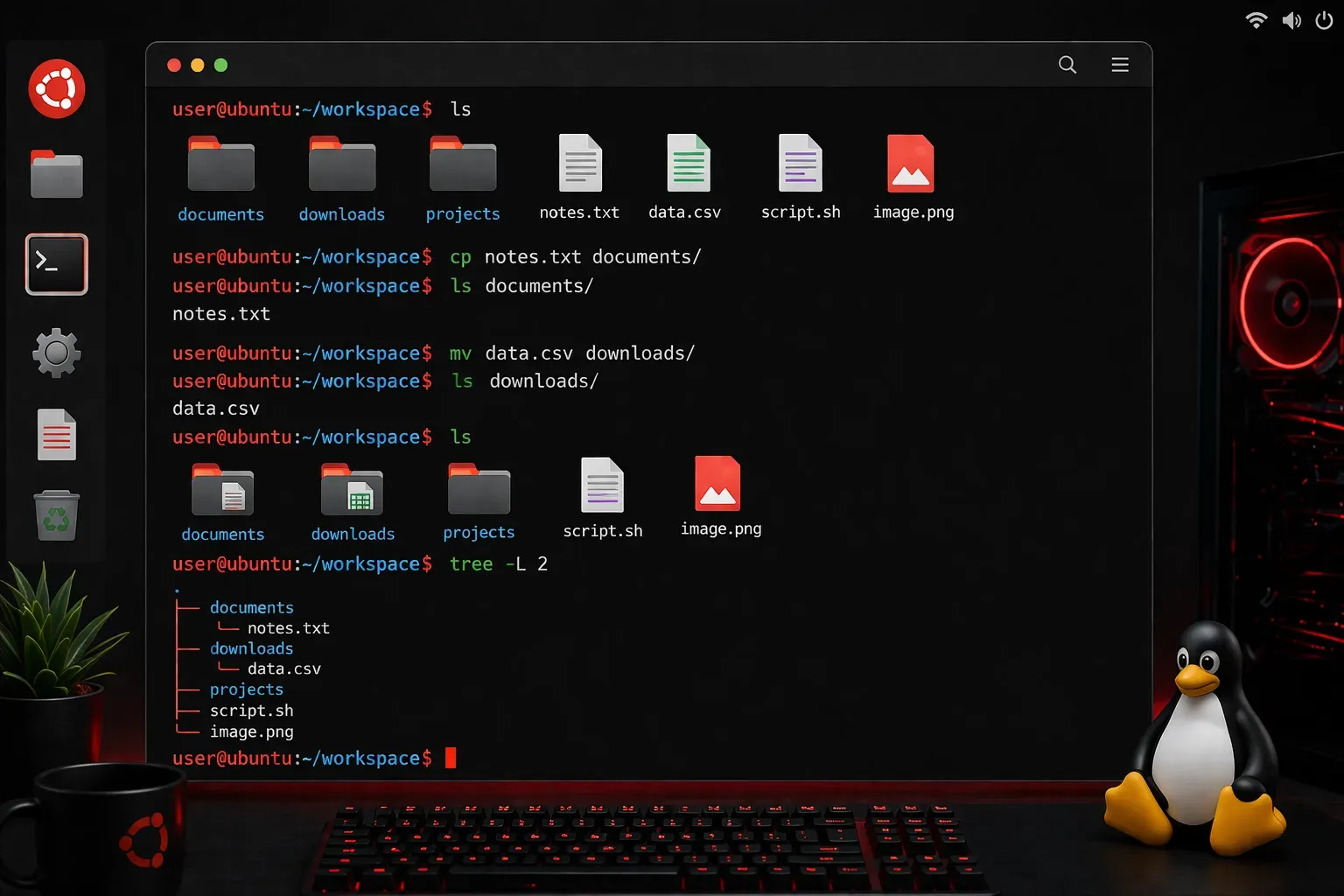
File management is one of the most fundamental skills you'll use when working with Linux. Whether you're organizing documents, backing up important files, or restructuring directories, knowing how to copy, move, and rename files efficiently will make your Linux experience much smoother.
Let's explore the three essential commands that handle these operations: cp for copying, mv for moving and renaming, and understand when to use each one.
Understanding Filesystems
Before diving into file operations, it's helpful to understand what a filesystem is. A filesystem is how your computer organizes and stores files on storage devices like hard drives or SSDs. Think of it as the filing system that keeps track of where every file is located. Linux can have multiple filesystems mounted at different locations, and this affects how quickly files can be moved between directories.
Checking if Files Exist
Before performing file operations, you might want to check if a file or directory exists. You can use the ls command to list files, or test commands:
# Check if a file exists
ls document.txt 2>/dev/null && echo "File exists" || echo "File not found"

# Check if a directory exists
ls -d project_folder 2>/dev/null && echo "Directory exists" || echo "Directory not found"
Copying Files with cp
The cp command creates an exact duplicate of a file or directory. The basic syntax is straightforward:
cp source destinationHere's a simple example. Let's say you have a file called document.txt in your home directory and want to create a backup:
cp document.txt document_backup.txtThis creates a copy named document_backup.txt in the same directory. You can also copy files to different locations:
cp document.txt /home/username/Documents/When copying directories, you need the -r (recursive) flag to include all contents:
cp -r project_folder project_folder_backupThe -v (verbose) flag shows you what's being copied, which is helpful for large operations:
cp -rv /home/username/Photos/ /backup/Photos/Moving and Renaming with mv
The mv command serves a dual purpose: it moves files between locations and renames them. Unlike copying, moving transfers the original file rather than creating a duplicate.
To rename a file in the same directory:
mv old_filename.txt new_filename.txtTo move a file to a different directory:
mv document.txt /home/username/Documents/You can also move and rename simultaneously:
mv report.txt /home/username/Documents/final_report.txtMoving directories works the same way, and you don't need a recursive flag like with cp:
mv old_project_name new_project_nameWhat Happens When Destinations Already Exist
By default, both cp and mv will overwrite existing files at the destination without warning. If you copy or move a file to a location where a file with the same name already exists, the original file at that destination will be replaced. This can result in permanent data loss if you're not careful.
Practical Safety Tips
Since these commands can overwrite existing files without warning, here are some protective flags:
Use -i (interactive) to get prompted before overwriting:
cp -i source.txt destination.txt
mv -i old_name.txt new_name.txt
Use -n (no clobber) to prevent overwriting entirely:
cp -n important_file.txt backup_location/Common Patterns and Examples
Here are some real-world scenarios you'll encounter:
Backup before editing:
cp config.conf config.conf.backupOrganize downloads:
mv ~/Downloads/*.pdf ~/Documents/PDFs/Batch rename with a pattern:
for file in *.txt; do
    mv "$file" "processed_$file"
done
Copy with permission preservation:
cp -p script.sh /usr/local/bin/The -p flag preserves file permissions, ownership, and timestamps, which is crucial for executable files and system configurations.
Understanding the Differences
Remember these key distinctions:
cpcreates duplicates - the original remains untouchedmvtransfers files - the original location becomes empty- Moving files within the same filesystem is nearly instant because it just updates directory entries
- Moving between different filesystems actually copies then deletes the original, which takes longer
What's Next
Now that you can confidently copy, move, and rename files, you're ready to tackle file permissions and ownership. Understanding how to control who can read, write, and execute your files is the next essential skill in your Linux journey.