
Troubleshooting Common IP Configuration Issues on Client OS
Learn systematic approaches to troubleshoot common IP configuration issues across Windows, Mac, and Linux operating systems. Covers essential commands and step-by-step resolution methods for network connectivity problems.

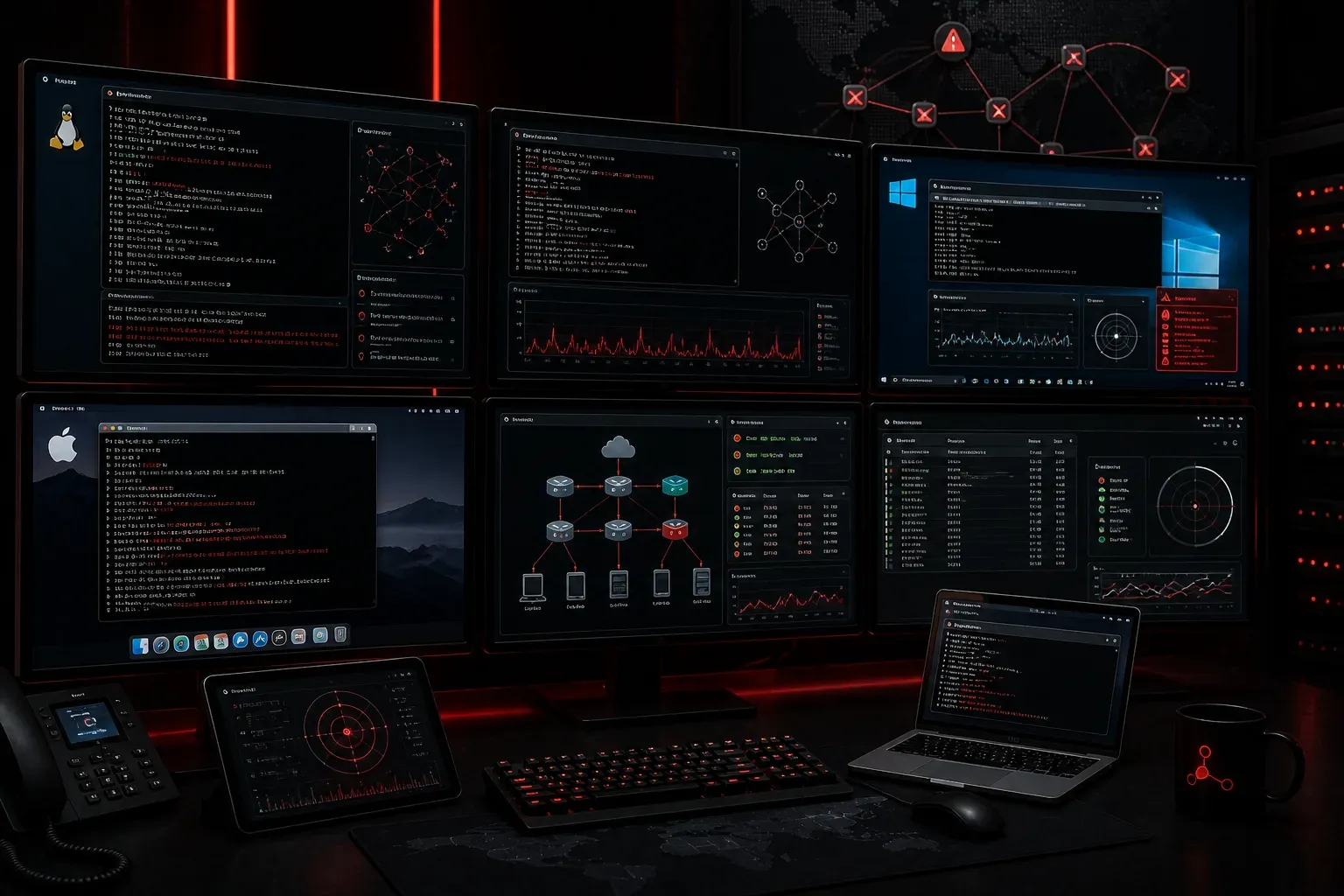
When you can't connect to the internet or access network resources, IP configuration issues are often the culprit. As a network professional, you'll frequently help users resolve these problems across different operating systems. Let's explore the most common IP configuration issues and learn systematic approaches to fix them.
Understanding Common IP Configuration Problems
Most IP configuration issues fall into several categories: incorrect IP address assignment, subnet mask problems, default gateway misconfiguration, and DNS resolution failures. These problems can occur due to DHCP server issues, manual configuration errors, or network infrastructure changes.
The key to effective troubleshooting is following a logical sequence: verify physical connectivity first, then check IP configuration, test local network connectivity, and finally verify internet access.
Windows IP Troubleshooting
Windows provides several built-in tools to troubleshoot IP problems. Start with the Command Prompt and use these essential commands:
ipconfig /all
ping 127.0.0.1
ping [default gateway IP]
nslookup google.com
The ipconfig /all command reveals your complete network configuration. Look for common red flags: an IP address starting with 169.254 (APIPA), incorrect subnet masks, or missing default gateway entries.
If you see an APIPA address, your computer couldn't reach the DHCP server. Try these solutions:
ipconfig /release
ipconfig /renew
ipconfig /flushdns
For persistent issues, reset the TCP/IP stack:
netsh int ip reset
netsh winsock reset
Windows also includes a built-in network troubleshooter accessible through Settings > Network & Internet > Status > Network troubleshooter.
Mac Network Issues Resolution
Mac OS provides similar troubleshooting capabilities through Terminal and System Preferences. Use these commands to diagnose Mac network issues:
ifconfig
ping -c 4 8.8.8.8
dig google.com
netstat -rn
The ifconfig command shows all network interfaces and their configurations. The netstat -rn command displays the routing table, helping you verify your default gateway.
For GUI-based troubleshooting, navigate to System Preferences > Network. Select your active connection and click "Advanced" to access detailed TCP/IP settings. Common fixes include:
- Renewing DHCP lease from the TCP/IP tab
- Flushing DNS cache using
sudo dscacheutil -flushcache - Resetting network settings by deleting and recreating the network service
Linux IP Troubleshooting
Linux IP troubleshooting varies slightly depending on your distribution, but core commands remain consistent. Essential tools for Linux IP troubleshooting include:
ip addr show
ip route show
ping -c 4 8.8.8.8
dig @8.8.8.8 google.com
The modern ip command replaces older tools like ifconfig and route. If your system still uses the older tools:
ifconfig -a
route -n
cat /etc/resolv.conf
Common Linux network fixes include restarting the network service:
sudo systemctl restart networkingOr on systems using NetworkManager:
sudo systemctl restart NetworkManagerUniversal Troubleshooting Steps
Regardless of operating system, follow this systematic approach:
- Physical layer: Check cable connections and WiFi signal strength
- IP configuration: Verify correct IP address, subnet mask, and default gateway
- Local connectivity: Ping your default gateway
- DNS resolution: Test name resolution with
nslookupordig - Internet connectivity: Ping external addresses like
8.8.8.8
Document your findings at each step. This methodical approach helps you identify whether the issue is local configuration, network infrastructure, or internet connectivity.
What's Next
Now that you understand basic IP troubleshooting across different operating systems, the next step is learning about DHCP configuration and troubleshooting. Understanding how DHCP servers assign IP addresses will help you diagnose why clients aren't receiving proper network configuration automatically.
Tools and resources for this topic
- CCNA Official Cert Guide (Wendell Odom) — The definitive CCNA study resource. Both volumes cover the 200-301 exam blueprint in full.
- Wendell Odom CCNA Vol 1 — Covers networking fundamentals, switching, and routing basics.
- Wendell Odom CCNA Vol 2 — Covers advanced routing, WAN, infrastructure services, and security.