
How to Identify Cisco Device Status by Link Light Colors
Learn to interpret Cisco device LED indicators including green (normal operation), orange (caution), red (errors), and off (no connection). Master basic troubleshooting using link light color patterns on switches and routers.

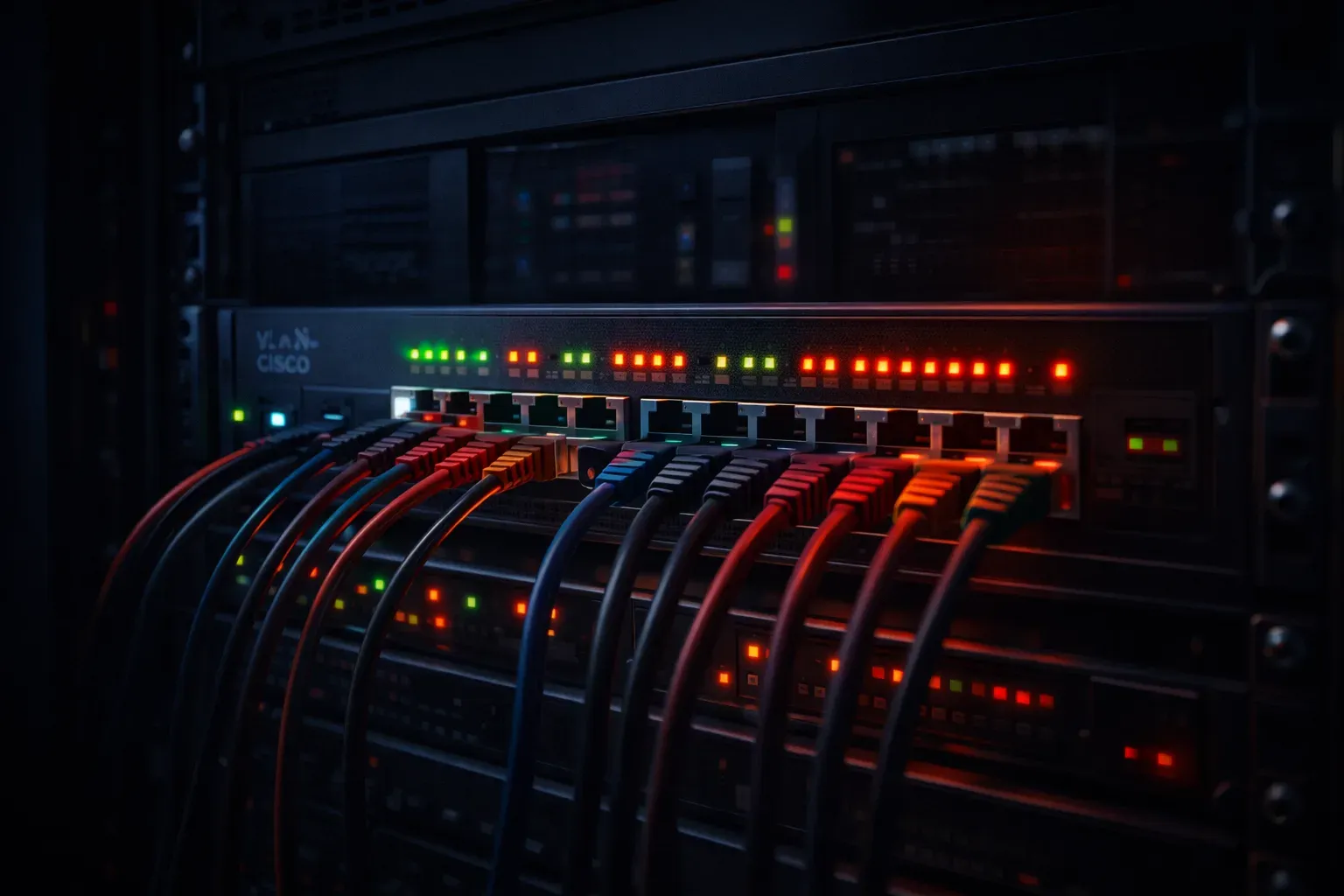
One of the most fundamental skills for any network technician is learning to "read" the lights on Cisco networking equipment. These small LED indicators act like a device's vital signs, instantly telling you about power status, network connectivity, and potential problems. Understanding link light color interpretation can save you hours of troubleshooting time.
Think of these lights like traffic signals for your network equipment. Just as you instinctively know what red, yellow, and green mean on the road, Cisco devices use common color patterns that become second nature once you understand the basics.
Important Note: While this guide covers common LED behaviors across Cisco devices, specific LED meanings can vary between different models and product series. Always consult your device's manual or documentation for model-specific LED behavior, as newer devices may have additional indicators or slightly different color interpretations.
Standard Cisco Light Colors and Their Meanings
Cisco generally follows industry-standard conventions for most of their device lights guide patterns. Here's what each color meaning typically indicates across many Cisco devices:
Green Lights: All Systems Go
Solid Green is your best friend in networking. This typically indicates normal operation:
- Power LED: Device is powered on and functioning normally
- Link LED: Active network connection with good signal quality
- Port LED: Ethernet port is connected and operating at full duplex
Blinking Green commonly indicates activity, though the specific meaning can vary by device:
- Data transmission in progress (most common)
- Normal network traffic flowing through the port
- On some devices: Boot process or specific operational states
Orange/Amber Lights: Proceed with Caution
Orange or amber lights are like yellow traffic signals - not necessarily bad, but worth your attention:
- Solid Orange: Port is connected but operating at half duplex or reduced speed
- Blinking Orange: Link is established but experiencing errors or collisions
- On some devices: Boot process in progress or configuration loading
Red Lights: Stop and Investigate
Red lights demand immediate attention on Cisco hardware:
- Solid Red: Hardware failure, power issue, or critical error
- Blinking Red: System diagnostic failure or boot error
- Port issues such as excessive errors or failed connectivity
No Light: Check Power and Connections
When LEDs are completely off:
- No power to the device
- No cable connected to that specific port
- Connected device is powered off
Reading Lights on Common Cisco Devices
Cisco Switches
Most Cisco switches have multiple LED indicators:
- System LED: Overall device health
- Port LEDs: Individual port status for each Ethernet connection
- Speed LEDs: May indicate 10/100/1000 Mbps operation speeds
Pro tip: Many Cisco switches have a "Mode" button that cycles through different LED display modes, showing port status, speed, or duplex information.
Cisco Routers
Router LEDs typically include:
- Power LED: Green for normal operation
- WAN LEDs: Status of internet or wide-area network connections
- LAN LEDs: Local network port status
Quick Troubleshooting Using Link Lights
Here's a simple workflow for link light color interpretation:
- Check Power First: Ensure the main system LED is green
- Identify Problem Ports: Look for red or orange port LEDs
- Verify Connections: Ensure cables are firmly seated
- Check Both Ends: Verify the connected device is also powered on
- Test with Known Good Cable: Replace suspicious cables
Remember, a blinking green light commonly indicates active data transmission; this is typically normal and healthy network behavior, though you should verify the specific meaning for your device model.
Device-Specific Variations
While Cisco maintains general consistency across its product line, LED behaviors can vary significantly between different models and series. Some newer devices may have additional LED indicators or different color interpretations. For example:
- Catalyst 9000 series switches include additional environmental and PoE status LEDs
- ISR routers may have specific WAN technology indicators
- Industrial and specialized devices often have unique LED patterns
Always consult the specific device documentation or quick reference guide for your exact model to ensure accurate interpretation of LED behaviors.
What's Next
Now that you understand basic link light interpretation, the next logical step is learning to use Cisco's Command Line Interface (CLI) to gather more detailed status information that goes beyond what the lights can tell you. We'll cover essential show commands for checking interface status and troubleshooting connectivity issues.