
Installing Software in Linux with apt
Learn how to install, update, and remove software in Linux using the apt package manager. Covers essential commands, repository concepts, and dependency management for Ubuntu and Debian-based systems.

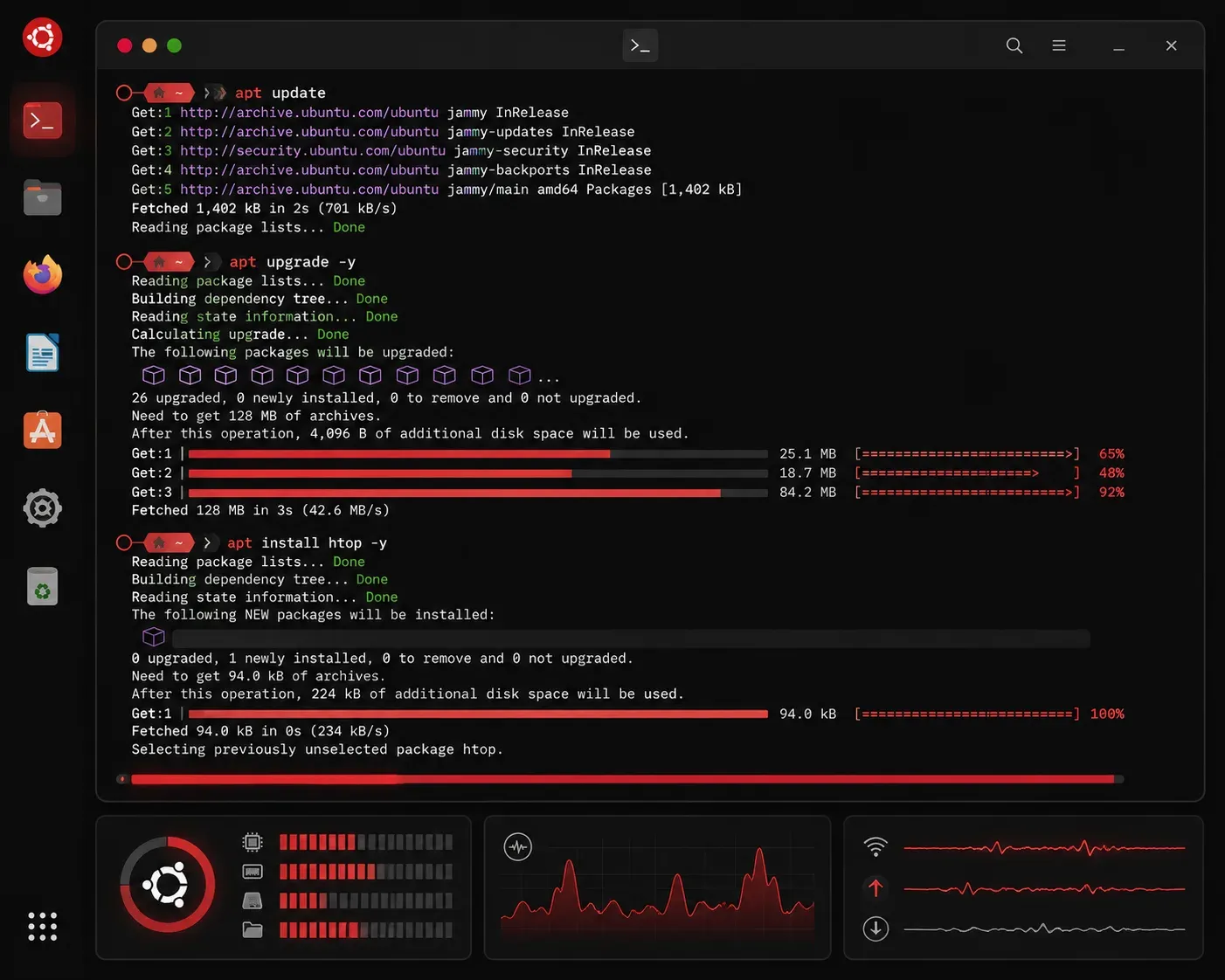
One of the first skills you'll need as a Linux user is installing software. Unlike Windows or macOS where you download installers from websites, Linux distributions use package managers to handle software installation, updates, and removal. On Ubuntu and other Debian-based systems, that package manager is apt (Advanced Package Tool).
Think of apt as your software store, warehouse manager, and security guard all rolled into one. It knows where to find thousands of programs, handles their dependencies automatically, and ensures everything comes from trusted sources.
Understanding Package Repositories
Before diving into commands, let's understand how apt works. Your system maintains a list of software repositories, which are trusted servers that host packages. When you install software, apt downloads it from these repositories, not from random websites.
To see your current repository list:
cat /etc/apt/sources.listYou'll see entries pointing to Ubuntu's official repositories, organized by components like main, restricted, universe, and multiverse.
Essential apt Commands
Updating Package Lists
Before installing anything, update your local package database to get the latest information about available software:
sudo apt updateThis doesn't install updates; it just refreshes the list of what's available and their current versions.
Installing Software
To install a package, use apt install:
sudo apt install firefoxYou can install multiple packages at once:
sudo apt install git curl vimThe sudo prefix is necessary because installing software requires administrator privileges.
Searching for Packages
Not sure of the exact package name? Search the repositories:
apt search text-editorFor more detailed information about a specific package:
apt show firefoxThis displays the package description, version, dependencies, and size.
Upgrading Software
To upgrade all installed packages to their latest versions:
sudo apt upgradeFor a more comprehensive upgrade that can remove obsolete packages:
sudo apt full-upgradeRemoving Software
To remove a package but keep its configuration files:
sudo apt remove firefoxTo completely remove a package and its configuration:
sudo apt purge firefoxUnderstanding Dependencies
One of apt's strengths is automatic dependency management. When you install a program, apt automatically installs any required libraries or supporting software. When you remove software, it can also clean up unused dependencies:
sudo apt autoremovePractical Example: Installing a Development Environment
Let's install a basic development setup:
sudo apt update
sudo apt install git python3 python3-pip nodejs npm
This single command installs Git for version control, Python 3 with its package manager pip, and Node.js with npm. apt handles all the dependencies automatically.
Best Practices
Always run sudo apt update before installing new software to ensure you're getting the latest versions. Keep your system current with regular sudo apt upgrade runs. When you no longer need software, remove it completely with sudo apt purge to keep your system clean.
Avoid installing software from random .deb files unless absolutely necessary - the repository system is much safer and more manageable.
What's Next
Now that you understand package management with apt, you'll want to learn about file permissions and ownership in Linux. Understanding how Linux controls access to files and directories is crucial for system security and proper software operation.