
Introduction to vim: The Basics
This post introduces vim to Linux beginners, covering the essential concept of modes (Normal, Insert, and Command), basic navigation, and how to save and quit. By the end, readers have enough knowledge to open a file, make edits, and exit safely without panicking.

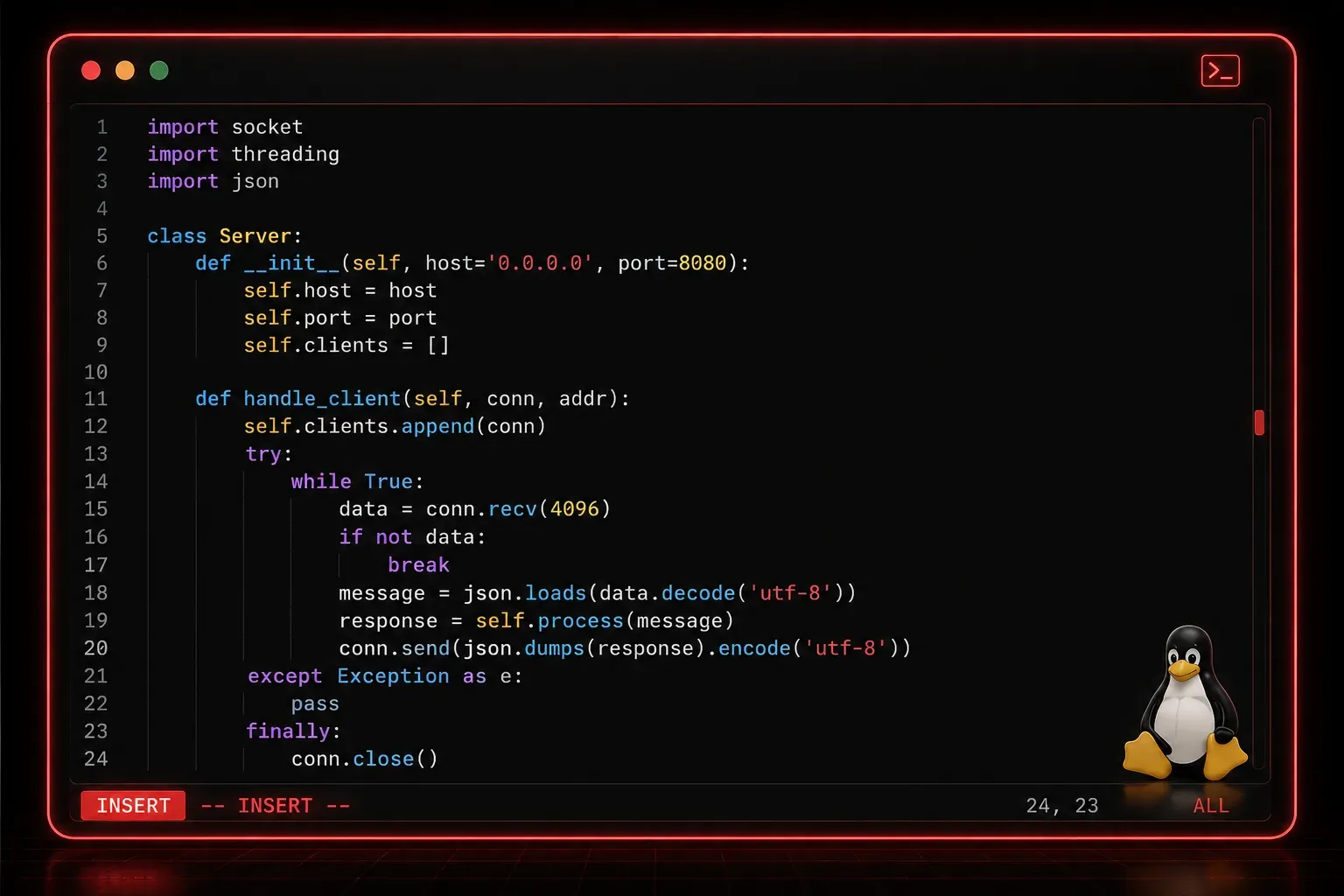
If you spend any time working in Linux, you will eventually encounter vim. Whether you are editing a configuration file on a remote server or making a quick change to a script, vim is one of the most powerful and widely available text editors you will find. It is installed by default on almost every Linux and Unix-based system, which makes it an essential skill for anyone working in this space.
Fair warning: vim has a learning curve. Many beginners open it for the first time, try to type something, and immediately panic when nothing works as expected. That is completely normal. Once you understand how vim is designed, it starts to make a lot of sense.
The Core Concept: Modes
The most important thing to understand about vim is that it operates in different modes. Unlike a standard text editor where you just open a file and start typing, vim separates the act of navigating and editing into distinct modes. The three you need to know right away are:
- Normal Mode: the default mode when you open
vim. In this mode, keystrokes are commands, not characters. This is where you navigate and manipulate text. - Insert Mode: the mode where you actually type text, just like a regular editor. You enter this mode from Normal Mode.
- Command Mode: used for saving, quitting, searching, and other editor-level operations. Accessed from Normal Mode by pressing
:.
Understanding this modal design is the key to unlocking vim. You are not just typing; you are switching between modes with intention.
Opening a File
To open a file with vim, simply pass the filename as an argument:
vim myfile.txtIf the file does not exist, vim will create it when you save. When the file opens, you are automatically placed in Normal Mode.
Switching Between Modes
Here are the key strokes you need to switch modes:
- Enter Insert Mode: press
ito insert text before the cursor, orato append text after the cursor. - Return to Normal Mode: press
Escat any time. - Enter Command Mode: from Normal Mode, press
:.
You will know you are in Insert Mode because the bottom of the screen will show -- INSERT --. When you press Esc, that indicator disappears and you are back in Normal Mode.
Basic Navigation in Normal Mode
In Normal Mode, you can use the arrow keys to move around. But the classic vim approach uses the home row keys:
h: move leftj: move downk: move upl: move right
This keeps your hands on the keyboard and speeds things up once you build the muscle memory. Arrow keys work fine too, especially when you are just getting started.
Saving and Quitting
This is where most beginners get stuck. To save and quit, you use Command Mode. Make sure you are in Normal Mode first by pressing Esc, then type one of the following:
:w: write (save) the file without quitting:q: quit (only works if there are no unsaved changes):wq: save and quit:q!: quit without saving, discarding all changes
Press Enter after each command to execute it.
A Quick Practice Session
Try this to put it all together:
- Open a new file:
vim practice.txt - Press
ito enter Insert Mode - Type a few lines of text
- Press
Escto return to Normal Mode - Type
:wqand pressEnterto save and quit
Congratulations. You have survived your first vim session.
Resources to Keep Learning
- Built-in tutor: run
vimtutorin your terminal for a hands-on guided tutorial that takes about 30 minutes - Linux Journey (linuxjourney.com): a free, beginner-friendly site covering many Linux fundamentals
- OpenVim (openvim.com): an interactive browser-based
vimtutorial for practising the basics without leaving your browser
What's Next
Now that you can open, edit, and save files in vim, the next step is learning how to work more efficiently inside the editor. In the next post, we will cover useful Normal Mode commands like deleting lines, undoing changes, and searching through a file. These features are where vim really starts to show its power.