
Killing Processes in Linux
This post covers how to find and kill processes in Linux using commands like kill, killall, pkill, and htop. It explains the difference between SIGTERM and SIGKILL, and walks beginners through the full workflow from finding a PID to stopping an unresponsive process.

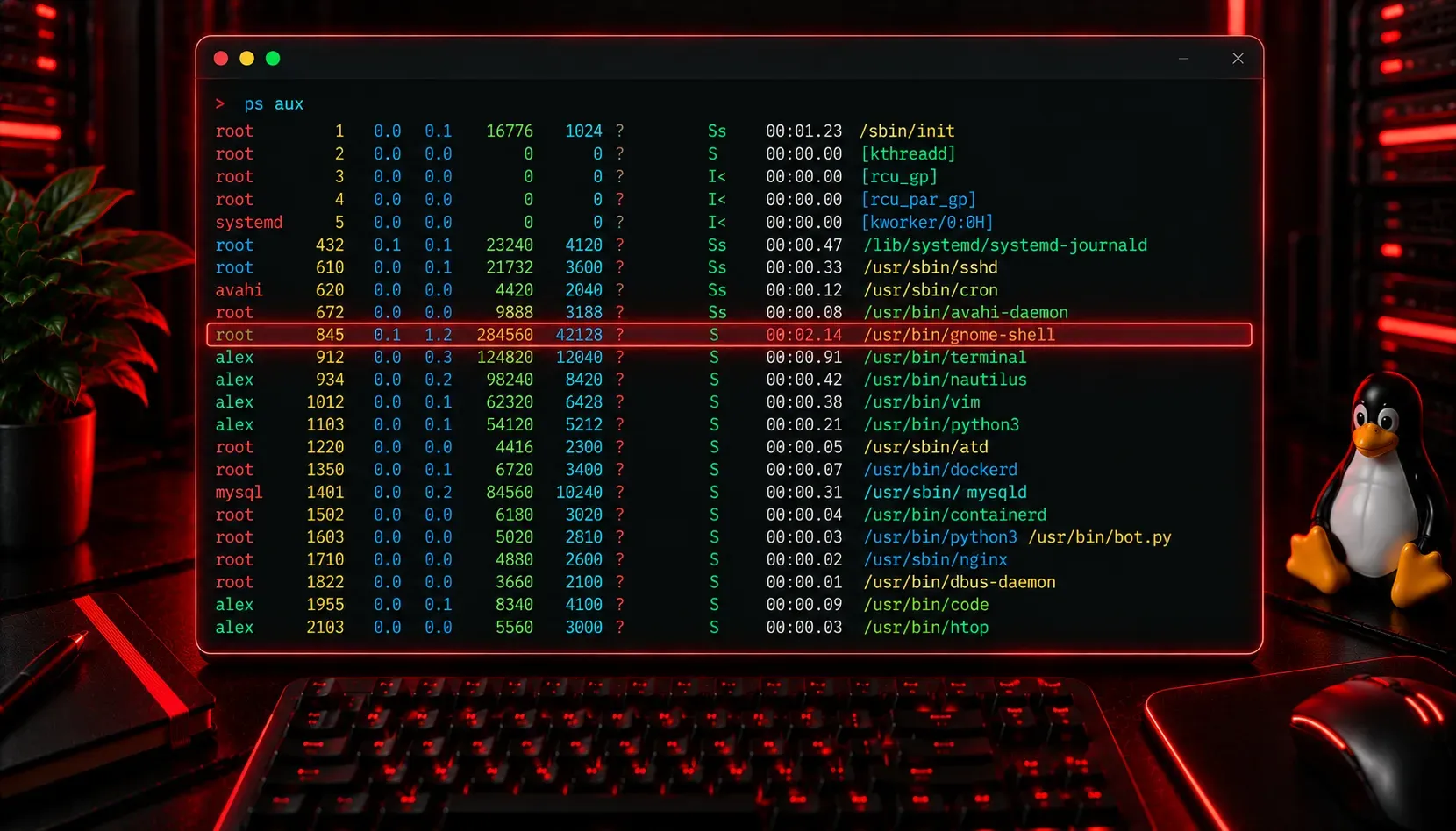
At some point, every Linux user runs into a frozen application, a runaway script, or a process eating up all the system's memory. Knowing how to stop these processes is a fundamental skill, and Linux gives you several powerful ways to do it.
Before you can kill a process, you need to find it. Let's walk through the whole workflow from discovery to termination.
Finding the Process You Want to Stop
Every process running on a Linux system has a unique identifier called a PID (Process ID). You need this number to target the right process.
The most common way to find a PID is with the ps command combined with grep:
ps aux | grep firefoxThis will return output something like:
john     12345  45.2  3.1 1234567 256000 ?  Sl   10:15   5:23 /usr/lib/firefox/firefox
john     12399  0.0  0.0   6432   724 pts/0  S+  10:21   0:00 grep --color=auto firefox
The second column is the PID. In this example, Firefox has a PID of 12345. Ignore the grep line itself, that is just the search command showing up in the results.
Alternatively, pgrep is a cleaner shortcut that returns just the PID:
pgrep firefoxThe kill Command
Once you have the PID, the kill command is your primary tool. Despite the name, kill does not actually force-quit a process by default. It sends a signal to the process, and the process decides what to do with it.
The default signal is SIGTERM (signal number 15), which politely asks the process to shut itself down cleanly:
kill 12345This gives the application a chance to save files, close connections, and exit gracefully. Think of it as knocking on the door before entering.
Force Killing with SIGKILL
If a process ignores SIGTERM or is completely unresponsive, you escalate to SIGKILL (signal number 9). This one cannot be ignored or caught by the process. The kernel terminates it immediately:
kill -9 12345You can also use the signal name:
kill -SIGKILL 12345A good rule of thumb: always try SIGTERM first. Only reach for -9 when the process will not respond. Forcing a kill skips any cleanup the application would normally do, which can occasionally cause data corruption or leave temporary files behind.
Killing by Name with killall and pkill
Remembering PIDs is inconvenient. The killall command lets you kill processes by name instead:
killall firefoxThis sends SIGTERM to every process matching that name. You can also force it:
killall -9 firefoxSimilarly, pkill matches by name and supports pattern matching:
pkill firefoxThe practical difference: killall requires an exact name match, while pkill can match partial names and supports regular expressions, making it more flexible in scripts.
Using htop for a Visual Approach
If you prefer an interactive interface, htop is an excellent tool. Launch it with:
htopInside htop, you can:
- Scroll through running processes in real time
- Use
F3to search for a process by name - Highlight a process and press
F9to send it a signal - Choose between
SIGTERMandSIGKILLfrom a menu
If htop is not installed, you can add it with sudo apt install htop on Ubuntu/Debian systems.
Quick Reference: Common Signals
- SIGTERM (15): Politely request termination. The default signal sent by
kill. - SIGKILL (9): Force immediate termination. Cannot be caught or ignored.
- SIGHUP (1): Reload configuration without restarting. Commonly used with daemons.
- SIGSTOP (19): Pause a process without killing it.
- SIGCONT (18): Resume a paused process.
You can see the full list of available signals by running kill -l.
What's Next
Now that you can manage and stop processes, the natural next step is understanding how Linux manages services more broadly. In the next post, we will look at systemd and the systemctl command, which is how modern Linux systems start, stop, and monitor background services. If you have ever wondered how your web server or SSH daemon starts automatically at boot, that is exactly what we will cover.