
Using Linux Device Management Commands
Learn essential Linux device management commands including dmesg, lscpu, lsusb, lspci, lshw, and lm_sensors for hardware discovery and troubleshooting. Step-by-step guide perfect for beginners learning system administration.

Using Linux Device Management Commands
Managing devices in Linux requires understanding the command-line tools that help you discover, monitor, and troubleshoot hardware. Whether you're diagnosing a USB device that won't mount or checking your CPU specifications, Linux provides powerful device management commands that give you detailed system information.
Let's explore the essential commands every Linux administrator should master, starting with the most fundamental tools.
Essential Device Discovery Commands
Using dmesg for Kernel Messages
The dmesg command displays messages from the kernel ring buffer, showing you what the kernel detected during boot and runtime operations. This is your first stop when troubleshooting device issues.
dmesg | tail -20
dmesg | grep -i usb
dmesg | grep -i error
The output shows kernel messages from the ring buffer, which may not always reflect real-time activity. When you plug in a USB device, dmesg will show detection messages, driver loading, and any errors that were logged to the buffer.
Example output when connecting a USB drive:
[12345.678901] usb 2-1: new high-speed USB device number 3 using ehci-pci
[12345.789012] usb 2-1: New USB device found, idVendor=0781, idProduct=5567
[12345.789123] usb-storage 2-1:1.0: USB Mass Storage device detected
CPU Information with lscpu
The lscpu command provides detailed CPU architecture information:
lscpuThis displays CPU model, cores, threads, cache sizes, and supported instruction sets. For quick CPU core count, use:
nprocExample lscpu output:
Architecture:        x86_64
CPU(s):              4
Thread(s) per core:  2
Core(s) per socket:  2
Model name:          Intel(R) Core(TM) i5-7200U CPU @ 2.50GHz
USB Device Management with lsusb
To see all connected USB devices, use lsusb:
lsusb
lsusb -v  # Verbose output
lsusb -t  # Tree format showing USB hubs
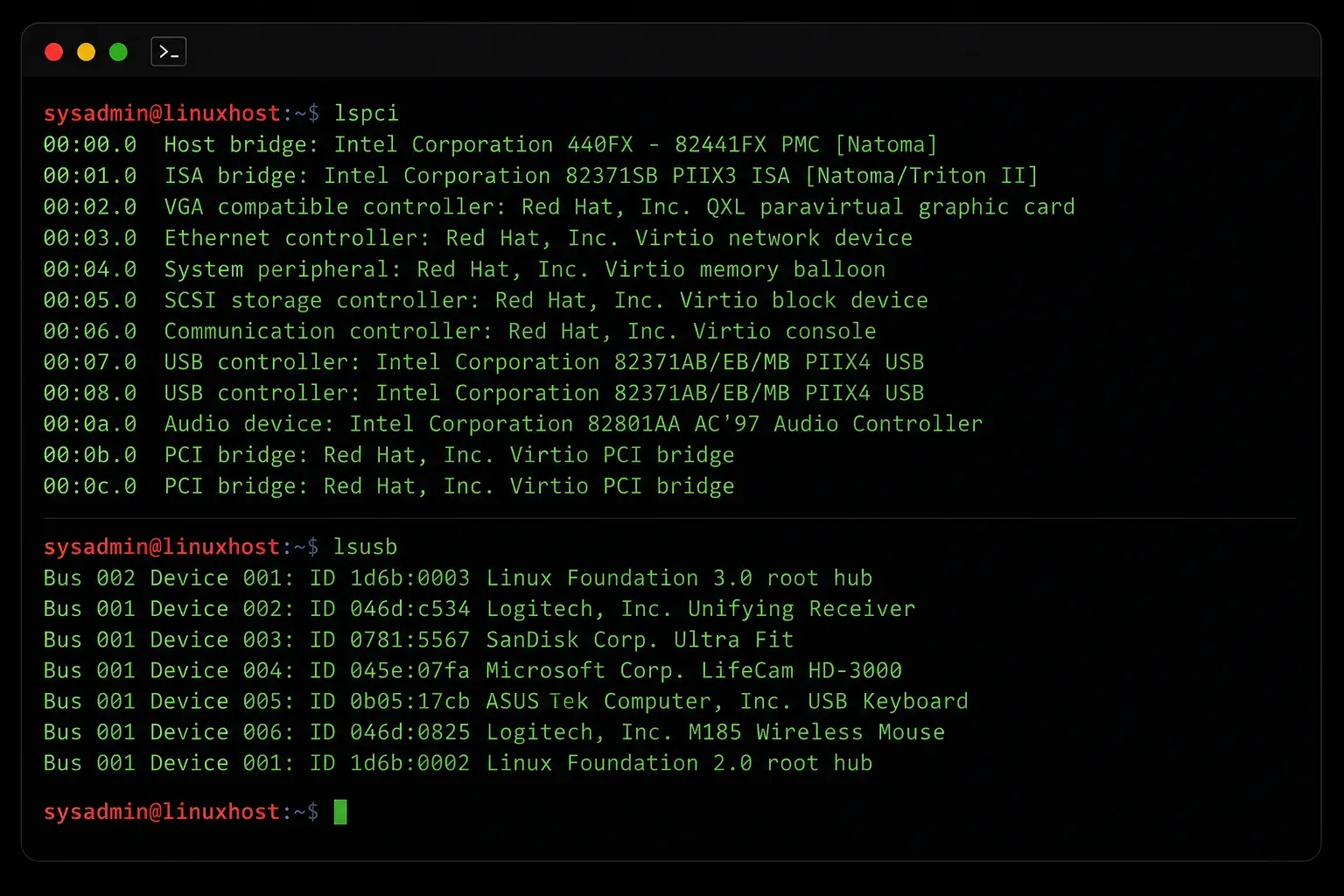
Each line shows the Bus number, Device number, ID (vendor:product), and device name. This helps identify problematic USB devices quickly.
Example output:
Bus 002 Device 003: ID 0781:5567 SanDisk Corp. Cruzer Blade
Bus 002 Device 001: ID 1d6b:0002 Linux Foundation 2.0 root hub
Bus 001 Device 001: ID 1d6b:0002 Linux Foundation 2.0 root hub
Advanced Hardware Discovery
PCI Device Information with lspci
The lspci command lists all PCI devices connected to your system:
lspci
lspci -v  # Verbose with driver information
lspci | grep -i network  # Find network cards
This shows your graphics cards, network interfaces, storage controllers, and other PCI devices. The verbose flag reveals which kernel drivers are handling each device.
Example output:
00:02.0 VGA compatible controller: Intel Corporation HD Graphics 620
00:1c.0 PCI bridge: Intel Corporation Sunrise Point-LP PCI Express Root Port
02:00.0 Network controller: Intel Corporation Wireless 7265
Comprehensive Hardware Info with lshw
For complete hardware inventory, lshw provides the most detailed output:
sudo lshw
sudo lshw -short  # Condensed format
sudo lshw -class network  # Specific hardware class
The lshw command requires root privileges and shows everything from motherboard details to individual device capabilities and configurations. Note: lshw may not be installed by default on all Linux distributions and may require installation using your package manager.
Example installation commands:
sudo apt install lshw      # Ubuntu/Debian
sudo dnf install lshw      # RHEL/Fedora
sudo pacman -S lshw        # Arch Linux
Monitoring System Health
Temperature and Sensor Monitoring
Install and use lm_sensors to monitor hardware temperatures and fan speeds:
sudo apt install lm-sensors  # Ubuntu/Debian
sudo dnf install lm_sensors  # RHEL/Fedora

sudo sensors-detect  # Initial sensor setup
sensors  # Display current readings
The sensors command shows CPU temperatures, fan RPMs, and voltage readings. This is crucial for diagnosing overheating issues. Note: lm_sensors may require additional configuration and running sensors-detect for accurate readings on some hardware.
Example output:
coretemp-isa-0000
Adapter: ISA adapter
Package id 0:  +42.0°C  (high = +100.0°C, crit = +100.0°C)
Core 0:        +40.0°C  (high = +100.0°C, crit = +100.0°C)
Core 1:        +39.0°C  (high = +100.0°C, crit = +100.0°C)
Block Device Information
For storage devices, use lsblk to see the block device tree:
lsblk
lsblk -f  # Show filesystem information
This displays all storage devices, partitions, and mount points in an easy-to-read tree format.
Example output:
NAME   MAJ:MIN RM  SIZE RO TYPE MOUNTPOINT
sda      8:0    0  256G  0 disk
├─sda1   8:1    0  512M  0 part /boot/efi
├─sda2   8:2    0    1G  0 part /boot
└─sda3   8:3    0  254G  0 part /
Practical Troubleshooting Workflow
When diagnosing device issues, follow this systematic approach:
- Check
dmesgfor recent kernel messages about the device - Use the appropriate
ls*command (lsusb,lspci) to verify device detection - Run
lshwfor detailed hardware configuration (install if needed) - Monitor with
sensorsif hardware health is suspected
These device management commands form the foundation of Linux hardware troubleshooting. Practice using them regularly to build familiarity with your system's hardware profile.
What's Next
Now that you understand basic device discovery, we'll explore Linux process management commands like ps, top, and htop to monitor and control running processes on your system.
Tools and resources for this topic
- CompTIA Linux+ Study Guide — Comprehensive Linux+ exam preparation covering system administration, security, and scripting.