
Mastering Krisp AI for Seamless IT Communication
Krisp AI is a noise cancellation tool that works at the OS level, cleaning up audio for any virtual meeting application. This post covers setup, practical IT use cases like incident bridges and transcription pairing, and tips for getting the most out of both the free and Pro tiers.

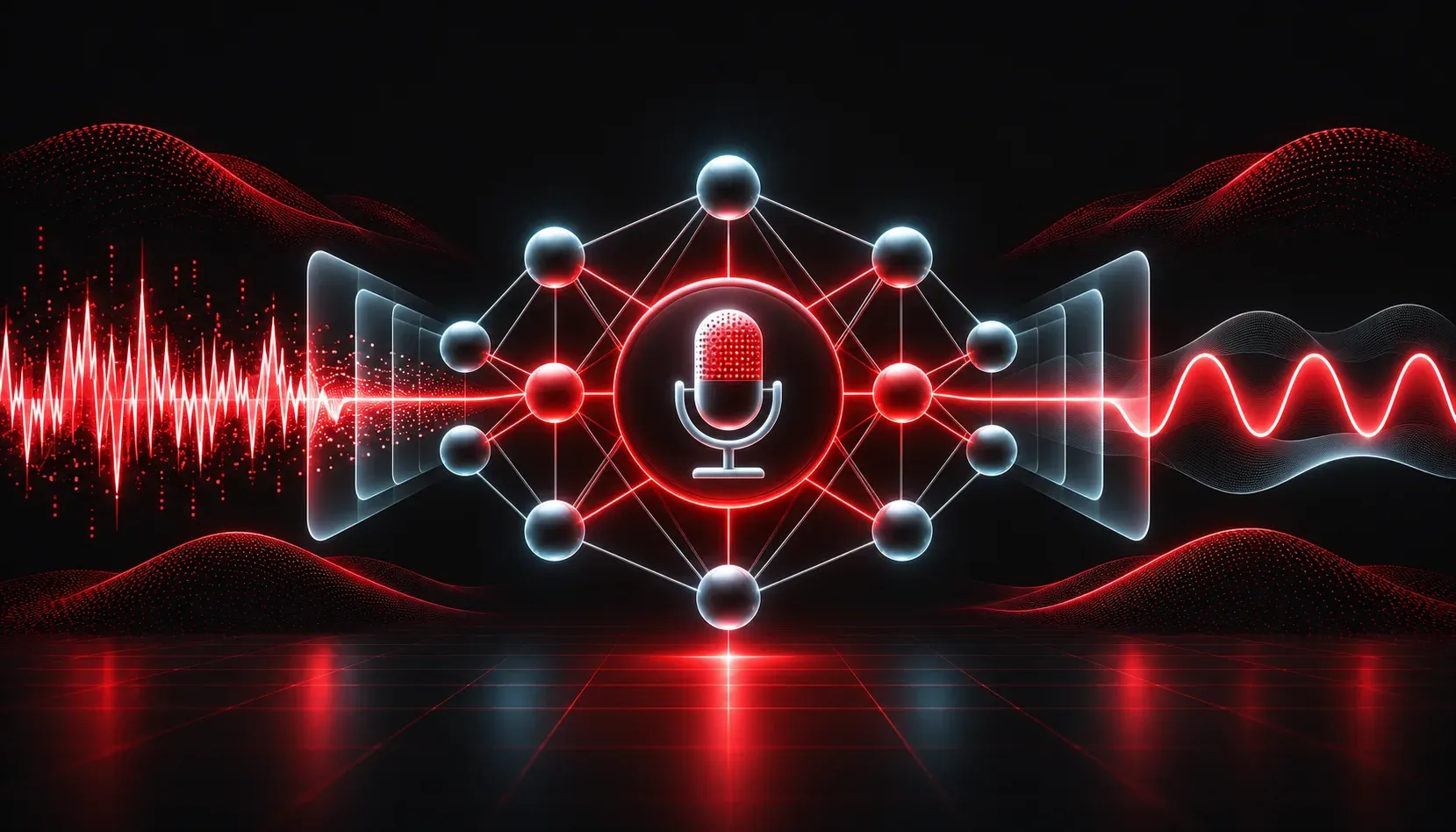
If you've ever been on a critical conference call troubleshooting a production outage while a lawnmower roars outside your window, you already understand the problem Krisp AI solves. Background noise is more than an annoyance in IT communication; it erodes professionalism, slows down troubleshooting sessions, and creates real fatigue for everyone on the call.
I've been using Krisp AI for over a year across daily standups, customer escalation calls, and remote pairing sessions with other engineers. Here's what actually works and what you need to know to get the most out of it.
What Is Krisp AI?
Krisp AI is a noise cancellation application available at krisp.ai that runs locally on your machine and filters audio in real time. Unlike noise suppression built into platforms like Zoom or Microsoft Teams, Krisp works at the operating system level, meaning it applies to any application: Webex, Google Meet, Discord, Slack Huddles, or even softphone clients like Cisco Jabber or Webex Calling.
It works by inserting virtual microphone and speaker devices. You point your meeting app to the Krisp virtual microphone, and Krisp pulls from your real microphone, processes the audio through its on-device AI model, and passes clean audio downstream. Your colleagues hear you, not your environment.
Setting Up Krisp for IT Workflows
Installation and Configuration
Getting started is straightforward:
- Download and install Krisp from krisp.ai. It supports Windows and macOS.
- Launch Krisp and enable Noise Cancellation for both the microphone and speaker channels.
- Open your meeting application's audio settings and select Krisp Microphone as your input device.
- Optionally, select Krisp Speaker as your output device to filter noise coming from other participants as well.
One practical tip: keep the Krisp dashboard visible in your system tray. You can toggle noise cancellation on and off with a single click, which matters when you need to quickly mute filtering during a recording or demonstration.
Speaker-Side Noise Cancellation
Most people enable microphone filtering and stop there. Don't skip the speaker-side filtering. When a remote colleague is calling in from a noisy data center floor or a coffee shop, enabling the Krisp Speaker filter cleans up what you hear on your end. This is particularly useful during NOC bridge calls where multiple engineers are dialing in from different environments simultaneously.
Practical Tips from Real IT Use Cases
Production Incident Bridges
During a high-stress P1 call, communication clarity is non-negotiable. Krisp's noise cancellation removes keyboard typing sounds, HVAC noise, and office chatter so the person giving the RCA update doesn't have to repeat themselves. Enable Krisp before you dial into any bridge, and make it a team habit.
Pairing with AI Meeting Assistants
Krisp has built-in AI meeting notes and transcription features that pair well with its noise cancellation. Clean audio input produces significantly more accurate transcriptions. If you're using Krisp's transcription alongside tools like Otter.ai or even native transcription in Teams, feeding those tools clean audio dramatically reduces errors in technical terminology: IP addresses, interface names, and CLI commands transcribe correctly far more often.
Managing the Free Tier
The free plan includes 60 minutes of noise cancellation per day, which covers most casual users. For IT professionals on calls for several hours daily, the Pro plan removes that cap entirely and unlocks the meeting transcription and AI notes features. It is worth the investment if virtual meetings are a core part of your workday.
A Note on Privacy
Because Krisp processes audio locally on your device rather than sending raw audio to the cloud, it is generally safe for use in enterprise environments. The AI models run on your CPU or GPU, not on remote servers. That said, always verify your organization's acceptable use policy before installing third-party software on corporate endpoints.
What's Next
Krisp solves the audio quality problem, but clear communication in IT teams goes beyond noise cancellation. In the next post, we'll look at AI-powered transcription and meeting summary tools that help you capture action items, decisions, and technical details automatically so nothing gets lost after the call ends. If you've ever stared at a blank incident report wondering what was decided on that three-hour bridge call, that post is for you.