
Navigating the Linux Filesystem
Learn the fundamentals of navigating the Linux filesystem, including directory structure, essential commands like pwd, ls, and cd, and understanding absolute vs relative paths. Perfect introduction for Linux beginners.

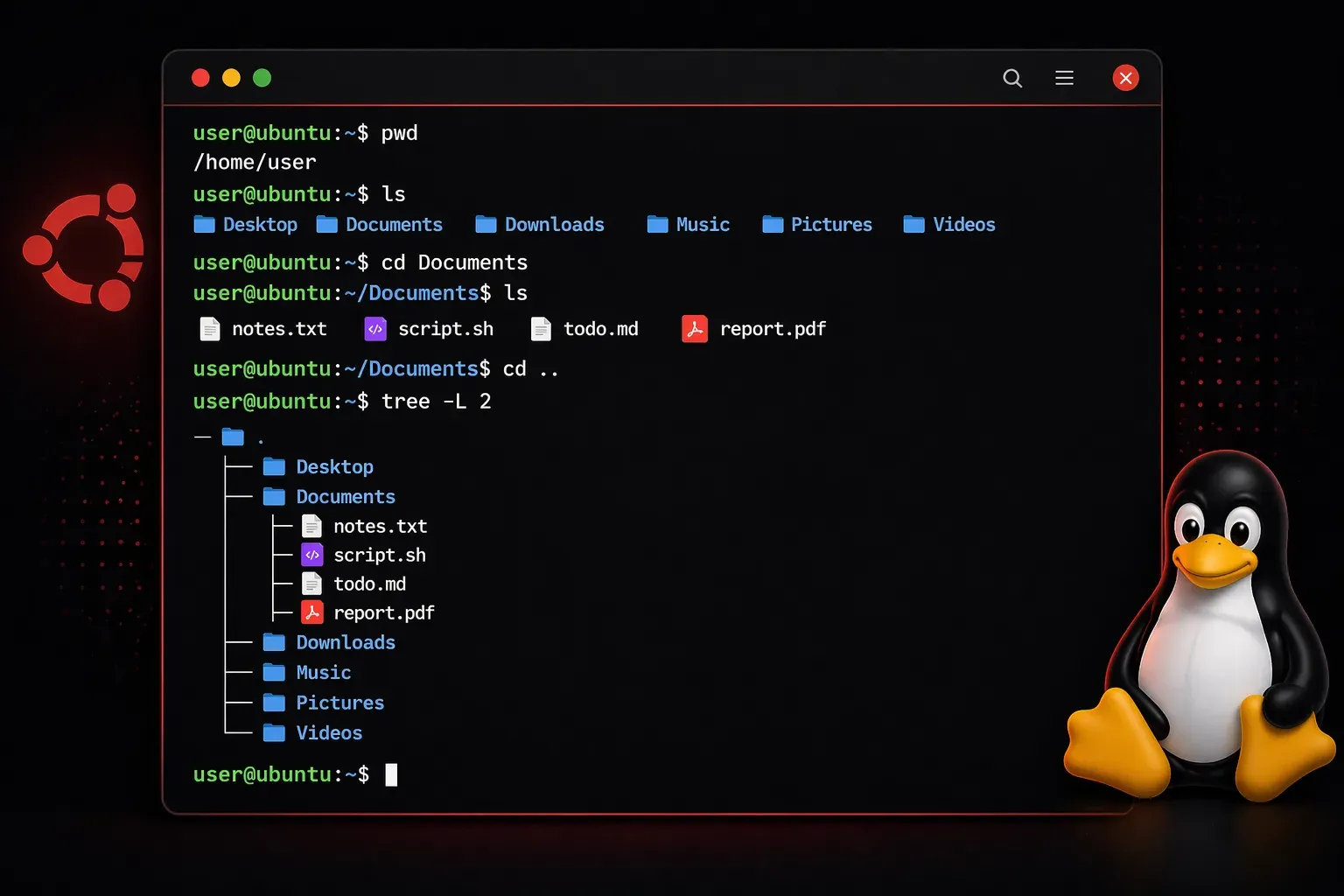
Understanding how to navigate the Linux filesystem is one of the first essential skills you'll need as a Linux user. Unlike Windows with its drive letters (C:, D:, etc.), Linux uses a unified directory structure that starts from a single root directory. Let's explore this structure and learn the fundamental commands to move around confidently.
The Linux Directory Structure
In Linux, everything starts from the root directory, represented by a forward slash /. From this root, all other directories branch out in a tree-like structure. Think of it as an upside-down tree where / is the trunk, and all other directories are branches.
Here are some key directories you'll encounter:
/home- Contains user home directories (like/home/jay)/usr- User programs and applications/etc- System configuration files/var- Variable files like logs and databases/tmp- Temporary files/bin- Essential system binaries
Your Starting Point: The Home Directory
When you open a terminal, you typically start in your home directory. This is your personal space where you can create files and folders. Your home directory path looks like /home/username, where username is your login name.
You can always return to your home directory quickly by typing:
cd
Or use the tilde shortcut:
cd ~
Essential Navigation Commands
Finding Your Current Location
The pwd (print working directory) command shows exactly where you are:
$ pwd
/home/jay/Documents
Listing Directory Contents
The ls command lists files and directories in your current location:
$ ls
Desktop  Documents  Downloads  Pictures  Videos
Add the -l flag for detailed information:
$ ls -l
drwxr-xr-x 2 jay jay 4096 Nov 15 10:30 Desktop
drwxr-xr-x 2 jay jay 4096 Nov 15 10:30 Documents
Changing Directories
The cd (change directory) command moves you between directories. Here are the most common patterns:
# Move to a specific directory
cd Documents

# Move to a subdirectory
cd Documents/Projects

# Move up one level
cd ..

# Move up two levels
cd ../..

# Move to root directory
cd /
Understanding Paths
Linux uses two types of paths:
Absolute paths start from the root directory and begin with /:
/home/jay/Documents/project.txtRelative paths start from your current location and don't begin with /:
Documents/project.txtHelpful Navigation Shortcuts
.represents the current directory..represents the parent directory~represents your home directory-takes you back to the previous directory
Try this example to see shortcuts in action:
$ cd /var/log
$ cd -
$ pwd
/home/jay
Practical Exercise
Practice these commands to build muscle memory:
# Check where you are
pwd

# List contents
ls

# Go to root and explore
cd /
ls

# Navigate to a system directory
cd /etc
ls

# Return home
cd ~
pwd
Pro Tips for Efficient Navigation
Use tab completion to save time and avoid typos. Start typing a directory name and press Tab - Linux will complete it for you or show available options.
The tree command (install with sudo apt install tree on Ubuntu) provides a visual directory structure:
$ tree -L 2 /home
/home
└── jay
    ├── Desktop
    ├── Documents
    ├── Downloads
    └── Pictures
What's Next
Now that you can navigate confidently through the Linux filesystem, the next step is learning how to create, copy, move, and delete files and directories. We'll cover essential file management commands like touch, cp, mv, and rm in our next post on Linux file operations.