
Redirecting Output in Bash
This post covers the fundamentals of redirecting output in Bash, including stdout, stderr, and how to send both to files or discard them entirely. It walks through practical examples including appending to log files and separating output streams in scripts. Ideal for beginners building their comman

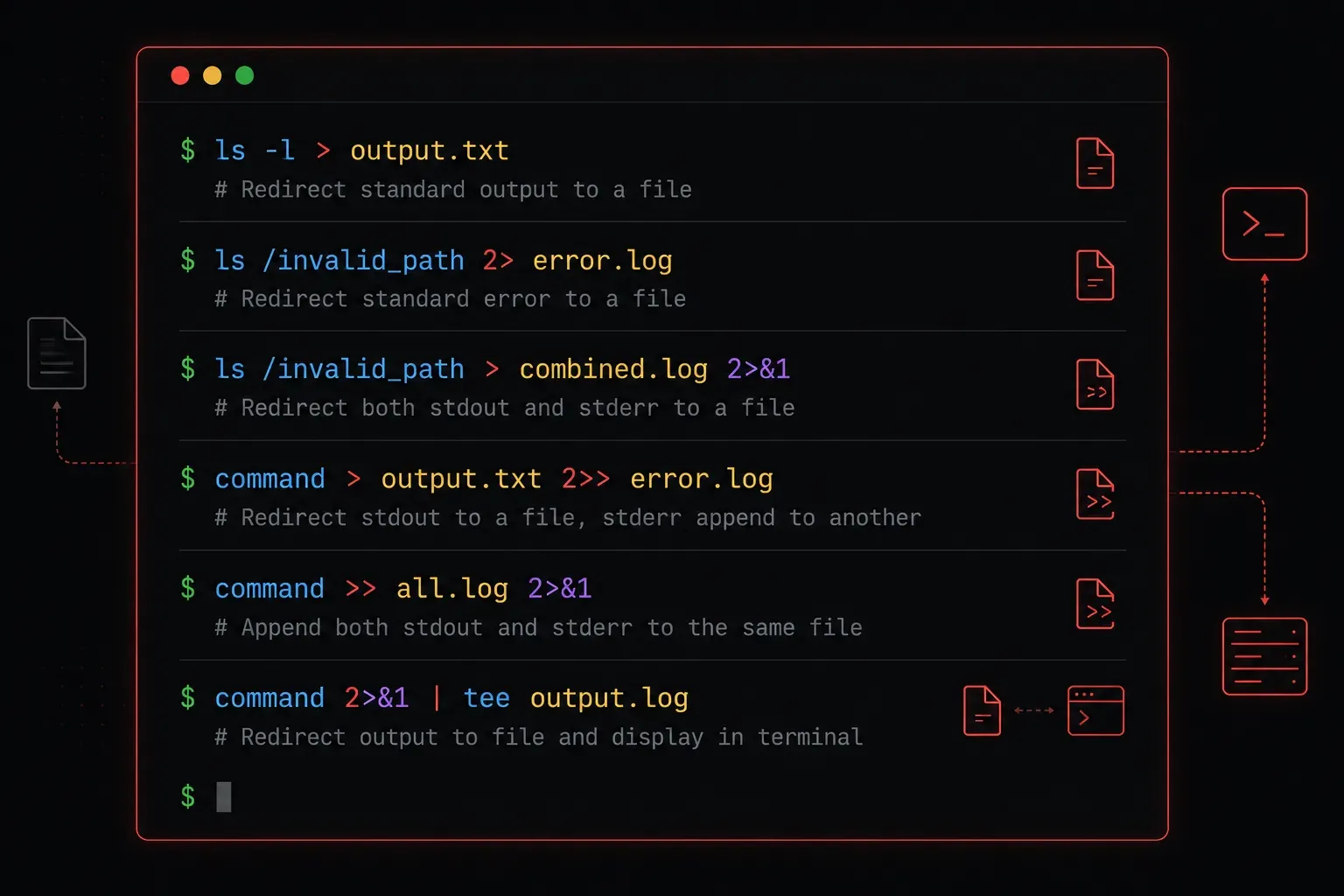
When you run a command in Bash, the output goes somewhere. By default, that somewhere is your terminal screen. But what if you want to save that output to a file, discard errors, or feed the output of one command into another? That is exactly what output redirection gives you the ability to do.
Understanding how to redirect output is one of those foundational Bash skills that will make you dramatically more productive on the command line. Let us walk through it step by step.
Standard Streams: The Foundation
Before diving into redirection, you need to understand that every Linux process has three standard streams:
- stdin (0): Standard input. Where a program reads data from (usually your keyboard).
- stdout (1): Standard output. Where normal output goes (usually your terminal).
- stderr (2): Standard error. Where error messages go (also usually your terminal).
When you redirect output in Bash, you are telling the shell where to send one of these streams instead of the default destination.
Redirecting Standard Output
The most common redirection is sending stdout to a file using the > operator.
ls -l /etc > directory_listing.txtThis runs ls -l /etc and writes the output to directory_listing.txt instead of the screen. If the file does not exist, Bash creates it. If it does exist, Bash overwrites it completely. Be careful with this one.
To append output to a file without destroying what is already there, use >>:
echo "New log entry" >> application.logThis adds the text to the end of application.log rather than replacing it. You will use append redirection constantly when writing to log files from scripts.
Redirecting Standard Error
To redirect only error messages, use 2>:
ls /nonexistent_directory 2> errors.txtThe 2 refers to the file descriptor for stderr. Normal output still goes to the screen, but any errors are captured in errors.txt.
You can also append errors using 2>>, just like with stdout.
Redirecting Both stdout and stderr
Sometimes you want to capture everything. There are two ways to do this.
The modern, preferred syntax (Bash 4+):
some_command &> all_output.txtThe older, portable syntax that works in any POSIX shell:
some_command > all_output.txt 2>&1That second form redirects stdout to the file, then redirects stderr to wherever stdout is currently pointing. The order matters here. If you wrote 2>&1 > file instead, stderr would go to the terminal and stdout would go to the file. Always put 2>&1 at the end.
Discarding Output with /dev/null
Sometimes you want a command to run silently, without any output appearing at all. That is what /dev/null is for. It is a special device file that discards everything written to it.
# Suppress only errors
some_command 2> /dev/null

# Suppress all output
some_command &> /dev/null
This is extremely common in scripts where you want to check whether a command succeeds or fails without cluttering the output.
A Practical Example
Imagine you are writing a simple backup script. You want successful output logged to one file and errors logged to another:
#!/bin/bash

tar -czf /backup/home_backup.tar.gz /home/user/ \
  1>> /var/log/backup.log \
  2>> /var/log/backup_errors.log

echo "Backup attempt completed at $(date)" >> /var/log/backup.log
This pattern of separating stdout and stderr into different log files is a clean habit to build early.
What's Next
Now that you understand how to control where output goes, the natural next step is learning about pipes. Pipes let you chain commands together by feeding the stdout of one command directly into the stdin of another. Combined with redirection, pipes are what make Bash scripting genuinely powerful. We will cover pipes in the next post.