
Storm Control: Containing Broadcast and Multicast Floods
Storm control is a Cisco IOS feature that protects switch interfaces from broadcast, multicast, and unknown unicast floods by setting configurable traffic thresholds. This post explains how storm control works, walks through a practical configuration example with CLI output, and covers key verifica

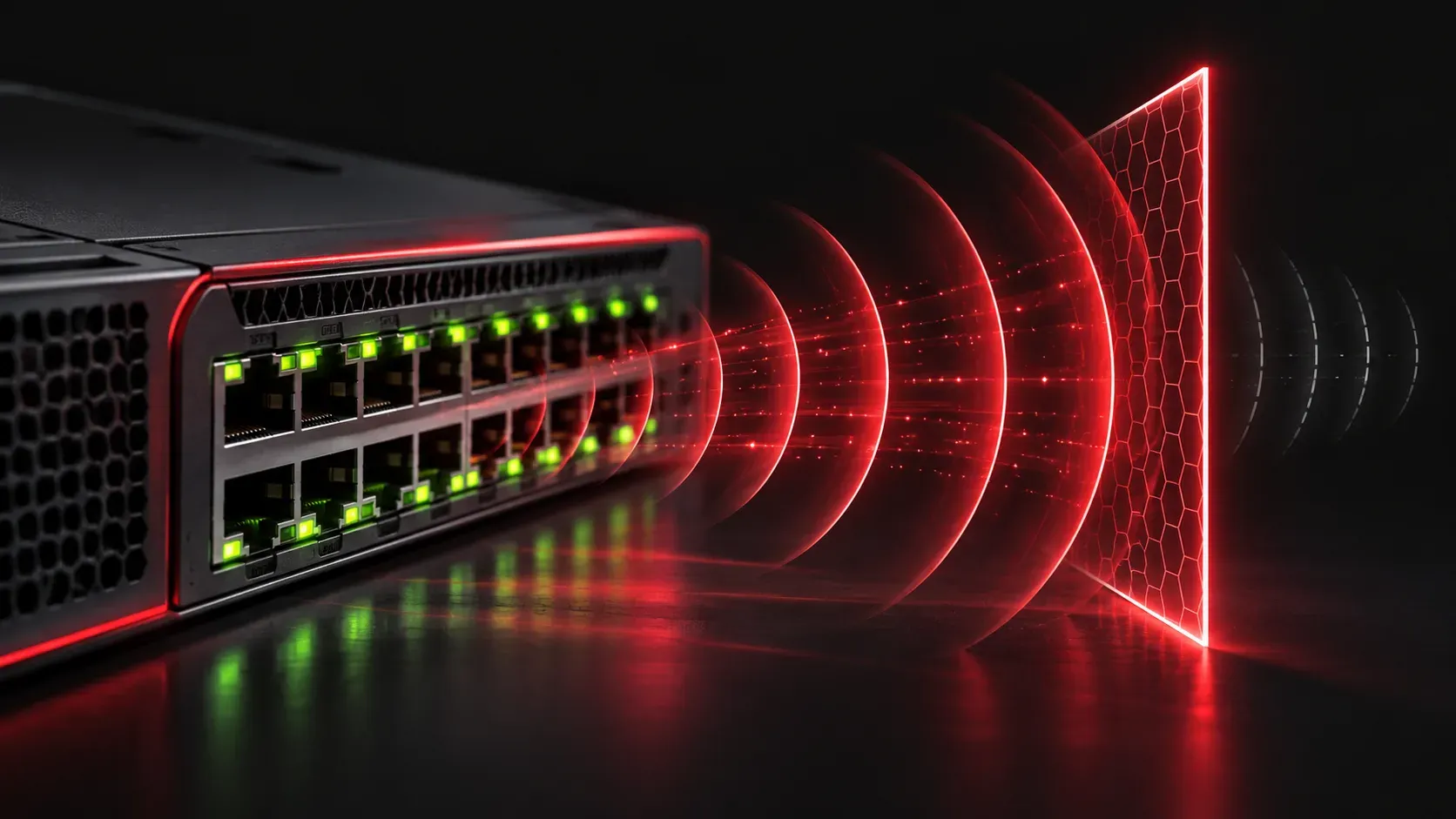
If you have ever seen a switch suddenly grind to a halt with no obvious reason, there is a good chance a broadcast storm was involved. Traffic floods can cripple a network in seconds, and storm control is the built-in Cisco IOS feature designed to stop that from happening. This post walks you through what storm control does, why it matters for the CCNA exam, and how to configure it on a real switch.
What Is a Traffic Storm?
A traffic storm happens when a switch is overwhelmed by an excessive volume of broadcast, multicast, or unknown unicast frames. This can be triggered by a spanning tree failure, a misconfigured device, or even a misbehaving host. The switch spends so much time processing these frames that legitimate traffic gets dropped and performance collapses.
Storm control gives you a way to set a threshold on a per-interface basis. When traffic of a specific type crosses that threshold, the switch takes action: either blocking the excess traffic or shutting the port down entirely.
How Storm Control Works
Cisco switches measure storm control thresholds in one of three ways:
- Percentage of bandwidth: The most common method. You define a rising threshold (when to act) and optionally a falling threshold (when to resume normal operation).
- Packets per second (pps): Useful when you want to limit by frame rate rather than bandwidth consumption.
- Bits per second (bps): An absolute bit rate limit.
For the CCNA exam, focus on the percentage-based method. It is the most straightforward and the most likely to appear in exam scenarios.
How to Configure Storm Control
Storm control is configured at the interface level. Here is a typical example applied to a FastEthernet access port:
Switch(config)# interface fastethernet 0/1
Switch(config-if)# storm-control broadcast level 20 10
Switch(config-if)# storm-control multicast level 20 10
Switch(config-if)# storm-control action shutdown
Breaking down what each line does:
- storm-control broadcast level 20 10: If broadcast traffic exceeds 20% of the interface bandwidth (rising threshold), storm control activates. It deactivates once traffic drops back to 10% (falling threshold).
- storm-control multicast level 20 10: Same logic applied to multicast traffic.
- storm-control action shutdown: When the threshold is crossed, the port is placed into an
err-disabledstate. The alternative action is trap, which keeps the port up, filters the excess traffic and sends an SNMP notification.
If you omit the falling threshold, the switch uses the rising threshold as both values.
Verifying Storm Control
After you configure storm control, use the following command to check your settings:
Switch# show storm-control fastethernet 0/1 broadcast

Interface   Filter State   Upper        Lower        Current
---------   ------------   -----------  -----------  ----------
Fa0/1       Forwarding     20.00%       10.00%       0.00%
The output confirms the interface is forwarding normally, the thresholds are set correctly, and current broadcast traffic is sitting at 0%. If the port had triggered storm control, the Filter State column would show Blocking or Link Down.
You can also check the thresholds without naming a traffic type:
Switch# show storm-control fastethernet 0/1With no traffic type given, this shows the broadcast settings; add multicast or unicast to see the others.
Key Points to Remember for the Exam
- Storm control is configured per interface, not globally.
- The default action is to filter (block) excess traffic, not shut the port down. You have to explicitly configure
action shutdown. - Storm control applies to broadcast, multicast, and unknown unicast traffic independently.
- A port placed in
err-disabledstate requires manual intervention orerrdisable recoveryto come back up.
What's Next
Storm control handles the volume side of Layer 2 security, but there are other threats at this layer that require different tools. In the next post in this series, we cover DHCP Snooping, another Layer 2 security feature from CCNA blueprint section 5.7, which protects your network from rogue DHCP servers handing out bad configuration to your hosts.
Tools and resources for this topic
- CCNA Official Cert Guide (Wendell Odom) — The definitive CCNA study resource. Both volumes cover the 200-301 exam blueprint in full.
- Wendell Odom CCNA Vol 1 — Covers networking fundamentals, switching, and routing basics.
- Wendell Odom CCNA Vol 2 — Covers wireless LANs, ACLs, security, IP services, network architecture and automation.