
Understanding Symbolic and Hard Links in Linux
This post explains the difference between symbolic and hard links in Linux, how to create each type using the ln command, and when to use one over the other. It covers key concepts like inodes, cross-filesystem limitations, and what happens when the original file is deleted.

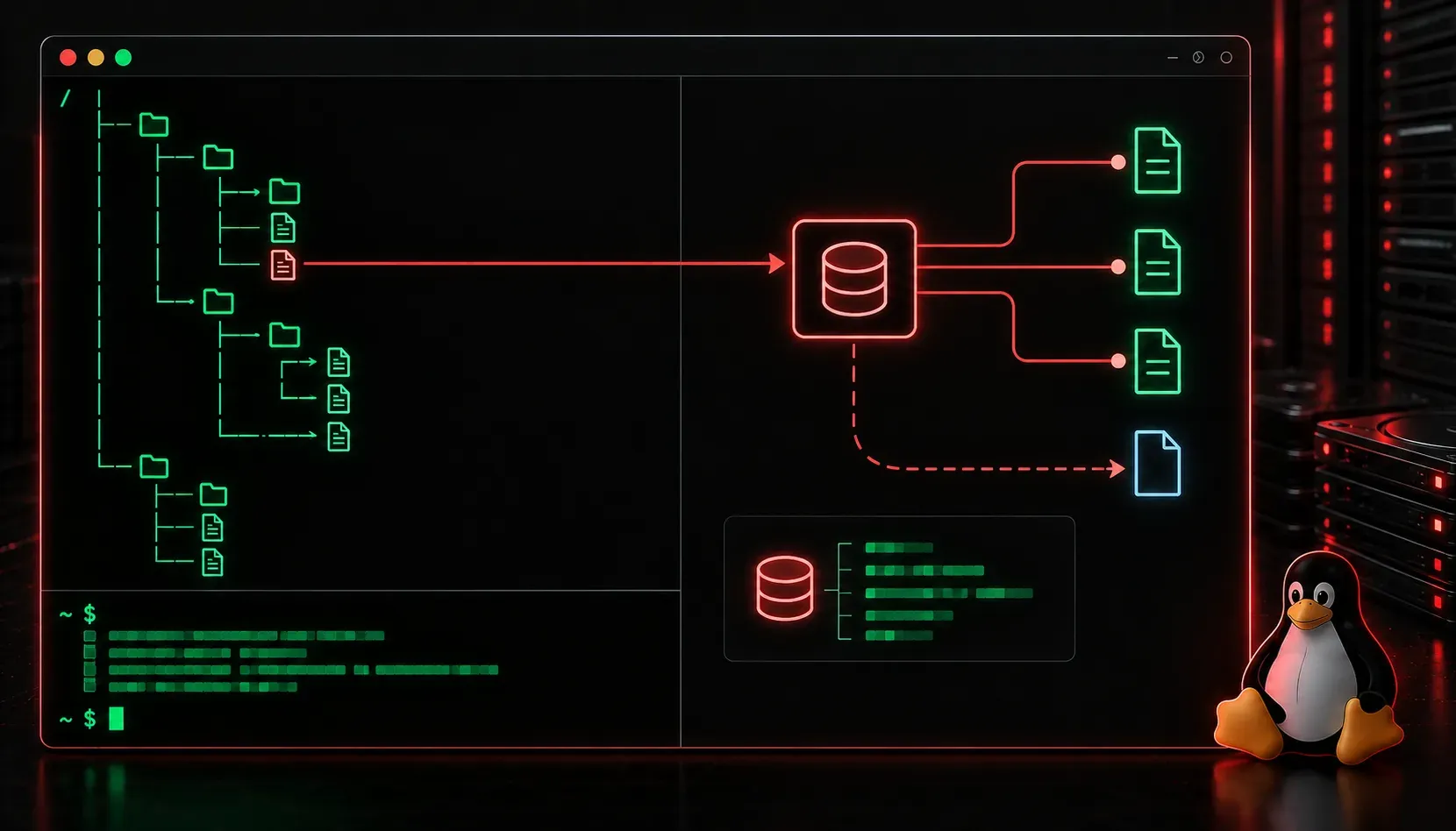
When you're managing files on a Linux system, you'll quickly discover that a file doesn't always have to live in just one place. Linux gives you two powerful tools for creating references to files: symbolic links and hard links. Understanding the difference between them will save you from confusion and help you make smarter decisions when organizing your filesystem.
What Is a Link in Linux?
Before diving into the comparison, it helps to understand how Linux thinks about files. Every file on a Linux system has an inode, which is a data structure that stores metadata about the file (permissions, ownership, timestamps, and the location of the actual data on disk). The filename you see in a directory is really just a pointer to that inode. Links take advantage of this relationship.
Hard Links
A hard link creates an additional directory entry that points directly to the same inode as the original file. Think of it as giving the same file a second (or third) name. Both the original file and the hard link are completely equal, and there is no way to tell which one came first.
To create a hard link, use the ln command:
ln original.txt hardlink.txtYou can verify they share the same inode with ls -li:
$ ls -li
2883587 -rw-r--r-- 2 user user 42 Jun 10 09:00 hardlink.txt
2883587 -rw-r--r-- 2 user user 42 Jun 10 09:00 original.txt
Notice the inode number (2883587) is identical for both entries, and the link count shows 2. Key things to know about hard links:
- Same filesystem only: Hard links cannot span across different filesystems or partitions.
- Files only: You cannot create a hard link to a directory (to prevent filesystem loops).
- Survives deletion: If you delete the original file, the hard link still works because the inode and data remain as long as at least one link points to them.
Symbolic Links
A symbolic link (also called a symlink or soft link) is more like a shortcut. It creates a new file that simply contains the path to the target file. The symlink points to a filename, not directly to an inode.
To create a symbolic link, add the -s flag:
ln -s original.txt symlink.txtRunning ls -li shows a very different picture:
$ ls -li
2883587 -rw-r--r-- 1 user user   42 Jun 10 09:00 original.txt
2883592 lrwxrwxrwx 1 user user   12 Jun 10 09:15 symlink.txt -> original.txt
Notice the symlink has its own inode number and the l file type indicator. Key things to know about symbolic links:
- Cross-filesystem support: Symlinks can point to files on different filesystems or even network paths.
- Works with directories: You can create a symlink to a directory, which is something you cannot do with a hard link.
- Breaks if target is deleted: If the original file is removed, the symlink becomes a "dangling" or broken link and will return an error when accessed.
- Easier to identify: You can always spot a symlink with
ls -lbecause it shows the->arrow pointing to its target.
Symbolic vs Hard Links: Quick Comparison
- Inode: Hard links share the original inode; symlinks have their own inode.
- Cross-filesystem: Hard links cannot cross filesystems; symlinks can.
- Directories: Hard links are not allowed on directories; symlinks are.
- Original deleted: Hard links remain valid; symlinks break.
When to Use Each
Use a hard link when you need a reliable, persistent reference to a file within the same filesystem and want the data to survive even if the original path is removed. Use a symbolic link when you need flexibility, such as linking across filesystems, linking to directories, or creating shortcuts that are easy to identify and manage.
In day-to-day Linux administration, symbolic links are far more common. You'll see them constantly in places like /etc/alternatives and when linking configuration files in deployment workflows.
What's Next
Now that you understand how Linux links work, the next logical step is exploring file permissions and ownership in more depth. Knowing who can read, write, or execute a file (and how to change those settings) is a core skill covered in the same exam domain and essential for any Linux administrator.
Tools and resources for this topic
- CompTIA Linux+ Study Guide — Comprehensive Linux+ exam preparation covering system administration, security, and scripting.