
Troubleshooting Common Cloud Connectivity Issues
This post walks through the most common cloud connectivity issues Network+ students and IT professionals encounter, including DNS failures, firewall blocks, proxy misconfigurations, and routing problems. It provides a structured, methodical troubleshooting approach with practical CLI examples. Read

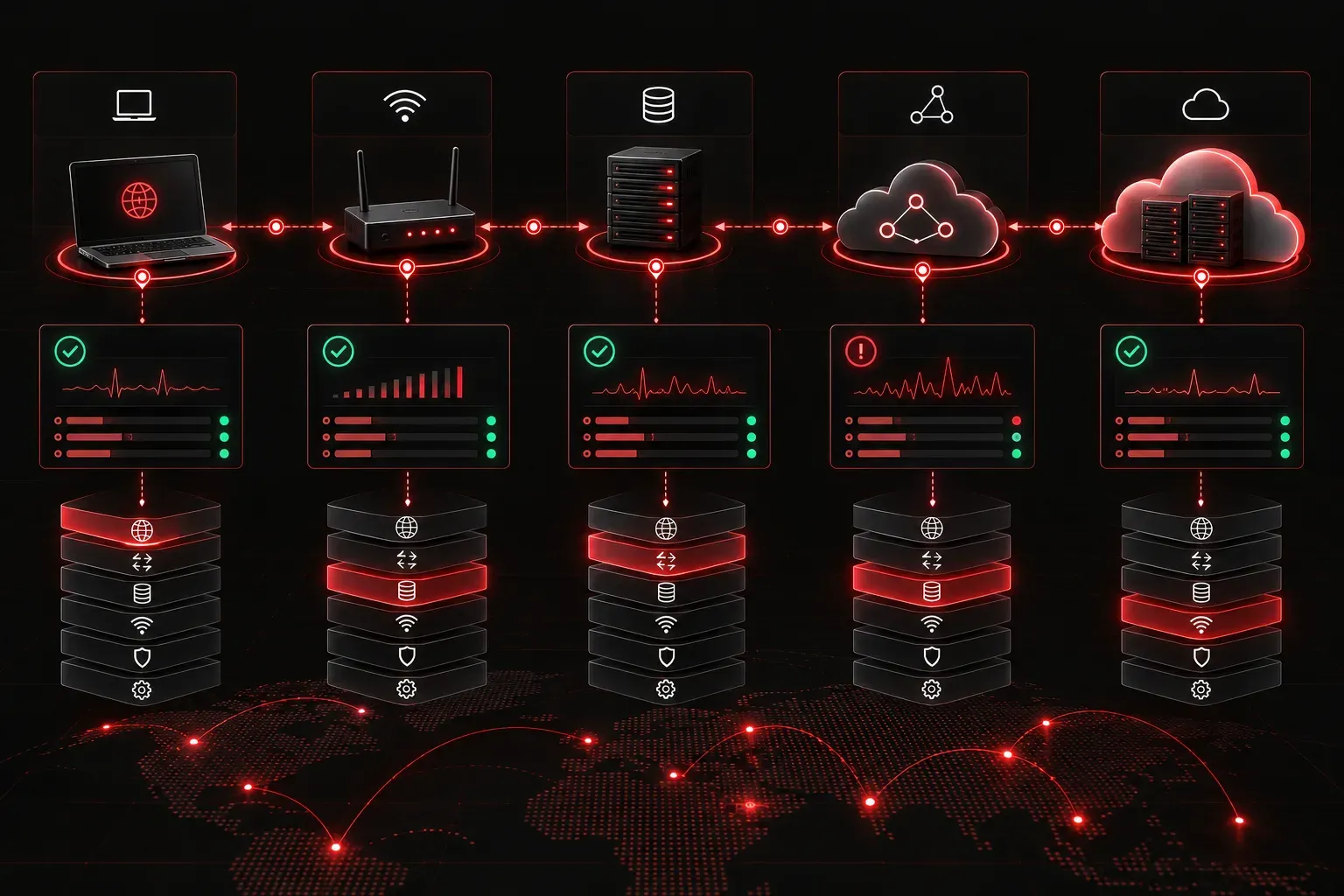
Cloud services have become a core part of modern infrastructure, but when connectivity breaks down, productivity comes to a halt. Whether you are accessing Microsoft 365, AWS, Azure, or any other cloud platform, the troubleshooting process follows a familiar pattern. Understanding where problems typically originate will help you resolve cloud access problems faster and more confidently.
Start With the Basics: Verify Local Connectivity
Before blaming the cloud provider, confirm that your local network is functioning correctly. Many cloud connectivity issues actually originate on the client side. Work through these checks in order:
- Ping your default gateway: This confirms your device can reach the local router.
- Ping a public IP address: Try
8.8.8.8(Google's DNS). If this works but domain names fail, DNS is likely the culprit. - Check DNS resolution: Use
nslookuporpingwith a domain name to verify name resolution is working.
A quick example of testing DNS resolution from a Windows or Linux command line:
nslookup portal.azure.com
Server:  8.8.8.8
Address:  8.8.8.8#53

Non-authoritative answer:
Name:    portal.azure.com
Address: 20.190.151.69
If that command returns an error or times out, your DNS configuration is the first thing to fix.
Common Cloud Connectivity Issues and How to Resolve Them
1. DNS Failures
DNS problems are one of the most frequent causes of cloud access problems. If your device cannot resolve the cloud service's domain name, it cannot connect, even if the internet path itself is healthy. Check that your DNS server addresses are configured correctly, and try temporarily switching to a public DNS server like 8.8.8.8 or 1.1.1.1 to rule out an internal DNS issue.
2. Firewall or ACL Blocking Traffic
Firewalls and access control lists (ACLs) can block traffic to cloud services, especially on corporate networks. Cloud platforms often require specific ports and protocols to be open. For example, HTTPS traffic uses TCP port 443, and many cloud management APIs rely on it exclusively. Work with your network team to verify that outbound traffic to the required ports and IP ranges is permitted.
3. Proxy Configuration Issues
Many enterprise environments route web traffic through a proxy server. If the proxy is misconfigured, offline, or not whitelisting cloud service URLs, connections will fail silently or return generic errors. Check your browser or operating system proxy settings and confirm the proxy server itself is reachable.
4. Incorrect or Expired Credentials
Authentication failures are often mistaken for connectivity issues. If you can reach the cloud provider's login page but cannot authenticate, the problem is likely credentials, multifactor authentication (MFA) configuration, or an expired certificate rather than a network path issue.
5. ISP or Routing Issues
Sometimes the problem genuinely lives outside your network. Use traceroute (or tracert on Windows) to follow the path packets take toward the cloud service:
tracert portal.azure.comLook for hops where latency spikes dramatically or where requests time out with asterisks (* * *). A timeout at a hop inside your ISP's network suggests a routing issue beyond your control, at which point contacting your ISP or checking the cloud provider's status page is the appropriate next step.
Use Cloud Provider Status Pages
Before spending hours troubleshooting, check whether the cloud provider itself is experiencing an outage. Each major provider publishes a public status dashboard:
- AWS:
status.aws.amazon.com - Azure:
status.azure.com - Google Cloud:
status.cloud.google.com
A confirmed outage on the provider's end means there is nothing you can do but wait and communicate the issue to your users.
Build a Repeatable Troubleshooting Process
Connectivity troubleshooting is most effective when you work methodically from your device outward: local NIC, default gateway, DNS, ISP routing, and finally the cloud service itself. Skipping steps leads to wasted time and incorrect assumptions. Document the results of each step so you can hand off to the next engineer or escalate effectively.
What's Next
Now that you know how to diagnose and resolve cloud access problems, the next topic worth exploring is network address translation (NAT) and how it affects traffic as it leaves your private network heading toward cloud services. Understanding NAT will give you another powerful lens for connectivity troubleshooting in real-world environments.
Tools and resources for this topic
- CompTIA Network+ Study Guide — Comprehensive N10-009 exam preparation covering all five domains.