
Troubleshooting Common Kernel Module Issues
A practical guide to identifying and resolving common Linux kernel module problems, covering error messages, systematic troubleshooting steps, and prevention strategies for stable system operation.

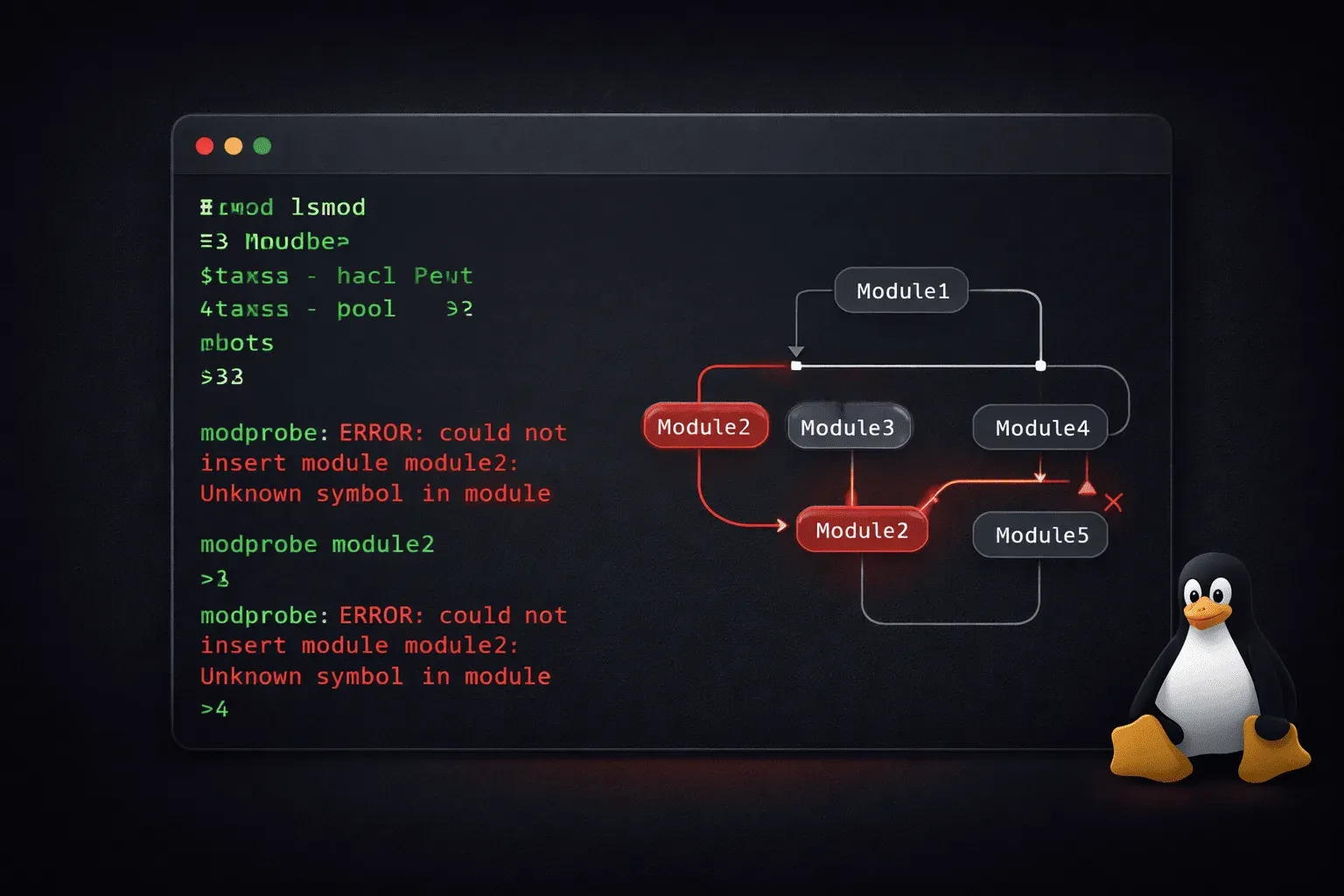
Kernel modules are essential components that extend Linux functionality, but they can sometimes cause frustrating issues. Whether you're dealing with hardware that won't work or mysterious error messages, understanding how to troubleshoot kernel module problems is a crucial Linux skill.
Common Kernel Module Error Messages
Let's start by identifying the most frequent error messages you'll encounter and what they mean:
Module Not Found Errors
The most common issue is when Linux can't locate a required module:
modprobe: FATAL: Module nvidia not found in directory /lib/modules/5.15.0-56-genericThis typically means the module isn't installed for your current kernel version. Check what's available:
find /lib/modules/$(uname -r) -name "*.ko" | grep nvidia
ls /lib/modules/$(uname -r)/kernel/drivers/
Dependency Issues
Sometimes modules fail to load due to missing dependencies:
modprobe: ERROR: could not insert 'module_name': Unknown symbol in moduleUse modinfo to check dependencies and lsmod to see what's currently loaded:
modinfo module_name
lsmod | grep dependency_name
Systematic Troubleshooting Approach
Step 1: Check Kernel Logs
Always start by examining kernel messages for clues about module errors:
dmesg | tail -20
journalctl -k | tail -20
Look for entries related to your problematic module or hardware device.
Step 2: Verify Module Status
Check if the module is loaded and its current state:
lsmod | grep module_name
modinfo module_name
If the module should be loaded but isn't showing up, try loading it manually:
sudo modprobe module_nameStep 3: Check for Conflicts
Sometimes multiple modules conflict with each other. Look for blacklisted modules:
cat /etc/modprobe.d/* | grep blacklistYou might need to blacklist a conflicting module:
echo "blacklist conflicting_module" | sudo tee -a /etc/modprobe.d/blacklist.confHardware-Specific Module Problems
Network Interface Issues
If your network interface isn't working, the driver module might not be loaded:
lspci | grep -i network
lsmod | grep -i ethernet
For wireless issues, check for firmware requirements:
dmesg | grep firmware
ls /lib/firmware/
Graphics Driver Problems
Graphics drivers often cause kernel module issues. Check what's currently loaded:
lsmod | grep -E "(nvidia|radeon|amdgpu|i915)"For NVIDIA issues, ensure you have the right driver version for your kernel.
Prevention and Best Practices
Keep Modules Updated
After kernel updates, rebuild dynamic modules:
sudo dkms autoinstallCreate Module Loading Rules
For modules that need specific parameters, create configuration files:
echo "options module_name parameter=value" | sudo tee /etc/modprobe.d/module_name.confMonitor System Changes
When troubleshooting, always check recent system changes:
dpkg --get-selections | grep linux-
apt list --installed | grep -E "(kernel|driver)"
Emergency Recovery
If a problematic module prevents boot, you can disable it from the GRUB menu by adding modprobe.blacklist=module_name to the kernel parameters.
For persistent issues, boot from a live USB and chroot into your system to fix module configurations.
What's Next
Now that you can troubleshoot basic kernel module issues, the next step is learning about advanced module management techniques, including building custom modules and managing module signing for secure boot environments.