
Troubleshooting Network Errors: Common Causes and Fixes
Learn systematic approaches to troubleshooting network errors, from physical layer problems to DNS issues. Covers common network problems and practical diagnostic commands for identifying and fixing connectivity issues.

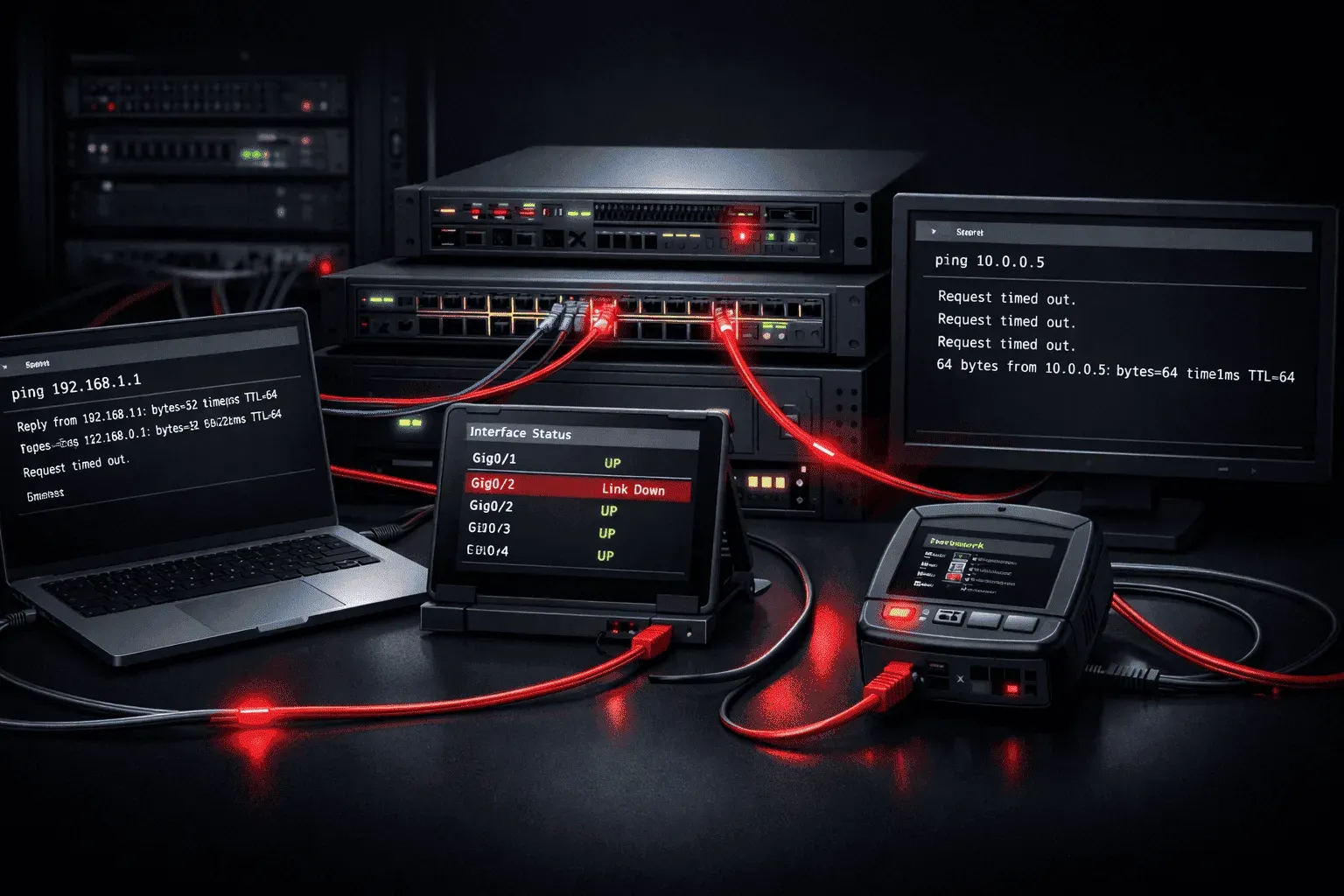
When networks start acting up, knowing how to systematically troubleshoot network errors can mean the difference between a quick fix and hours of frustrated downtime. Whether you're preparing for your CCNA or managing your first network, understanding common network issues and their solutions is essential.
The Systematic Approach to Network Troubleshooting
Before diving into specific problems, always follow a methodical approach. Start with the physical layer and work your way up the OSI model. The OSI model is a seven-layer framework that describes how data travels across a network, from physical cables at Layer 1 up through applications at Layer 7. Working bottom-up means you rule out simple physical problems before investigating software or configuration issues, which prevents you from chasing complex configuration problems when the culprit is simply a loose cable.
Use the ping command as your first diagnostic tool. It sends ICMP echo requests to a target address and reports whether responses are received, giving you a basic reachability test. Start by pinging the local loopback address:
ping 127.0.0.1If this fails, you have a serious local network stack issue. If it succeeds, move on to ping your default gateway, then external addresses like 8.8.8.8.
When ping alone isn't enough, traceroute (or tracert on Windows) shows the path packets take hop by hop to a destination, helping you identify exactly where in the network a failure or delay occurs:
traceroute 8.8.8.8Use netstat -rn to display the local routing table and confirm that the correct default gateway and routes are present on the device you're troubleshooting.
Physical Layer Problems
Physical connectivity issues cause more network problems than you might expect. Look for these common culprits:
- Cable problems: Damaged, loose, or incorrect cable types
- Port issues: Failed switch ports or network interface cards
- Power problems: Devices losing power intermittently
Check link status lights on your devices. Most switches show green lights for good connections and amber or red for problems. Use the show interfaces command on Cisco devices to check port status:
Switch# show interfaces fastethernet 0/1
FastEthernet0/1 is up, line protocol is up
The first "up" refers to the physical layer status (is a cable connected and signalling?). The second "up" after "line protocol" refers to the data link layer (is the protocol negotiating correctly?). If you see "administratively down," the port has been manually disabled with the shutdown command. If you see "line protocol is down" with the interface up, the physical connection exists but the link negotiation is failing.
IP Configuration Issues
Incorrect IP settings cause frequent network issues. Common problems include:
- Wrong subnet mask causing devices to think they're on different networks
- Duplicate IP addresses creating conflicts
- Incorrect default gateway preventing internet access
- DNS problems making websites unreachable by name
Verify IP configuration with ipconfig /all on Windows or ip addr show on Linux. Look for addresses in the correct subnet and ensure the default gateway is reachable with ping. The /all flag on Windows also shows DNS server addresses and DHCP lease information, which saves time when investigating address or name resolution issues.
DHCP-Related Problems
DHCP (Dynamic Host Configuration Protocol) automatically assigns IP addresses to devices on a network. When devices can't get IP addresses automatically, they typically fall back to a self-assigned address in the 169.254.x.x range, which is a reliable indicator that DHCP has failed.
Verify the DHCP server is running and has available addresses in its pool. On a Cisco router acting as DHCP server, use:
Router# show ip dhcp pool
Router# show ip dhcp binding
Check for DHCP relay issues if your server is on a different subnet. Devices need help finding DHCP servers across router boundaries using the ip helper-address command.
DNS Resolution Failures
DNS (Domain Name System) translates human-readable domain names like google.com into IP addresses that routers can forward traffic to. When DNS fails, websites become unreachable by name even though the underlying network connection is fine.
When you can ping IP addresses but can't reach websites by name, DNS is usually the culprit. Test DNS resolution by trying to ping a well-known domain:
ping google.comIf this fails but ping 8.8.8.8 works, check your DNS server settings. For more detailed DNS testing, use nslookup to query a specific DNS server directly:
nslookup google.com 8.8.8.8This tells you whether the problem is with your configured DNS server or with DNS resolution generally. Many home networks use the router's IP as the DNS server, which then forwards requests to upstream servers.
Switch and VLAN Issues
In switched environments, VLAN misconfigurations create connectivity problems. A VLAN (Virtual Local Area Network) logically segments a physical network so that devices in different VLANs cannot communicate with each other without routing. If a device is assigned to the wrong VLAN, it will lose connectivity to its intended peers even though all cables are correctly connected.
Check VLAN assignments with:
Switch# show vlan brief
Switch# show interfaces trunk
Ensure devices are in the correct VLANs and that trunk ports carry the necessary VLAN traffic between switches.
Performance Problems
Sometimes networks work but perform poorly. Look for:
- Bandwidth saturation: Too much traffic for the available capacity
- Duplex mismatches: One side set to full duplex, the other to half. Full duplex allows simultaneous sending and receiving; half duplex only allows one direction at a time. A mismatch causes collisions and significant performance degradation.
- High collision rates: Usually indicating physical problems
Monitor interface statistics to identify performance bottlenecks:
Switch# show interfaces fastethernet 0/1 | include errorDocumentation and Escalation
Always document your troubleshooting steps and findings. This helps when escalating issues and prevents repeating the same tests. Create a simple network diagram showing IP addresses, VLANs, and device connections.
What's Next: Now that you understand basic troubleshooting techniques, we'll explore network monitoring tools and how to proactively identify problems before they impact users.
CCNA study resources
- CCNA Official Cert Guide Library (Wendell Odom) - Both volumes covering the full 200-301 exam blueprint. The definitive CCNA study resource.
- Wendell Odom CCNA Vol 1 - Networking fundamentals, switching, VLANs, STP, and IPv4 routing.
- Wendell Odom CCNA Vol 2 - Advanced routing, WAN, security, automation, and network management.