
Troubleshooting SSH Connectivity Issues
This post walks CCNA learners through the most common SSH connectivity issues on Cisco devices and how to resolve them step by step. Topics include verifying crypto keys, VTY line configuration, local authentication, and ACL troubleshooting. A practical checklist ties everything together.

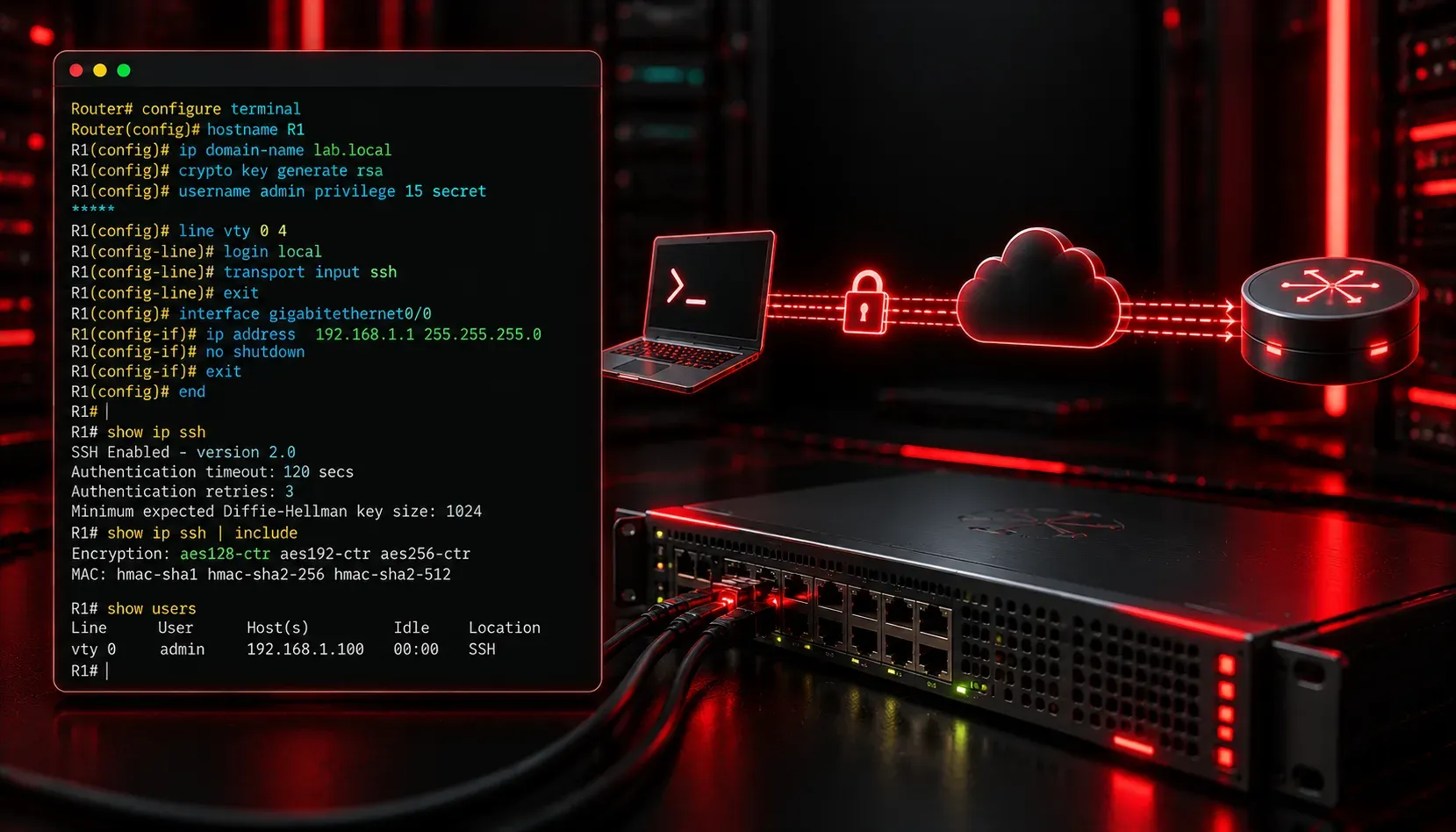
SSH is one of the most important tools in a network engineer's toolkit. It gives you secure, encrypted access to your Cisco devices remotely. But when SSH connectivity issues crop up, they can be frustrating, especially if you are not sure where to start looking. This post walks you through the most common SSH problems and how to fix them systematically.
Start with the Basics: Can You Reach the Device?
Before diving into SSH-specific troubleshooting, confirm that basic IP connectivity exists. If you cannot ping the device, SSH will not work either. Run a quick ping test from your workstation or a neighboring device:
ping 192.168.1.1If ping fails, focus on routing and interface configuration first. SSH problems are almost always a Layer 3-or-higher issue, so get the foundation solid before moving on.
Verify SSH Is Actually Enabled on the Device
This sounds obvious, but many beginners configure Telnet access and forget to enable SSH entirely. On a Cisco device, check the current transport settings on your VTY lines:
Router# show running-config | section line vty
line vty 0 4
 login local
 transport input ssh
If you see transport input telnet or transport input all instead of transport input ssh, SSH may not be the enforced protocol. To restrict access to SSH only, use:
Router(config)# line vty 0 4
Router(config-line)# transport input ssh
Check the Crypto Key and SSH Version
SSH requires an RSA crypto key pair to be generated on the device. Without it, the SSH service simply will not start. Check whether a key exists:
Router# show crypto key mypubkey rsaIf no output appears, you need to generate the key. Make sure a hostname and domain name are configured first, because Cisco uses both to name the key pair:
Router(config)# hostname R1
R1(config)# ip domain-name anythingoverip.com
R1(config)# crypto key generate rsa modulus 2048
Also confirm you are running SSH version 2, which is more secure and more compatible with modern clients:
R1(config)# ip ssh version 2Confirm Local Authentication Is Configured
SSH requires username-based authentication. If you have not created a local user account, the connection will be refused or immediately dropped. Verify with:
Router# show running-config | section usernameIf no usernames are listed, create one:
Router(config)# username admin privilege 15 secret StrongPassword1Also make sure the VTY lines use login local so the device actually checks the local user database.
Common SSH Connectivity Errors and What They Mean
- Connection refused: SSH is not enabled or the VTY lines are not configured to accept SSH.
- Connection timed out: The device is not reachable at the IP level, or an ACL is blocking port 22.
- Authentication failed: The username or password is incorrect, or
login localis missing from the VTY config. - Key exchange failed: The client and server do not share compatible encryption algorithms. Try specifying an older algorithm on modern SSH clients with
ssh -oKexAlgorithms=+diffie-hellman-group1-sha1 [email protected].
Check for ACLs Blocking Port 22
Access control lists applied to interfaces or VTY lines can silently block SSH traffic. SSH uses TCP port 22. Check for any applied ACLs:
Router# show ip interface GigabitEthernet0/0Look for inbound or outbound ACLs. If one is applied, review the rules to make sure TCP port 22 traffic is permitted from your management network.
Quick Troubleshooting Checklist
- Confirm basic IP reachability with
ping. - Verify an RSA key pair exists and SSH version 2 is set.
- Check VTY lines have
transport input sshandlogin local. - Confirm a local username is configured.
- Look for ACLs blocking TCP port 22.
What's Next
Now that you can troubleshoot SSH connectivity issues confidently, the next step is understanding how to secure your management plane further. In the next post, we will look at how Access Control Lists can be applied specifically to VTY lines to restrict which IP addresses are even allowed to attempt an SSH session.
Tools and resources for this topic
- Wendell Odom CCNA Vol 1 — Covers networking fundamentals, switching, and routing basics.
- Wendell Odom CCNA Vol 2 — Covers advanced routing, WAN, infrastructure services, and security.