
Understanding Command Outputs: Ping vs Traceroute
This post breaks down the outputs of ping and traceroute, explaining what each line means and when to use each command. Aimed at CCST Networking beginners, it covers round-trip time, TTL, hop-by-hop path mapping, and how to interpret asterisks and packet loss in diagnostic output.

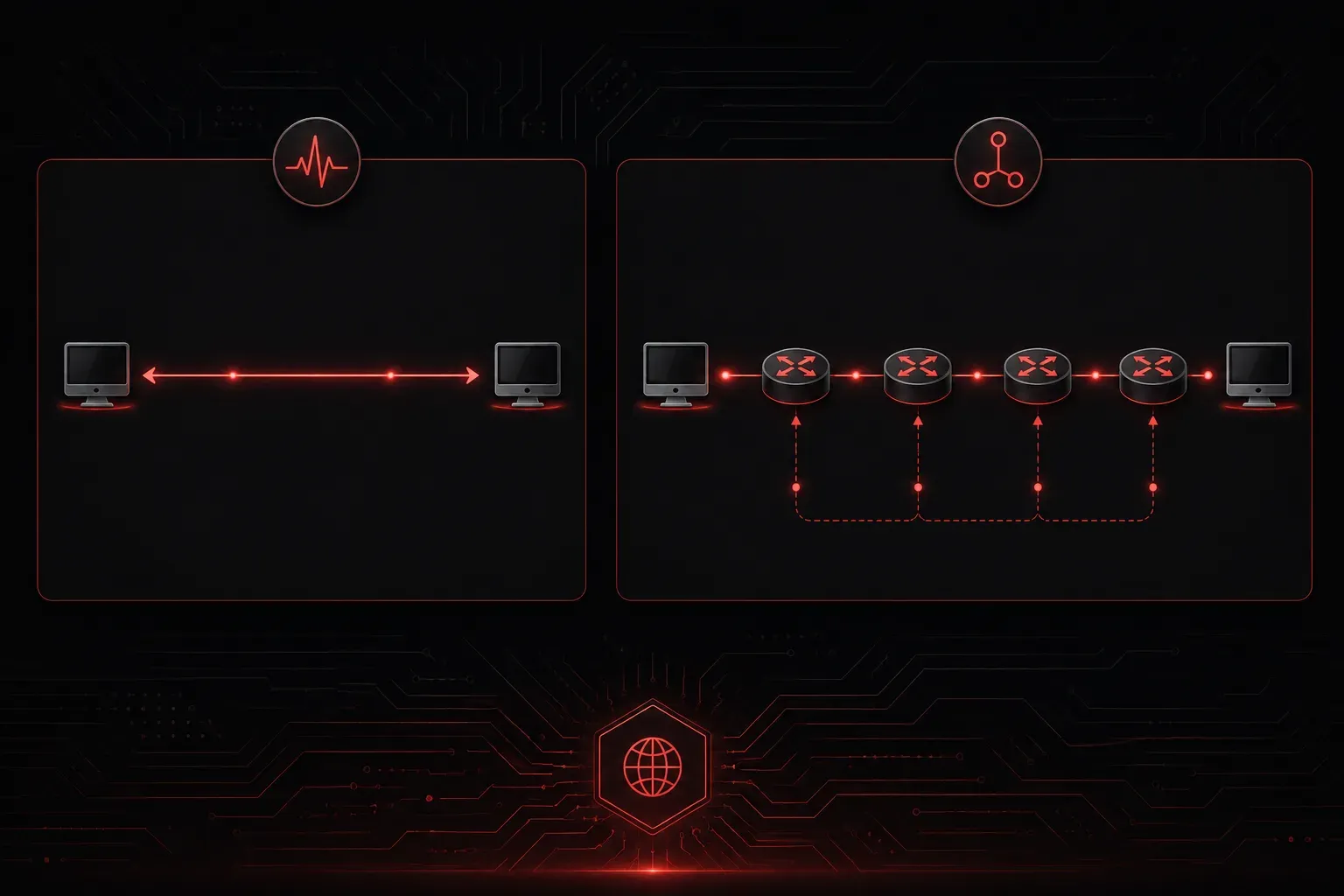
When something isn't working on a network, two commands are almost always the first tools you reach for: ping and traceroute. Both are built-in diagnostics available on virtually every operating system, and both tell you something about network connectivity. But they answer different questions, and their outputs look very different. Understanding what each one is showing you is a foundational skill for anyone working toward the CCST Networking certification.
What Ping Is Actually Telling You
ping sends ICMP Echo Request packets to a destination and waits for Echo Reply packets in return. It's essentially asking: "Are you there, and can we talk?" The output gives you a simple pass/fail answer along with some timing data.
Here's what a typical ping output looks like on a Windows machine:
C:\> ping 8.8.8.8

Pinging 8.8.8.8 with 32 bytes of data:
Reply from 8.8.8.8: bytes=32 time=14ms TTL=118
Reply from 8.8.8.8: bytes=32 time=13ms TTL=118
Reply from 8.8.8.8: bytes=32 time=15ms TTL=118
Reply from 8.8.8.8: bytes=32 time=14ms TTL=118

Ping statistics for 8.8.8.8:
    Packets: Sent = 4, Received = 4, Lost = 0 (0% loss),
Approximate round trip times in milli-seconds:
    Minimum = 13ms, Maximum = 15ms, Average = 14ms
Here's what each part means:
- bytes=32 - The size of the test packet sent
- time=14ms - Round-trip time (RTT): how long the packet took to go there and come back
- TTL=118 - Time To Live: a counter that decrements at each router hop; tells you roughly how far away the host is
- 0% loss - All packets made it back successfully
If you see Request timed out or high packet loss, that tells you there's a connectivity problem somewhere between you and the destination. What it does not tell you is where that problem is.
What Traceroute Is Actually Telling You
This is where traceroute (or tracert on Windows) fills the gap. Instead of just checking end-to-end reachability, it maps every router hop along the path. It does this cleverly by sending packets with incrementally increasing TTL values, causing each router along the way to respond with an ICMP Time Exceeded message.
Here's a sample tracert output on Windows:
C:\> tracert 8.8.8.8

Tracing route to dns.google [8.8.8.8] over a maximum of 30 hops:

  1     1 ms     1 ms     1 ms  192.168.1.1
  2    12 ms    11 ms    12 ms  10.0.0.1
  3    13 ms    13 ms    14 ms  72.14.204.1
  4    14 ms    14 ms    13 ms  8.8.8.8

Trace complete.
Each line represents one router hop. The three time values are three separate probes sent to that hop. Here's how to read it:
- Hop 1 (192.168.1.1) - Your default gateway, likely your home router
- Hop 2 (10.0.0.1) - Your ISP's first device
- Hop 3 onward - Further upstream routers in your ISP or on the internet
- Three time values - Latency for each of the three probe packets to that hop
If you see asterisks (* * *) on a line, that hop is not responding to probes. This doesn't always mean a problem; some routers are configured to silently drop ICMP packets. But if everything after a certain hop goes silent, that's a strong signal that the problem lives at or beyond that router.
Ping vs Traceroute: Choosing the Right Tool
Think of it this way: use ping to confirm whether a destination is reachable and check basic latency. Use traceroute when ping fails or shows problems and you need to find where in the path the issue is occurring. In real-world network diagnostics, you'll almost always run both.
A quick comparison:
- ping - Tests end-to-end reachability; shows latency and packet loss to the destination
- traceroute - Maps the full path; shows latency per hop and reveals where failures occur
Together, these two commands form the core of a beginner's network diagnostics toolkit. They're simple, fast, and available on every platform, which is exactly why they appear on the CCST Networking exam and in every real-world troubleshooting workflow.
What's Next
Now that you can read and interpret ping and traceroute outputs, the next step is understanding what to do when those commands reveal a problem. In the next post, we'll look at common connectivity issues and how to use these tools alongside ipconfig and nslookup to systematically isolate and resolve them.